Invoices and payments
You're invoiced after service, not when you order.
- In the app
- In the web portal
The Billing tab
When you owe something, Amount owed at the top shows the total. Under it, every invoice with its number, amount, status, and when it was sent.
- All / Unpaid / Past due / Paid filter the list.
- Cards (the second section) holds your saved cards.
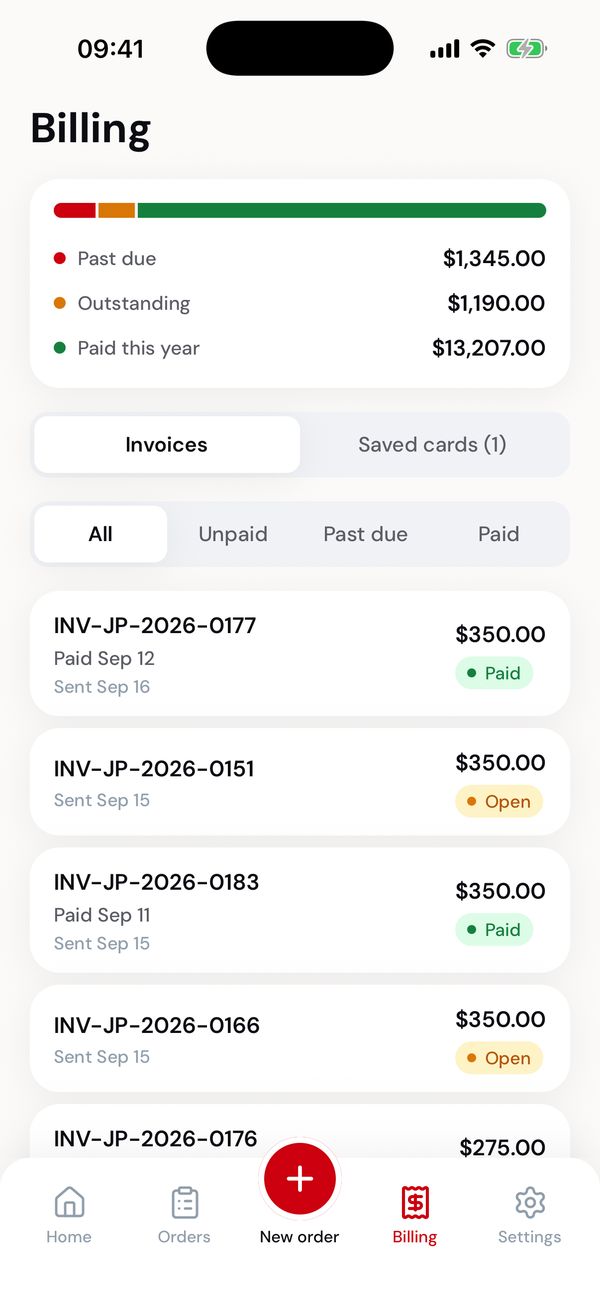
What you owe, and every invoice.
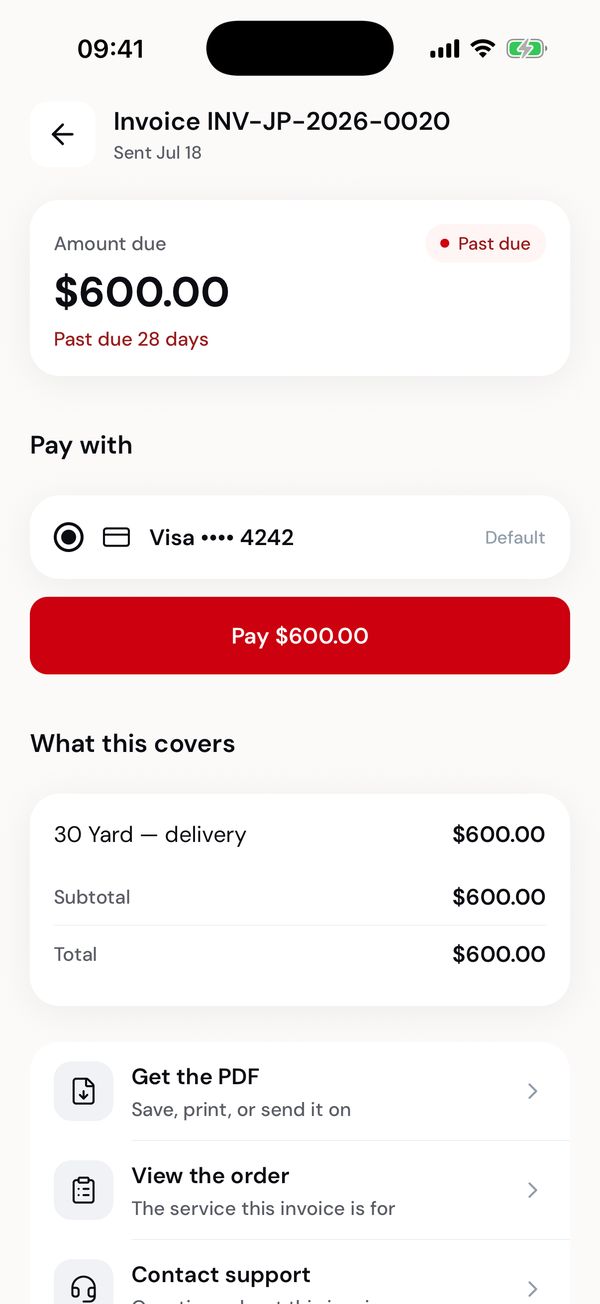
An invoice that's past due.
An invoice
The top shows the amount due and when it's due, or when it was paid. What this covers lists the lines: the service, extra days, overweight charges and tax, when there is any.
Further down: View the PDF (opens in the app, with a share button to save or print), View the order this invoice is for, and Contact support.
Paying
- Open the invoice and find Pay with.
- Choose a saved card. Your default card is picked for you.
- Tap Pay $…, then confirm in the sheet. Nothing is charged until you confirm.
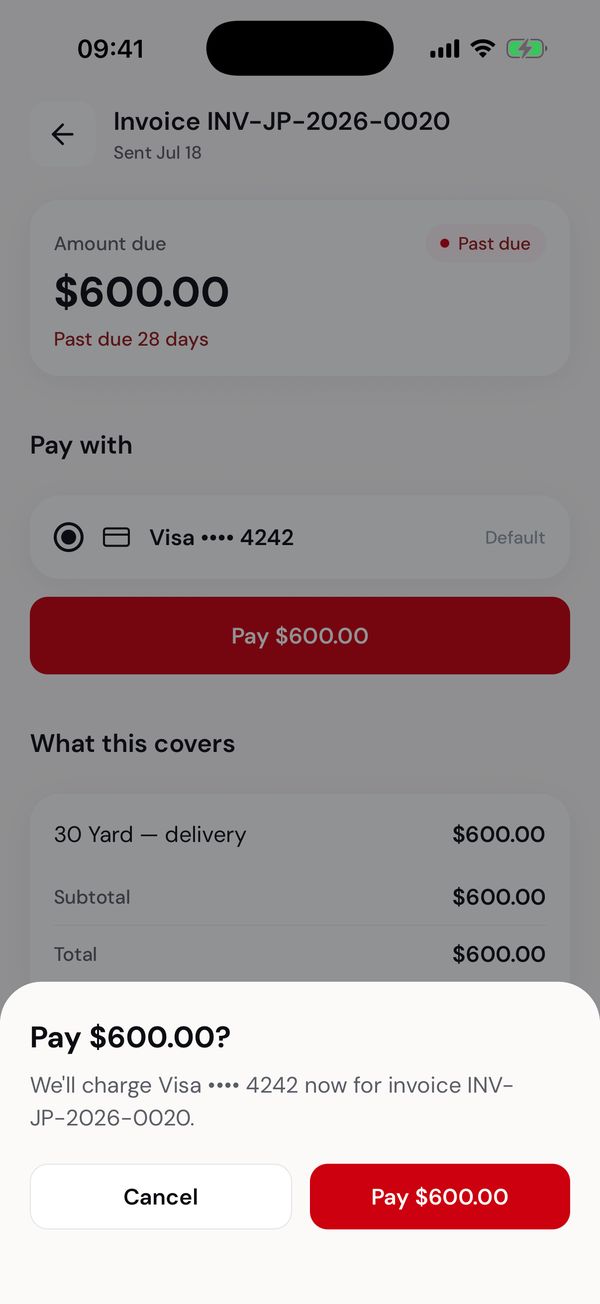
Confirm before anything is charged.
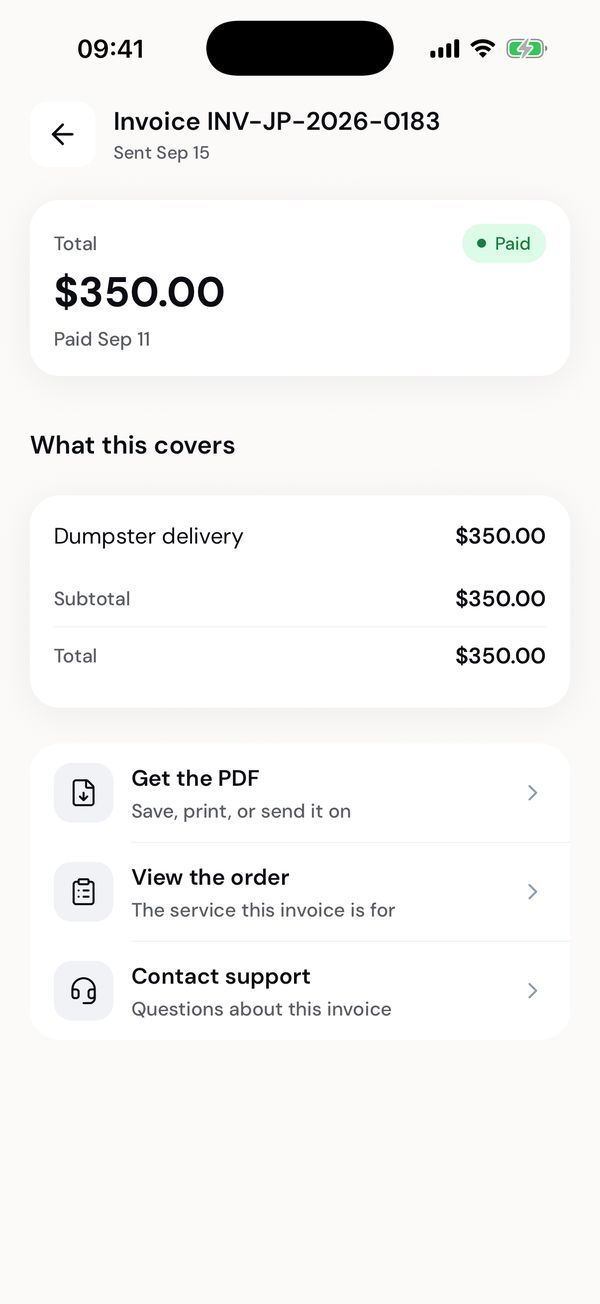
Paid, with the PDF for your records.
When it goes through, the invoice is marked paid, you get a receipt by email, and your balance on Home and Billing updates.
If a card is declined, the app says why. A declined payment puts the account on hold until the invoice is paid: try another card, or contact the office. Other answers the app explains rather than leaving you guessing:
| What happened | What to do |
|---|---|
| Only part of the amount was approved | Contact the office to settle the rest. Don't pay again. |
| A payment is already going through | Wait a minute and check back before trying again. |
| The invoice is already paid | Nothing to do. |
Billing opens on your balance. When you owe something it shows the amount owed, split into past due and open. When you owe nothing it says you are all paid up.
The Invoices tab lists them with their due date, status and amount, filtered by All, Unpaid, Past due or Paid. Payment methods beside it holds your saved cards.
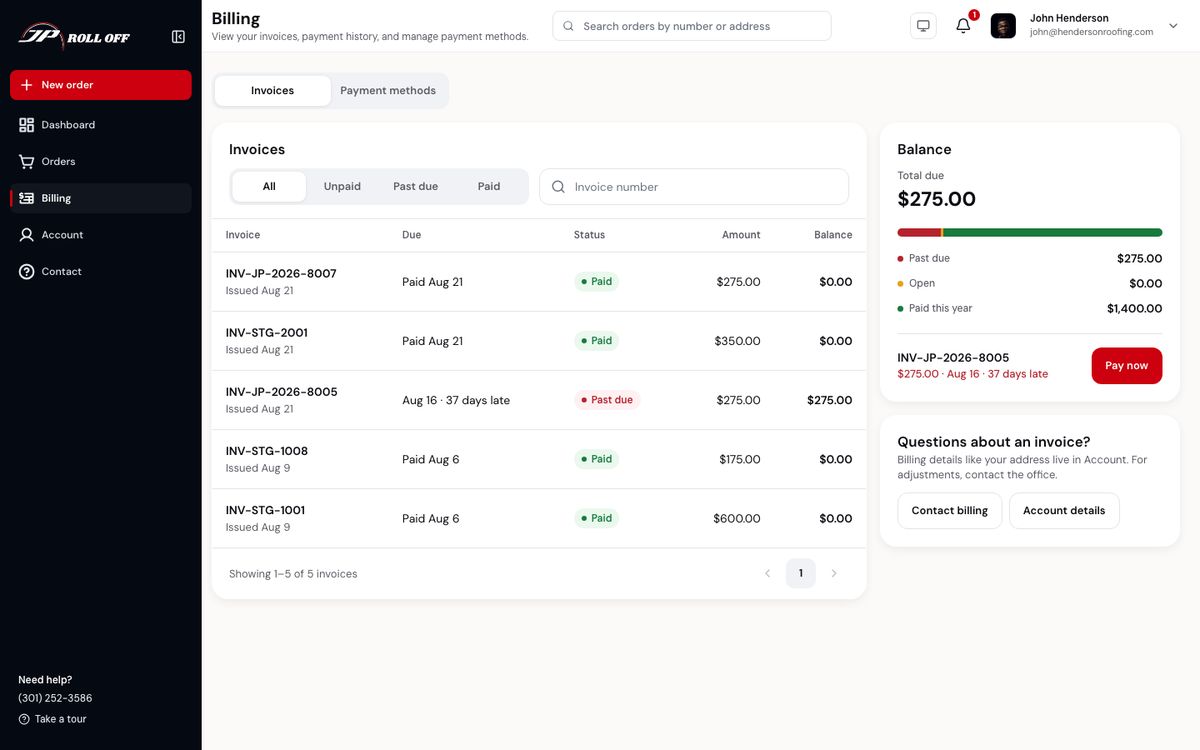
Pay now sits on the invoice that needs you most.
Click an invoice to open it: who it's billed to, the line items, the totals, and the balance due. Download PDF saves it.
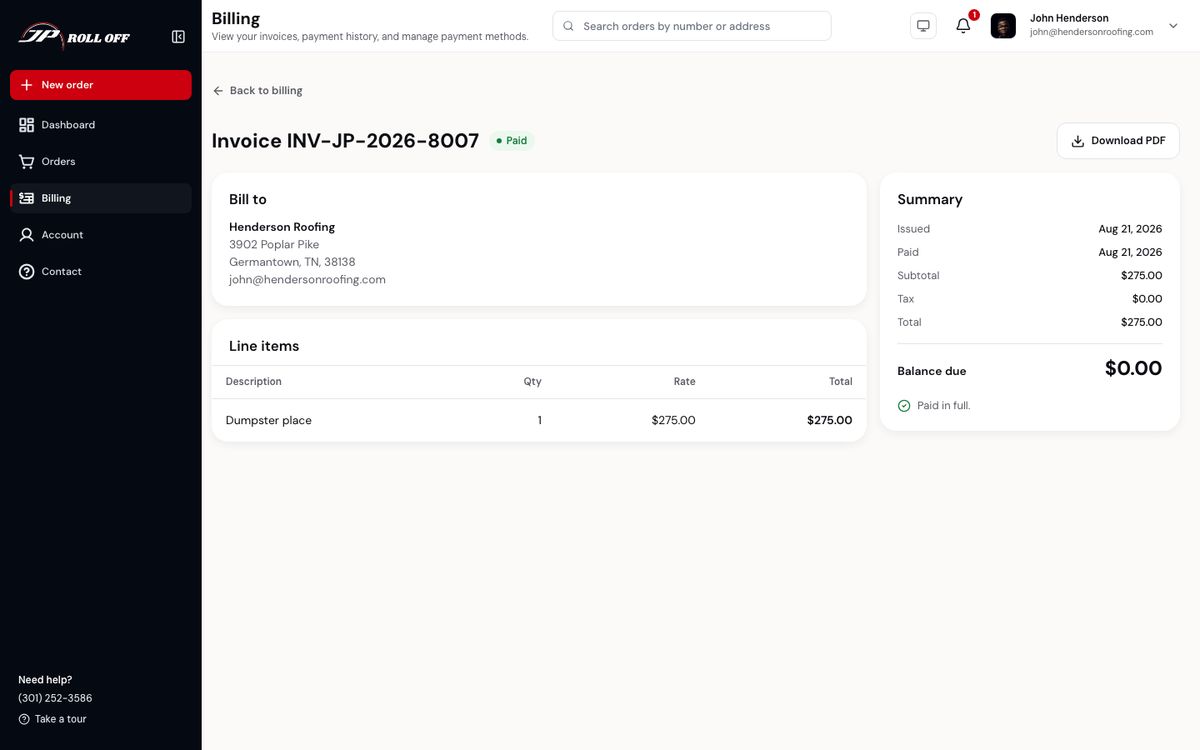
Saved cards
Settings → Saved cards, or the Cards section on Billing.
- Add a card: card details go straight to our payment provider's own form. JP Roll Off never sees or stores your card number.
- Remove: asks first.
- Your default card is marked Default card and is the one preselected when you pay.
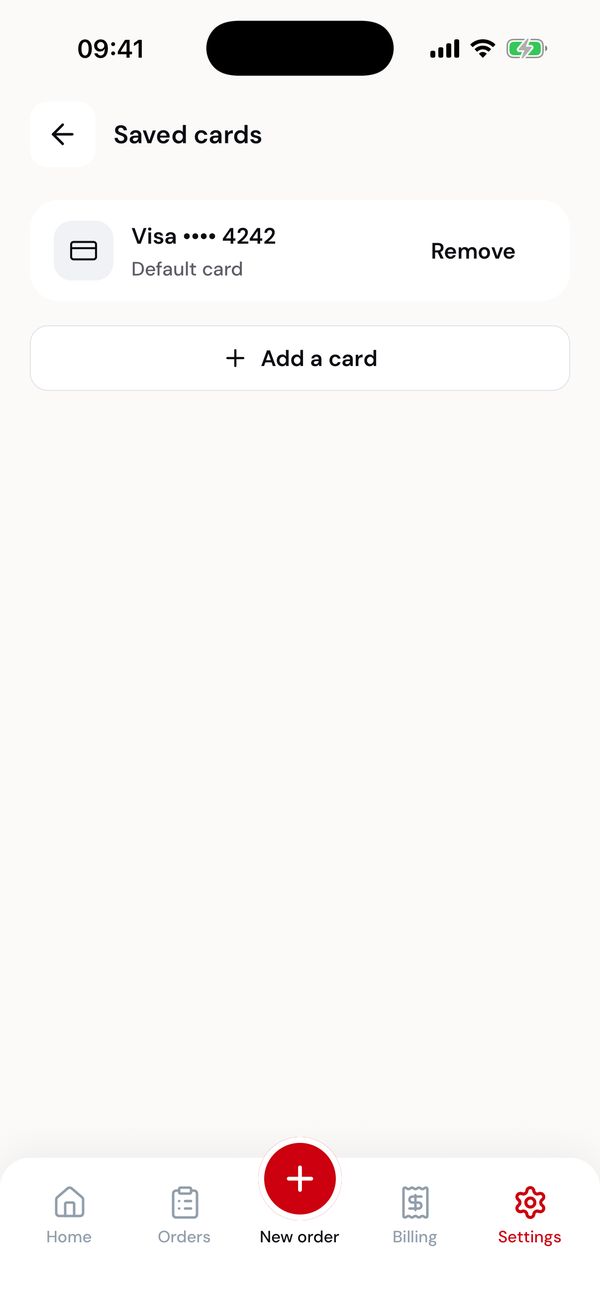
Your cards.
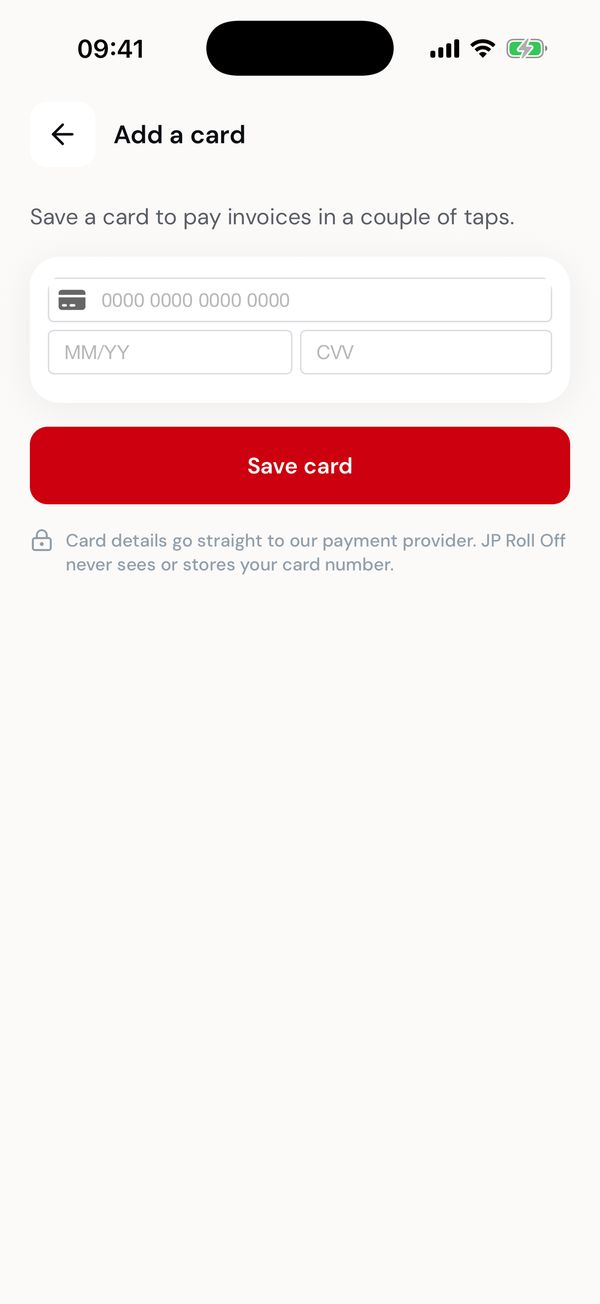
The card form comes from the payment provider.
There's no auto pay, and no way to change which card is the default in the app: ask the office.
Next: Notifications