Get started
You can use JP Roll Off Hub two ways, on one account: the app on your phone, and the web portal in a browser. The same orders, invoices and sites appear in both.
Every page in this guide has a tab for each. Pick one and the rest of the guide follows you.
Create an account, and sign in
- In the app
- In the web portal
- Open the app and tap Customer Portal.
- Tap Create account.
- Enter your first and last name, your company (optional), phone, email and a password of at least 8 characters.
- Tap Create account.
We email you a link to verify your address. Open it, then come back to the app and sign in. You can't sign in until the address is verified.
To sign in, enter your email and password and tap Sign in. Turn on Keep me signed in on your own phone to stay signed in for longer.
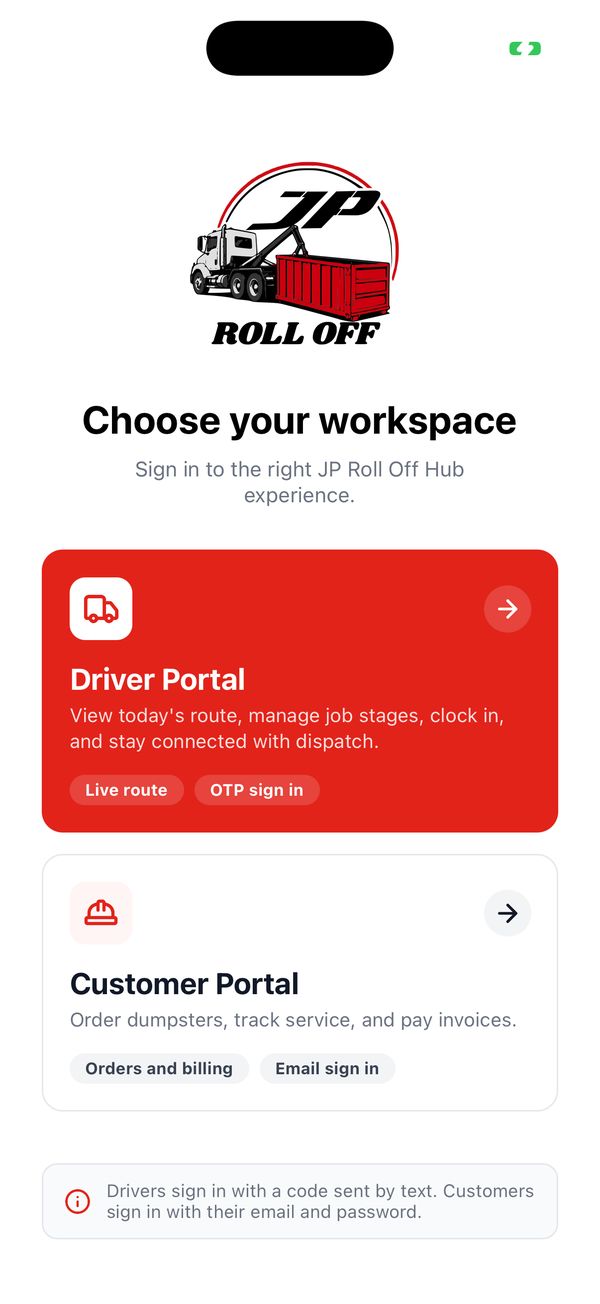
Customers use Customer Portal.
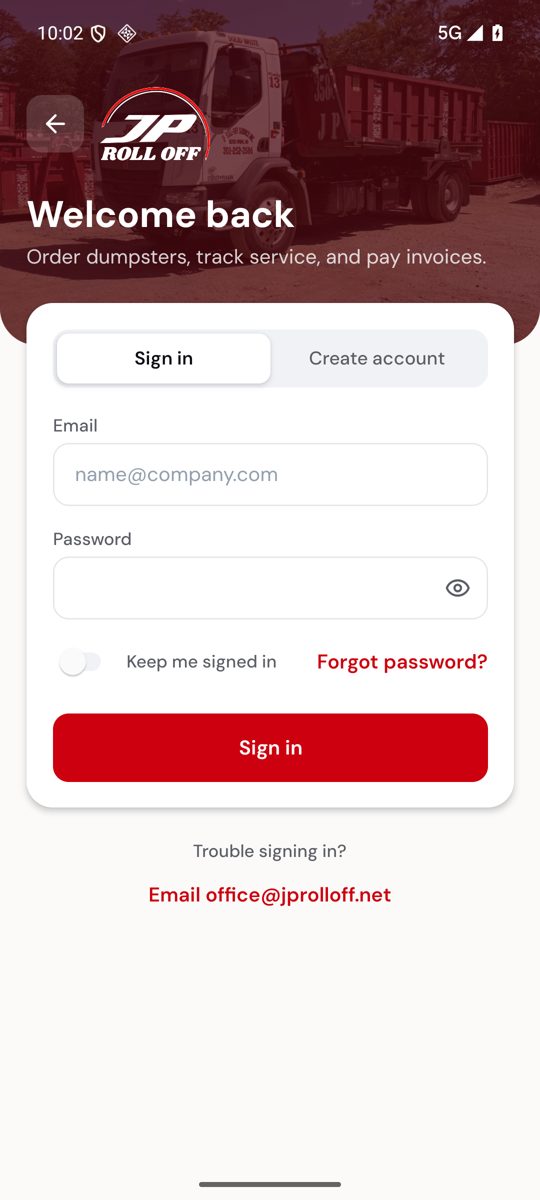
Sign in with your email and password.
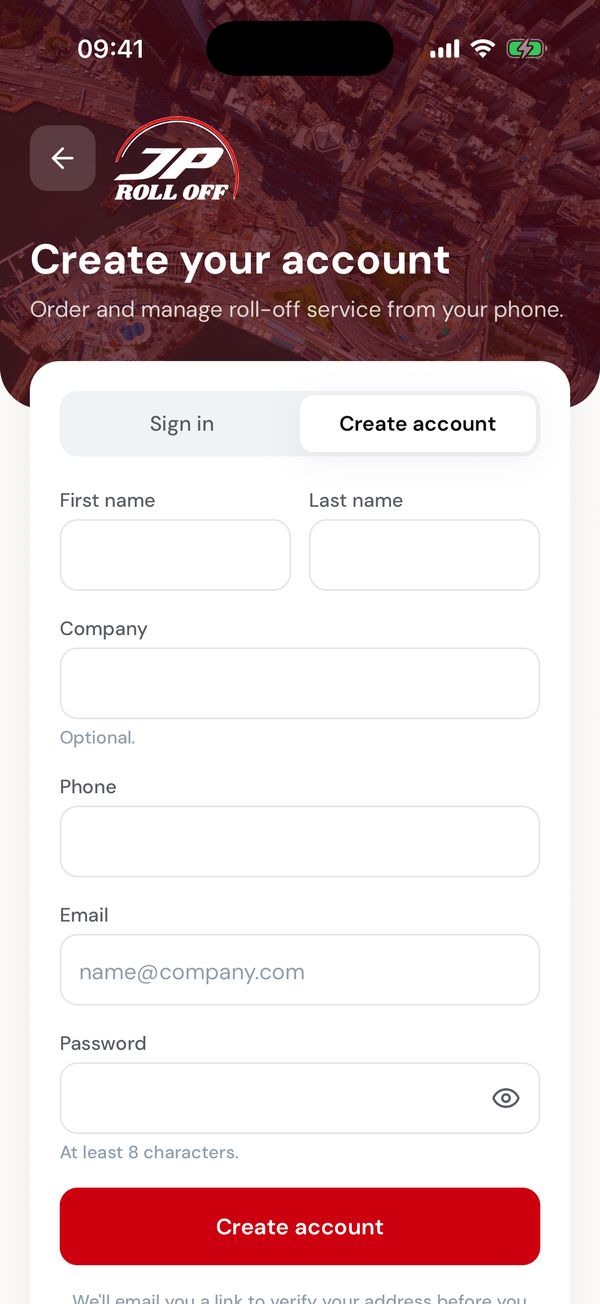
New here? Create account.
Forgot your password? Tap it on the sign-in screen, enter your email and tap Send reset link. If there's an account for that address, a link to choose a new password arrives by email. It opens in your browser.
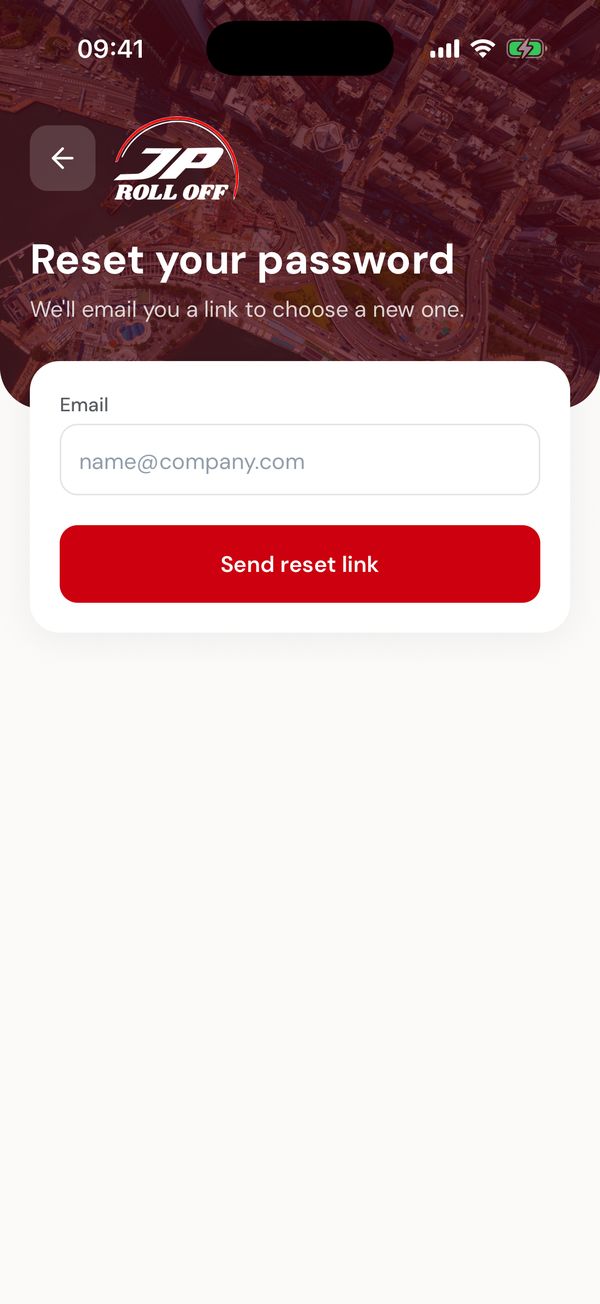
A reset link comes by email.
Still stuck? The sign-in screen has the office's email under Trouble signing in?
Go to the portal address your account manager gave you and sign in with the same email and password you use in the app. There's one account for both.
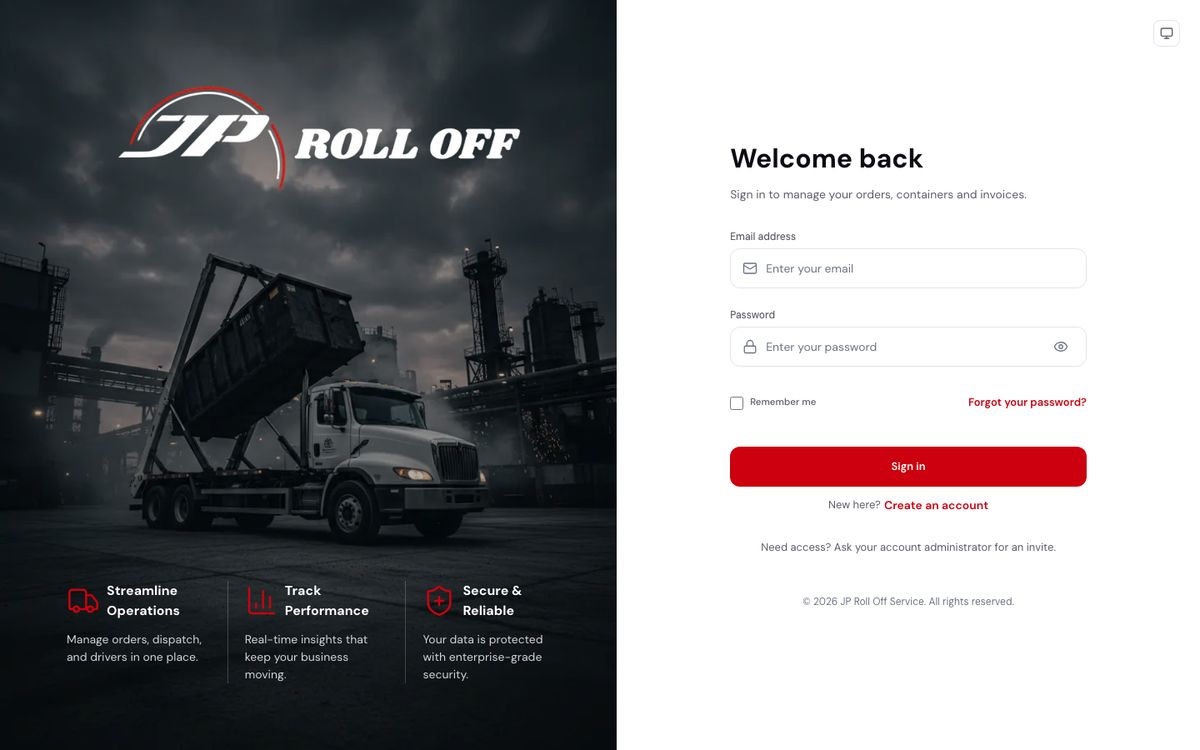
The same credentials as the app.
Create account on that screen opens the same sign-up: name, company, phone, email and a password of at least 8 characters. The verification email works the same way, and you can't sign in until the address is verified.
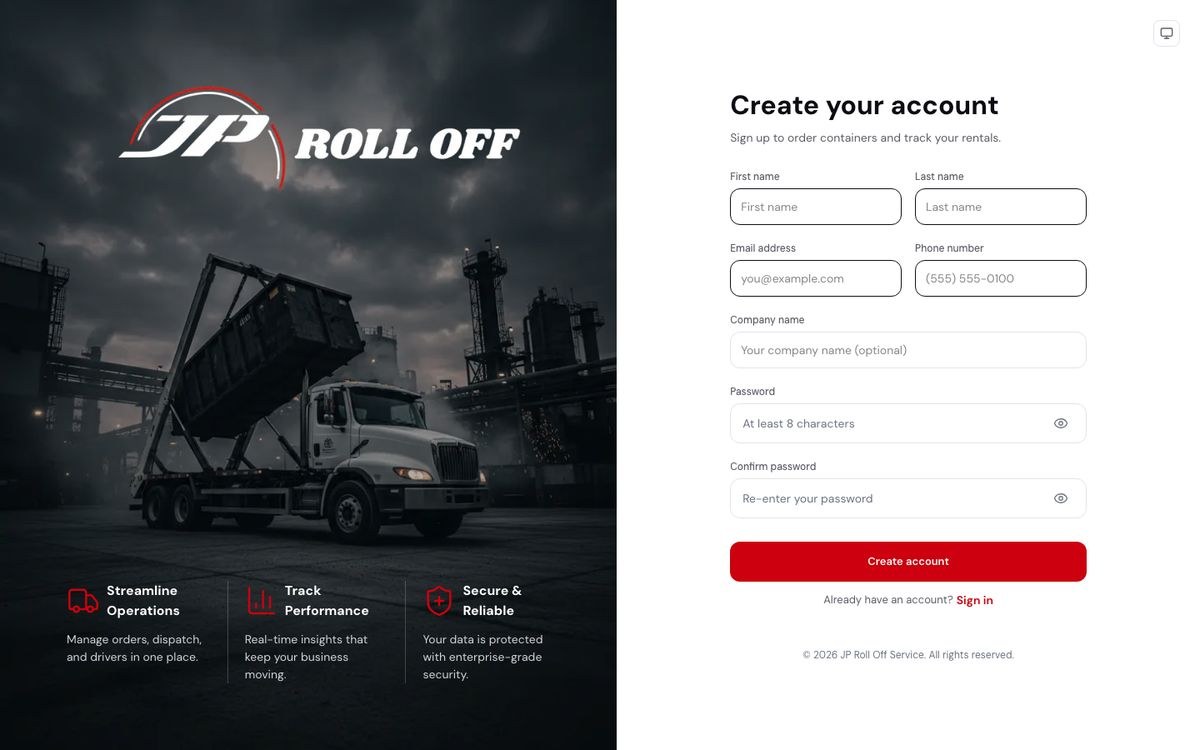
Forgot password? sends the reset link to your email.
Finding your way around
- In the app
- In the web portal
Home is where you land. From the top:
- The bell opens your notifications. The red number is how many you haven't read.
- Search finds orders by number or address, and invoices by number.
- Do we deliver to you? checks a ZIP code and shows the starting price there.
- Quick actions: New order, Request pickup, Swap container, Pay invoice, Check service area and Support.
- On site: the containers on your sites now, with what's next for each. See Containers on your sites.
- Account: the amount you owe, shown only when you owe something, and the invoice that needs you most, with Pay now.
- Upcoming service: your next deliveries, pickups and swaps.
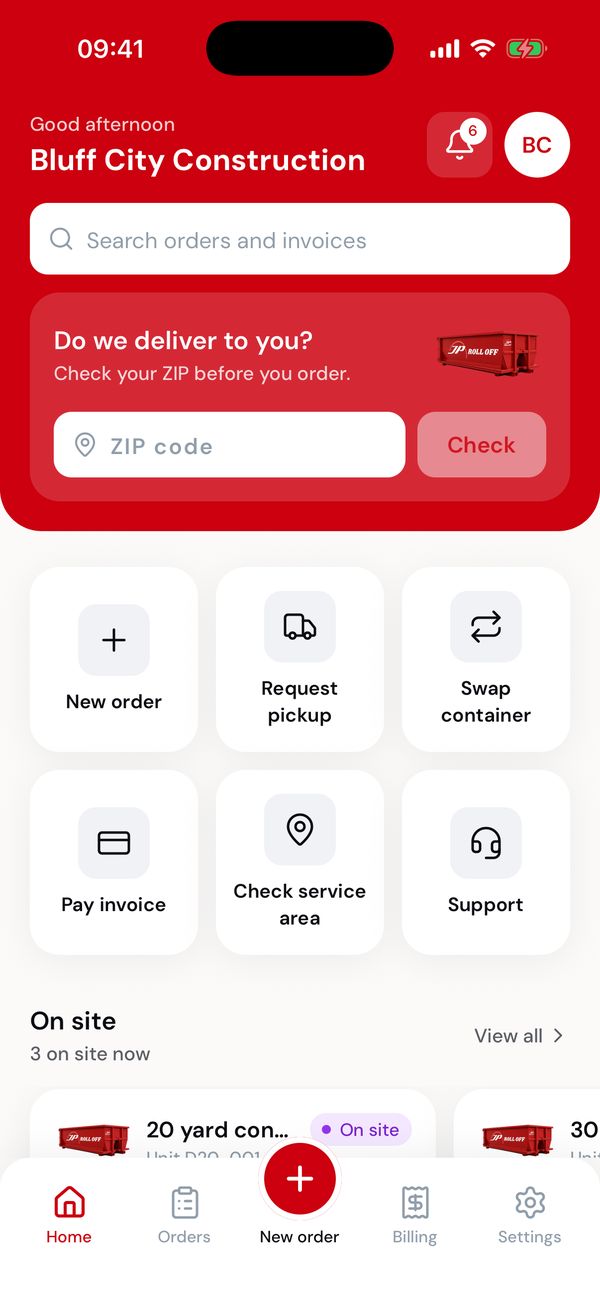
The top of Home.
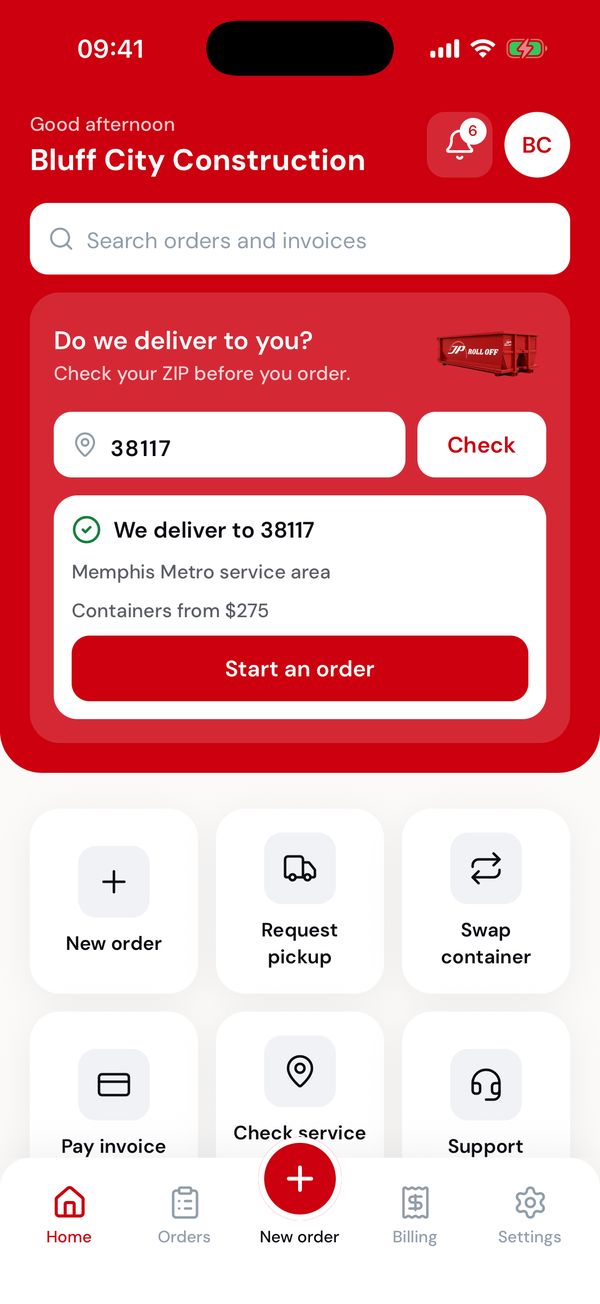
Check a ZIP before you order.
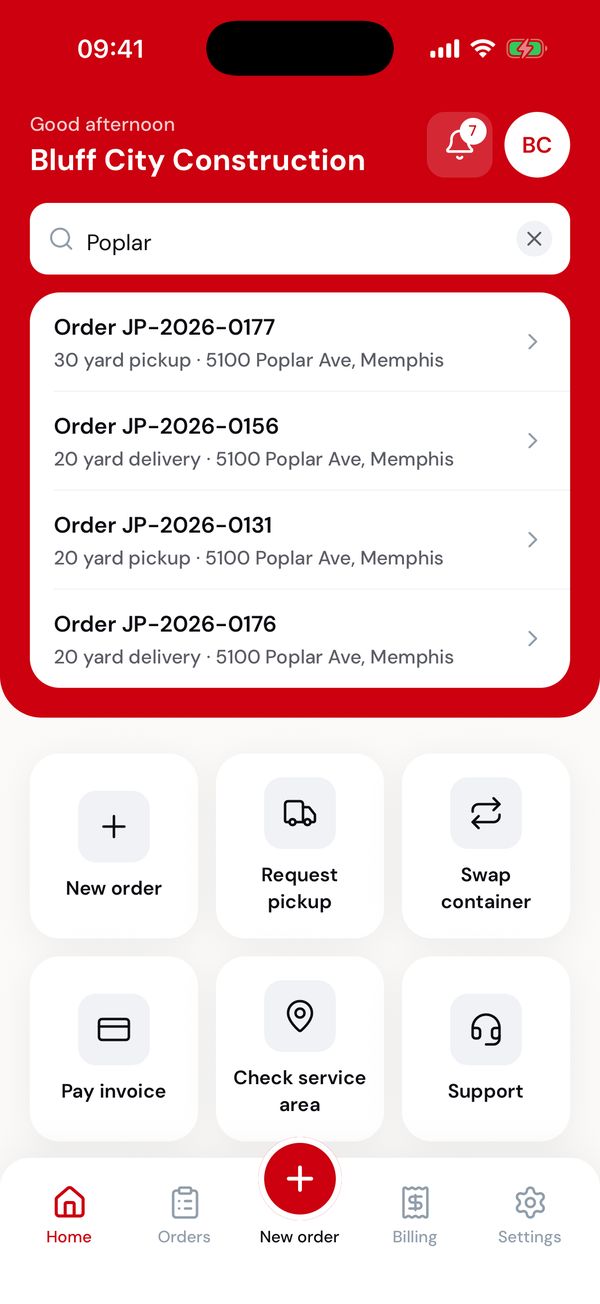
Search shows what each result is.
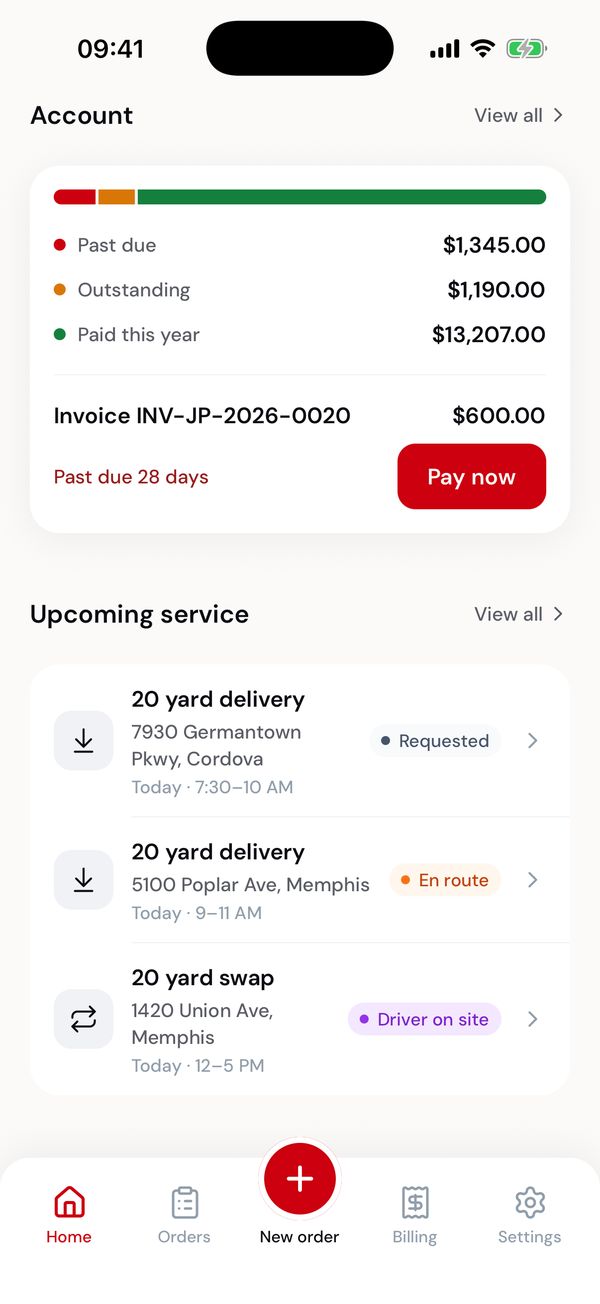
Your balance and what's coming up.
The tab bar
| Tab | What's there |
|---|---|
| Home | Everything above. |
| Orders | Every order, with filters and search. |
| New order (red button) | Start an order from anywhere in the app. |
| Billing | Invoices and saved cards. |
| Settings | Your profile, job sites, cards, password, notifications and help. |
Dashboard is where you land. It answers the same questions Home does in the app, laid out for a wider screen.
- Quick actions across the top: New order, Request pickup, Pay invoice, Contact support.
- Upcoming service — your next deliveries, pickups and swaps, and how many containers are on your sites.
- Recent orders — the last few, with their status.
- Account — the amount owed, split into past due and open (shown only when you owe something), with Pay now on the invoice that needs you most.
- Recent activity — what's happened lately, like a driver setting off.
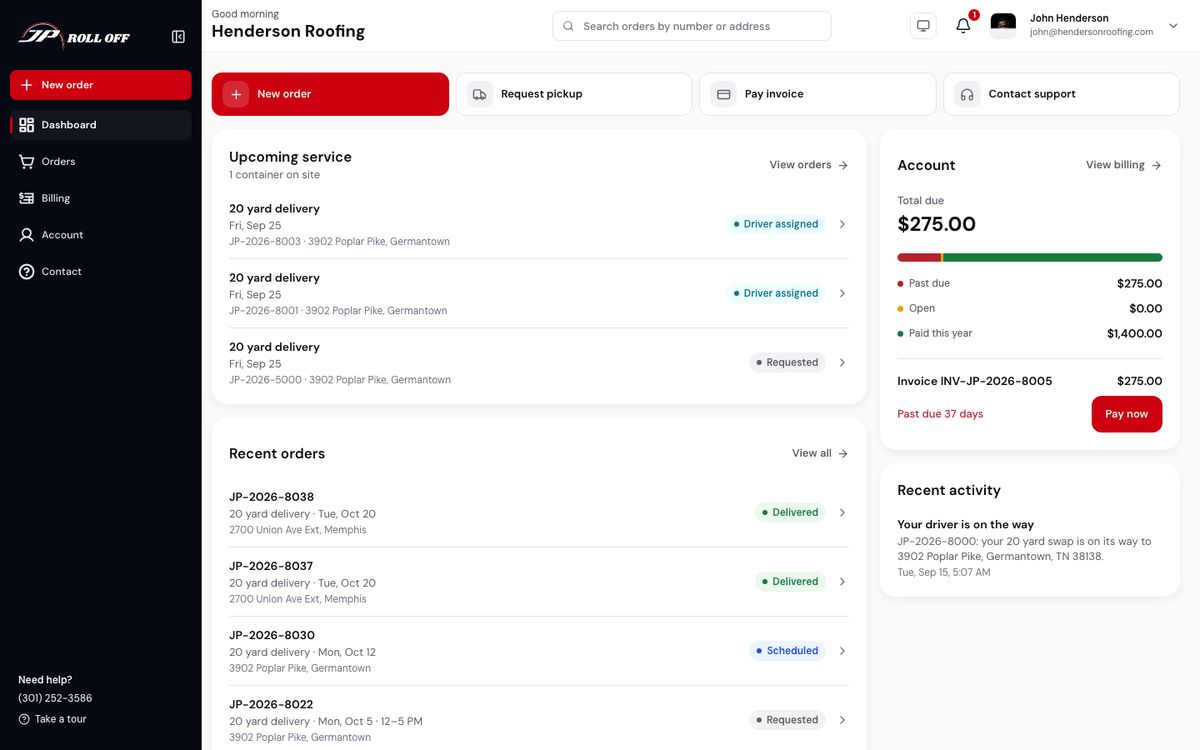
The dashboard. Take a tour in the bottom corner walks you through it.
The sidebar down the left is the whole portal:
| Item | What's there |
|---|---|
| Dashboard | Everything above |
| Orders | Every order, with filters and search |
| Billing | Invoices, payment history and saved cards |
| Account | Your profile, job sites and company details |
| Contact | Support |
New order sits at the top of the sidebar, in red, on every page. The search box at the top finds orders by number or address.
Next: Place an order