Notifications
The app keeps you posted on your orders and your bills. Everything lands in your notifications list, whatever you turn off.
What you get, and when
| You'll hear | When | In the app | |
|---|---|---|---|
| Order received | You place an order | Yes | Yes |
| Dumpster scheduled for delivery, Pickup scheduled, Swap scheduled | The office books it in with a driver | Yes | Yes |
| New date for your order | The office moves the day or time window | Yes | Yes |
| Your driver is on the way | The driver sets off for your site | Yes | – |
| Dumpster delivered, picked up, swapped, moved | The driver finishes at your site. A delivery includes the date the rental runs until | Yes | – |
| Order complete | The job is closed | Yes | Yes |
| Order cancelled | The order is cancelled | Yes | Yes |
| Rental ending soon | Two days before a rental ends, unless a pickup or swap is booked | Yes | Yes |
| Overweight charge added | The load came in over the weight included | Yes | Yes |
| New invoice | The office sends an invoice | Yes | The invoice itself, with a PDF |
| Payment received | A payment goes through | Yes | Receipt |
| Payment declined | A card is declined (the account goes on hold) | Yes | Yes |
| Invoice overdue | An invoice passes its due date | Yes | Yes |
- In the app
- In the web portal
Your notifications
Tap the bell on Home. Notifications are grouped by day, newest first, and unread ones have a red dot. Tap one to open the order or invoice it's about. Mark all read clears the count.
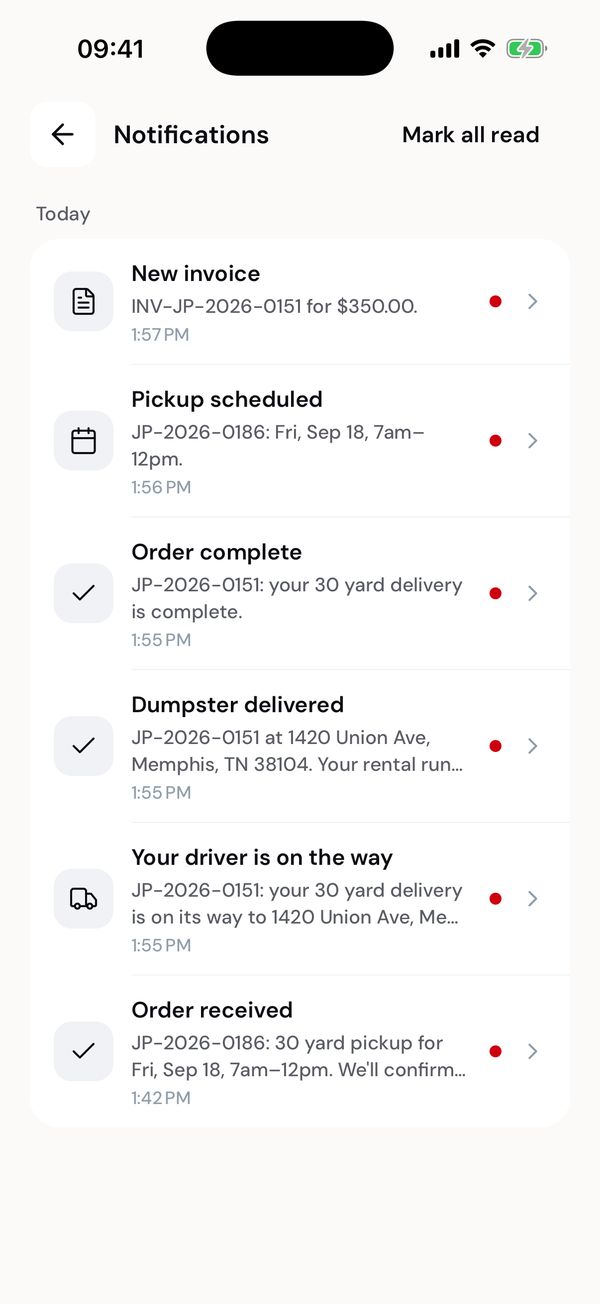
Everything, newest first.
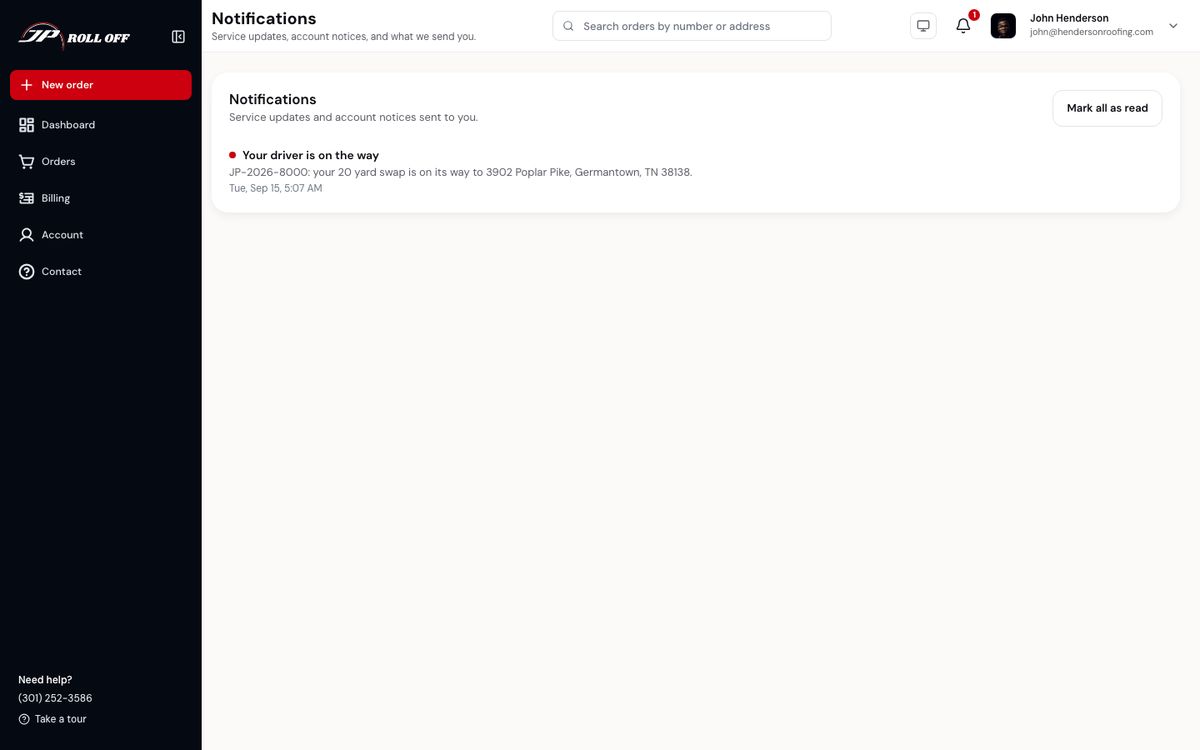
Notifications in the sidebar is the same list: everything the system has sent you, newest first, with unread ones marked. Mark all as read clears the badge.
Choose what you get
- In the app
- In the web portal
Settings → Notifications:
| Category | Covers | You can turn off |
|---|---|---|
| Order updates | Order received, scheduled or moved, driver on the way, delivered or picked up, completed, cancelled, rental ending soon | Notifications, email, or both |
| Billing | New invoices, overweight charges, declined payments, overdue invoices | Notifications, email, or both |
| Payment receipts | A receipt every time a payment goes through | Always on |
Turning something off stops the notification or email. It still appears in your notifications list in the app.
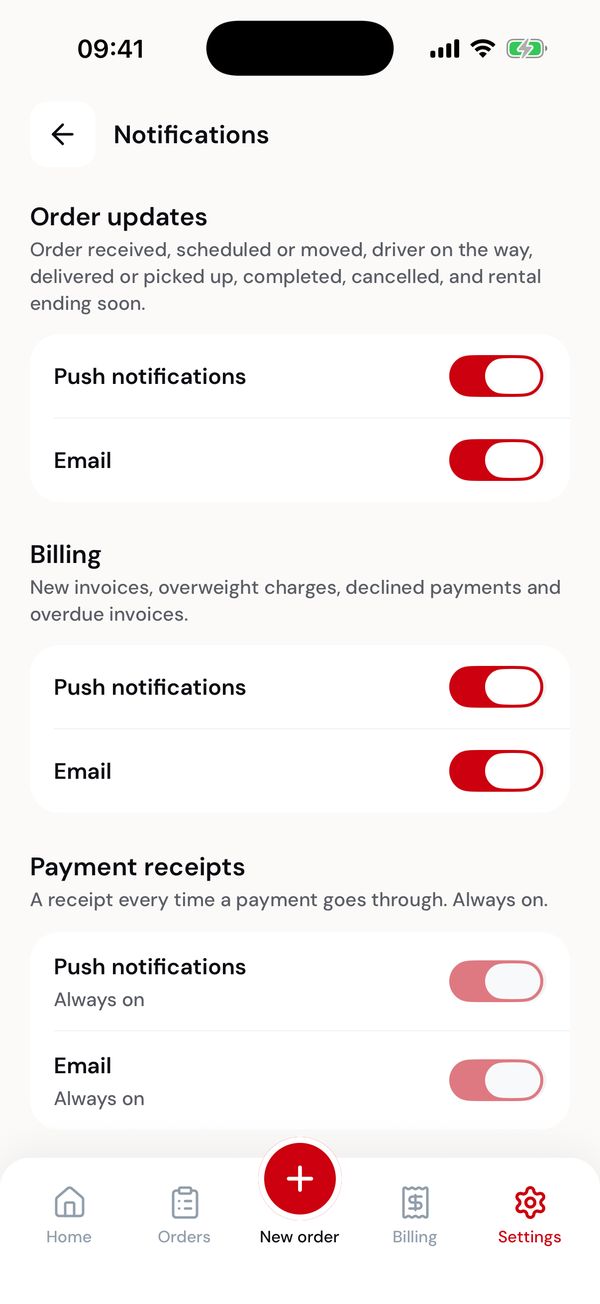
Order updates, billing, and receipts.
Emails go to the address on your account. To change it, contact the office. Your account
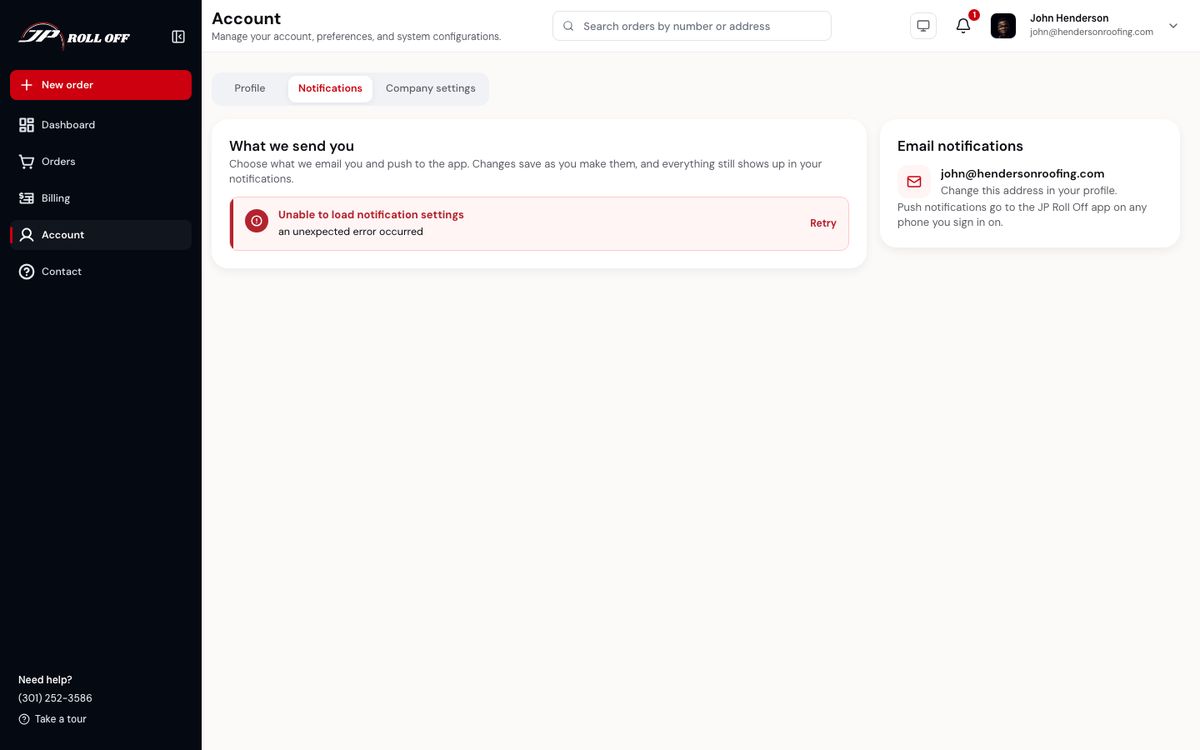
Account → Notifications holds the same switches, per category, for notifications and email.
Next: Your account