Place an order
Tap the red New order button in the middle of the tab bar from anywhere in the app. Home's Request pickup and Swap container start the same flow with that service already chosen.
Ordering takes three steps, and the app keeps what you've entered as you move between them.
- In the app
- In the web portal
Step 1: What you need
- Service: Delivery (we bring a dumpster), Removal (we collect one) or Swap (we replace the one you have).
- Dumpster size: each size shows the weight included in its price. Tall containers are listed separately.
- Material: what's mostly going in it. Dirt, concrete, granite, asphalt, and brick are not offered on a tall 20, or on a 25, 30, or 40. A regular 20 still offers them. Some materials need you to tick a line saying they may need special handling or cost extra.
- Rental: a delivery or swap says 14 days included. Extra days are billed later. A removal does not ask for a rental length.
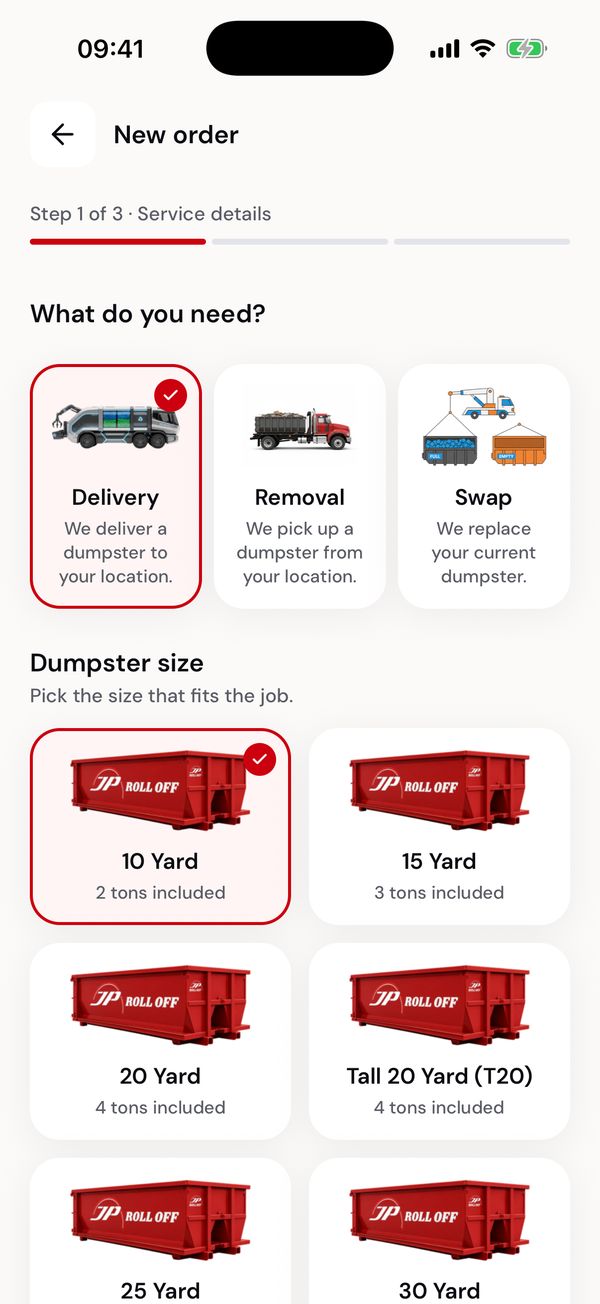
Service and size.
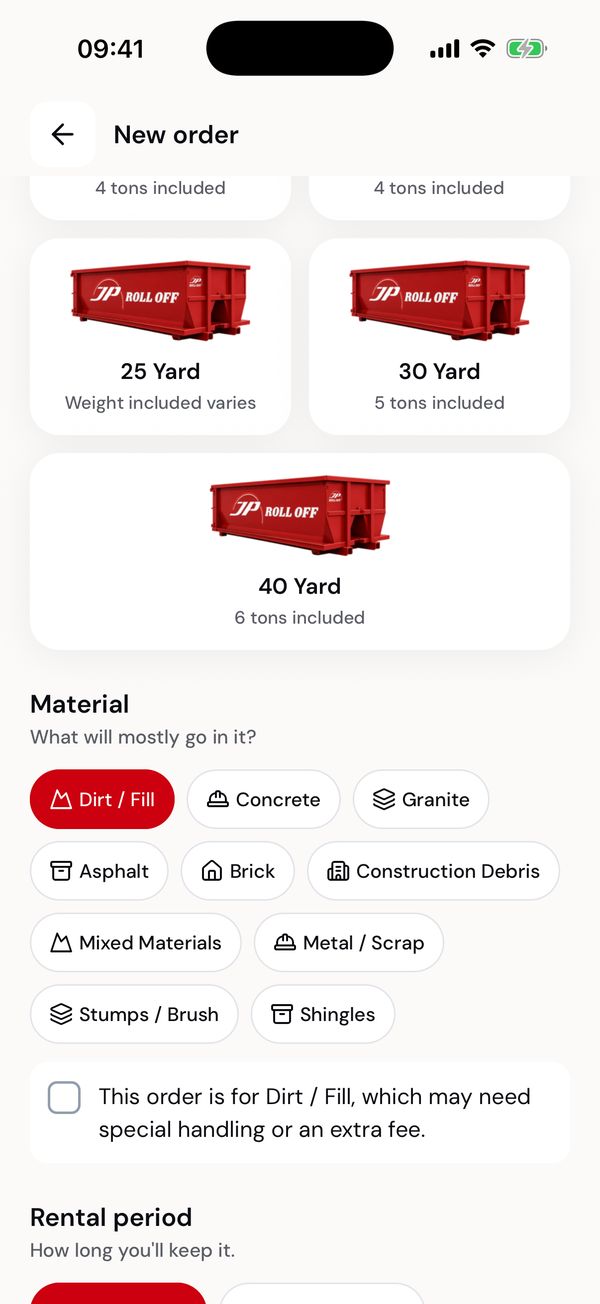
Material, then the included rental.
Step 2: Job site and schedule
- Job site: pick one of your saved sites, or add a new address. Use my current location fills it from where you are, and the search box finds an address as you type.
- Delivery date and preferred time: morning (8am–12pm) or afternoon (12–5pm). These are requests, not guarantees: the office confirms the day and can give a closer time once routes are set.
- Placement instructions: where the driver should put it, gate codes, anything they need to know. The driver sees this on the job.
- Contact: who we call about this order. Your name and phone are filled in from your account.
An apartment, suite or unit is saved as the name of the new site, so you can recognise it next time.
Some days can't be booked online: days the office is closed or fully booked, including holidays and New Year's Eve, and tomorrow after noon. Pick one and the app says so under the date. Call the office if you need that day.
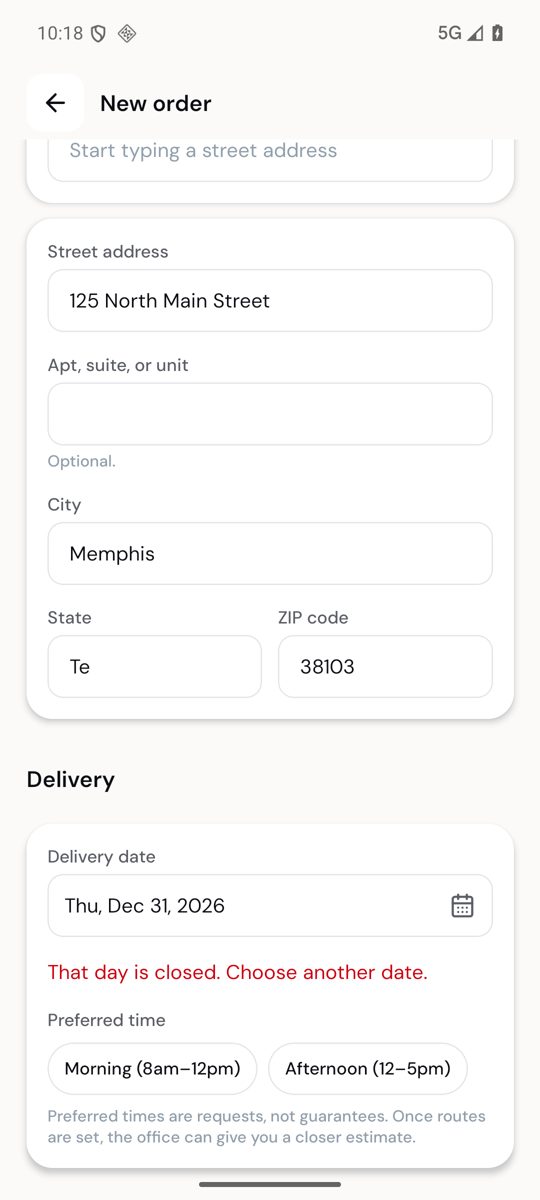
New Year's Eve is closed for online orders.
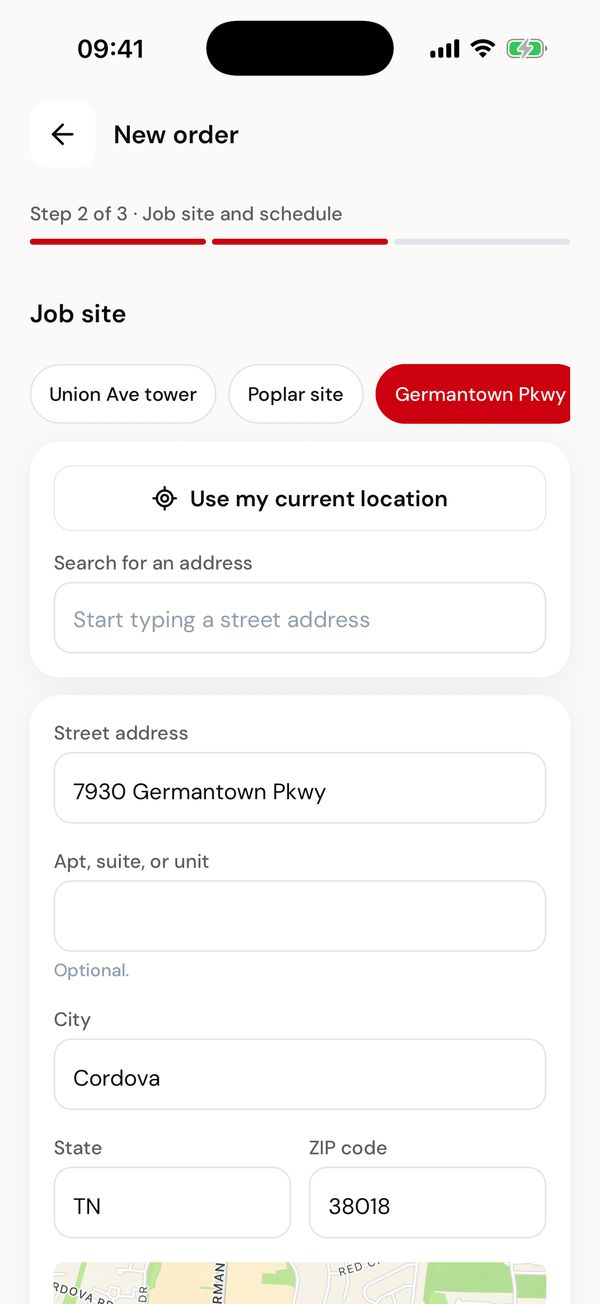
Your saved sites are one tap.
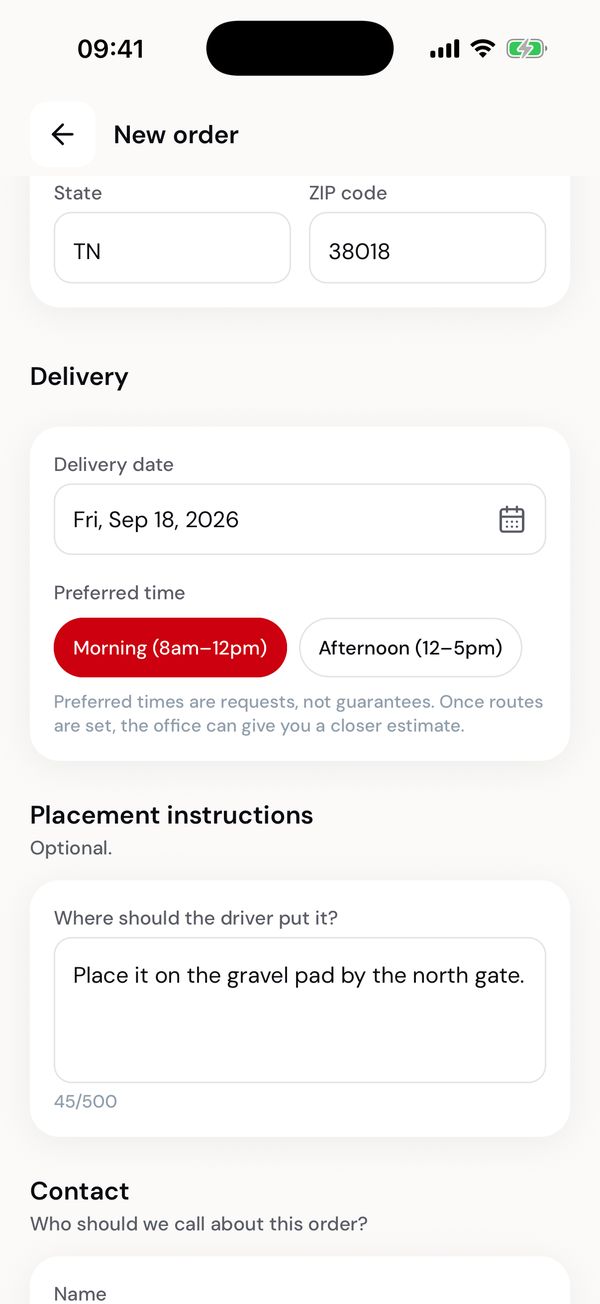
The day, the preferred time, and where to put it.
Step 3: Review and confirm
Check the summary, then the price. A new delivery asks for a saved card and charges the dumpster price when you place it. A swap is billed after service. A removal has no charge. Extra days and overweight can still be billed later.
If the office agreed a special price for your job site, the price says Dumpster rental (job site price) and shows that price instead of the standard one.
Emergency and night service are not booked in the app. Call the office for those.
Tick I agree to the service terms for this order, then tap Place order.
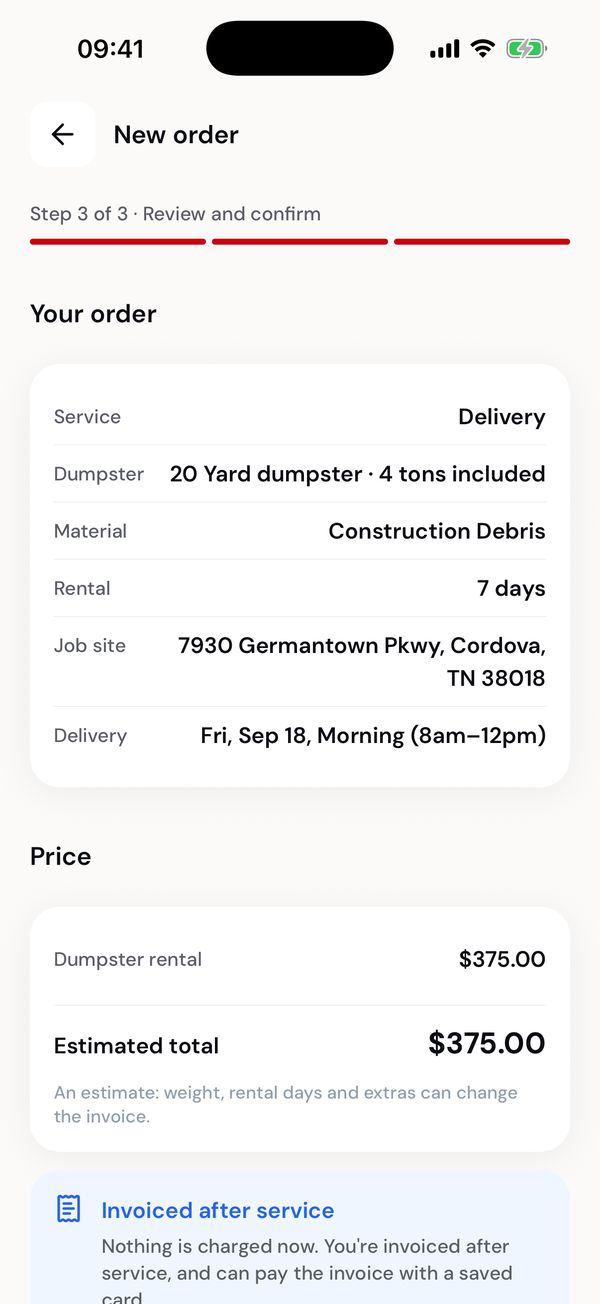
What you ordered, and the estimate.
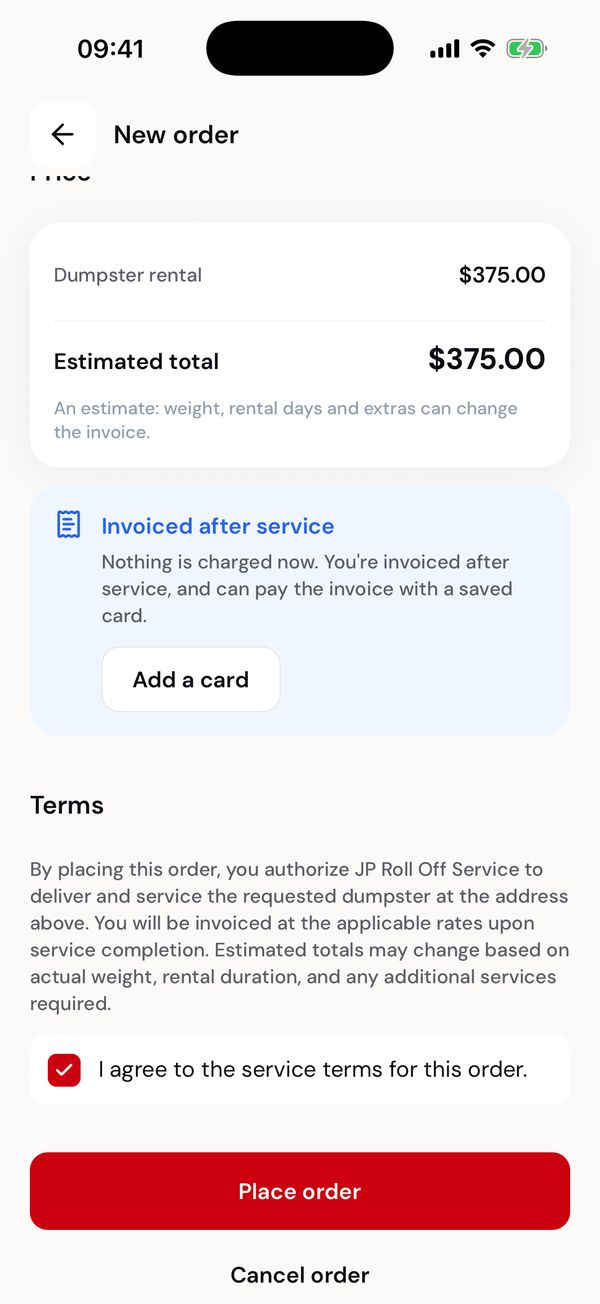
Agree to the terms, then place it.
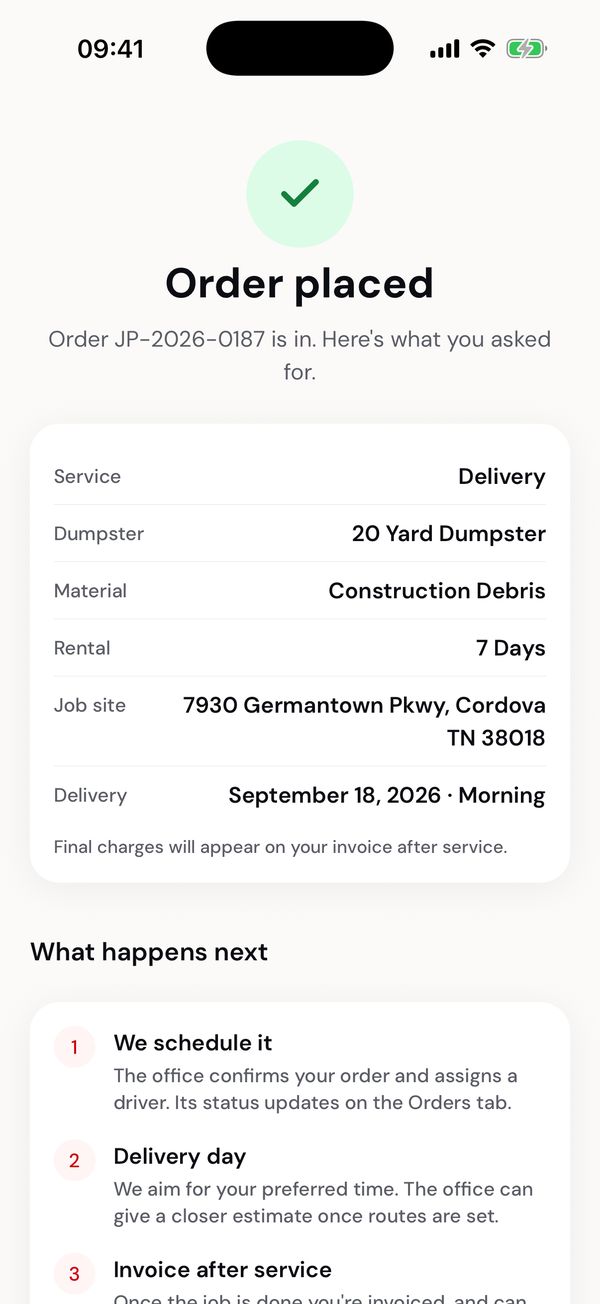
Your order number, and what happens next.
The portal walks the same three steps across one page, with the order summary beside them.
1. Service details
Service area at the top takes the job site's ZIP. Prices depend on it, so the estimate stays blank until you check one.
Then service type — Delivery, Pickup or Swap — dumpster size, with the dimensions and what each holds, and waste type.
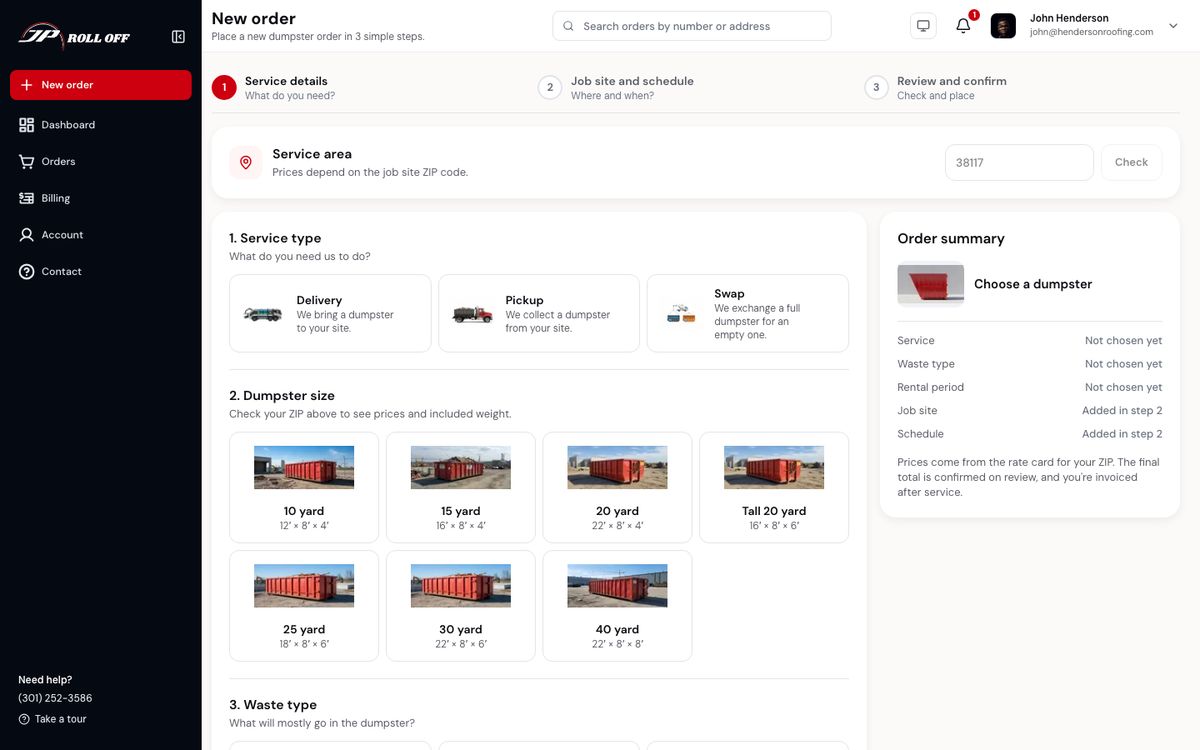
The order summary on the right fills in as you go.
2. Job site and schedule
Where and when. Saved sites are on the dropdown; a new address can be typed. Pick the day and a preferred window.
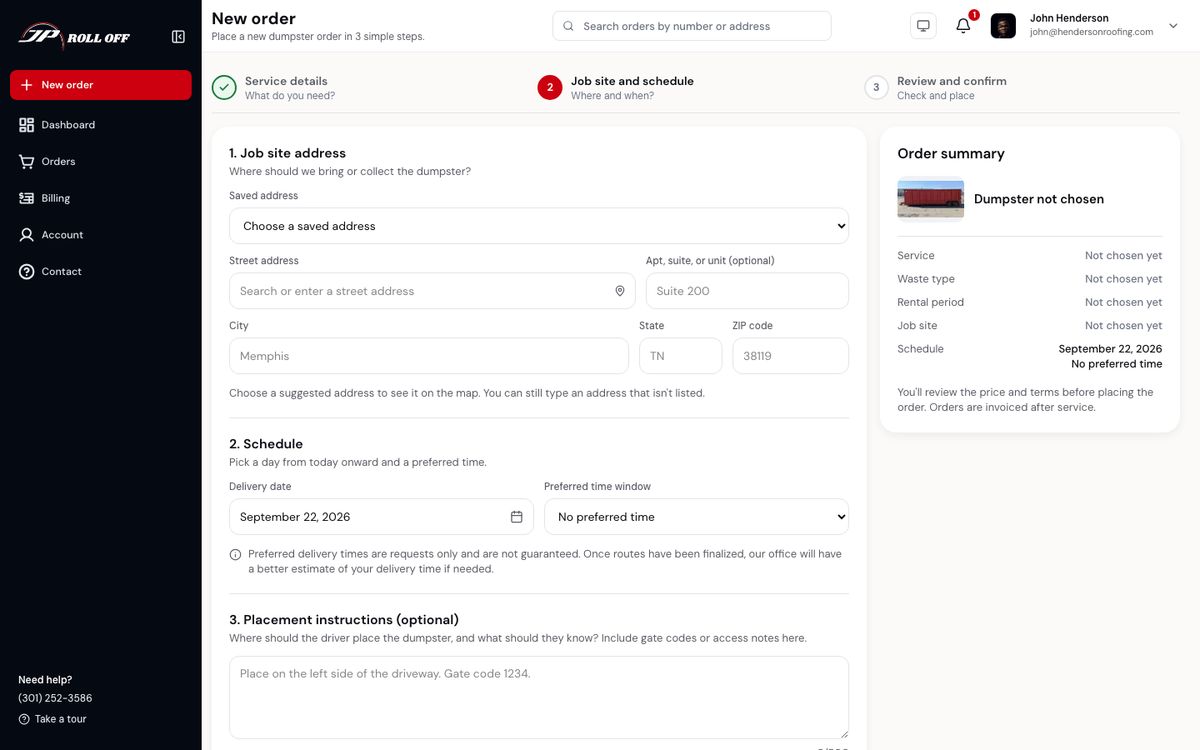
3. Review and confirm
The same check as the app. A new delivery is paid with a saved card before it is placed. A swap is billed after service. A removal has no charge.
After you place it
You get an "Order received" notification and email straight away, with the order number. Then:
- The office schedules it and assigns a driver. You get a notification and an email ("Dumpster scheduled for delivery", "Pickup scheduled" or "Swap scheduled").
- On the day, you hear when the driver sets off and when the work is done. Follow your orders
- A new delivery is paid when you place it. A swap is invoiced after service. Extra days and overweight can still be billed later. Invoices and payments
If something needs to change
Orders can't be changed or cancelled in the app. Use Contact support on the order, or the Support screen, and the office will sort it out. If they move the date, you get a "New date for your order" notification and email.
If your account is on hold
An account with an overdue balance can't place orders: step 1 explains why and the button stays off. Pay the outstanding invoice, or contact the office, and ordering opens again.
Next: Follow your orders