Follow your orders
- In the app
- In the web portal
The Orders tab
Every order you've placed, newest first, with its status. Tap one to open it.
- All / Active / Completed / Cancelled across the top.
- Search by order number or address.
- Filter by service, status or service date. Filters you apply show as chips you can clear.
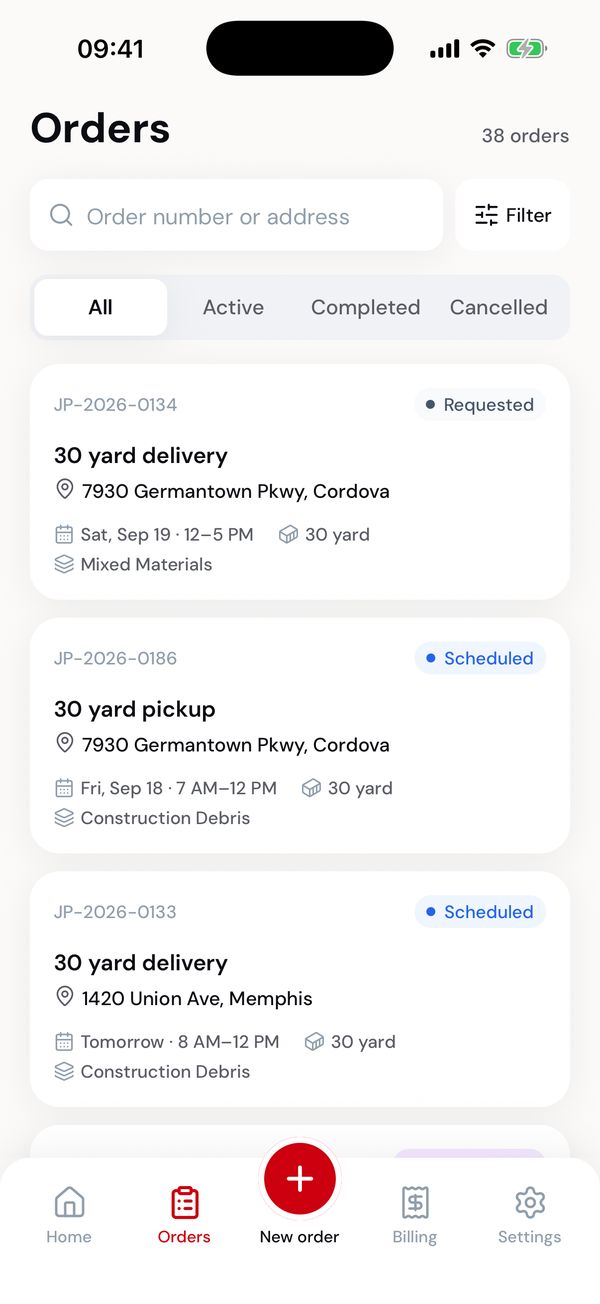
Every order, with its status.
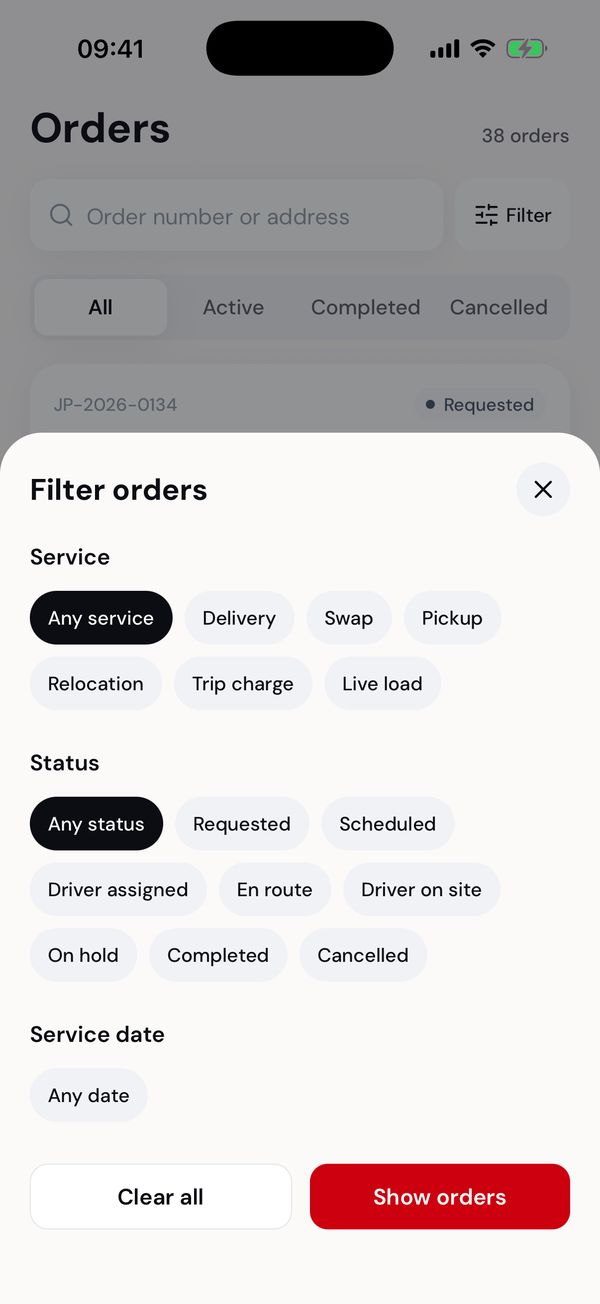
Filter by service, status or date.
An order
The top card shows the service, the site (on a map), the day and time window, and the status.
Tracking is the order's history: when it was placed, scheduled, a driver assigned, on the way, on site, and finished. The step you're on is marked, with the time it happened. Show full tracking opens the rest.
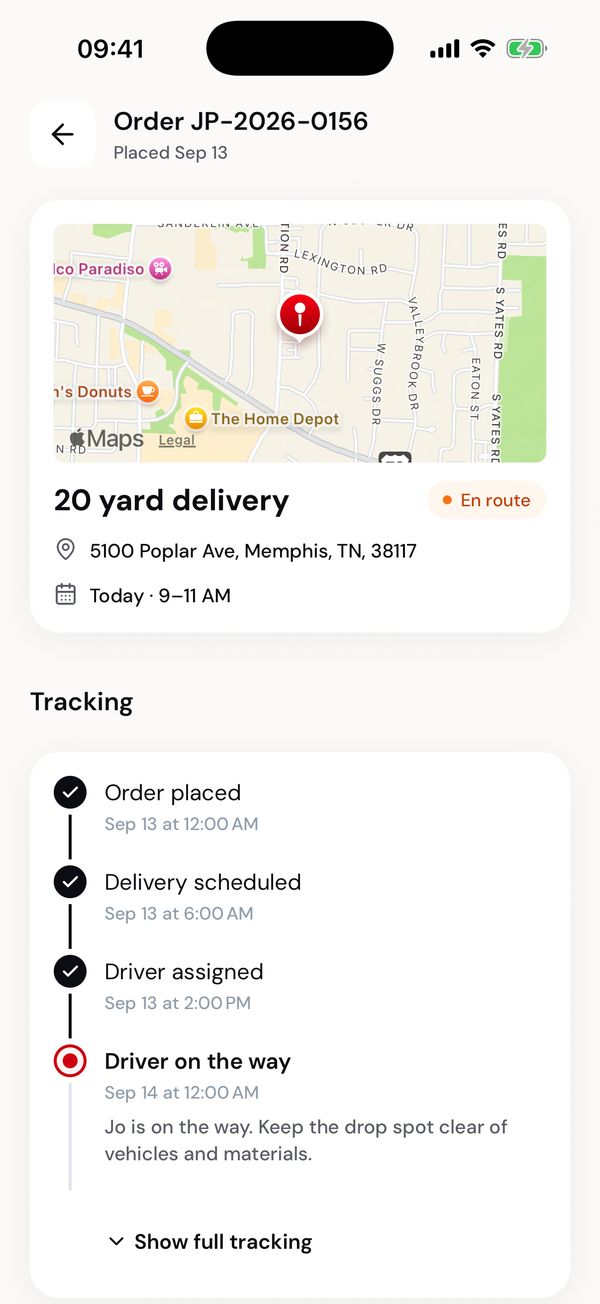
On the day: the driver is on the way.
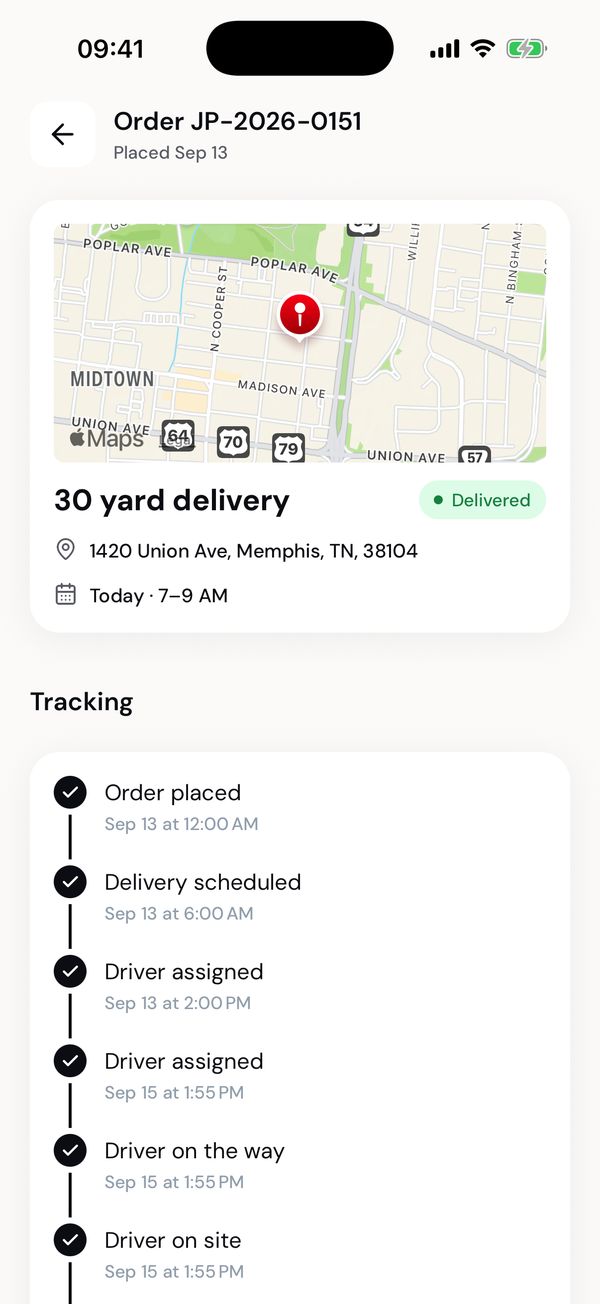
Finished, with the details.
Below that:
| Section | What's in it |
|---|---|
| Driver's note | Anything the driver wrote at your site, for example where they put the container. |
| Details | Container and size, material, rental period, driver, your site contact and the instructions you gave. |
| Invoice | The invoice for this order, with Pay invoice when it's open. |
| Supporting documents | Only when the order has an extra charge: the weight ticket, or the photo behind a trip charge. |
| Signature | Who signed for the work, and when. |
| Need something? | Request a pickup for the container (see below), or contact support. |
Signature and supporting documents
If someone signed for the work, the signature is on the order, with who signed and when. If nobody was there, it says so.
Your driver's routine site photos stay with the office. When an order carries an extra charge, the document behind it appears under Supporting documents:
- Weight ticket: when the order has an overweight or other additional charge.
- Trip charge: the photo of why the job couldn't be done, when a trip charge applies.
Tap one to open it full size. Most orders have no supporting documents, and then the section isn't shown.
Asking for a pickup from an order
An order that left a container on your site offers Request pickup, with the rental end date underneath. It opens a new order already set to that site and container size.
When a pickup or swap is already booked for that container, the row shows that instead, and opens it. Containers on your sites explains every case.
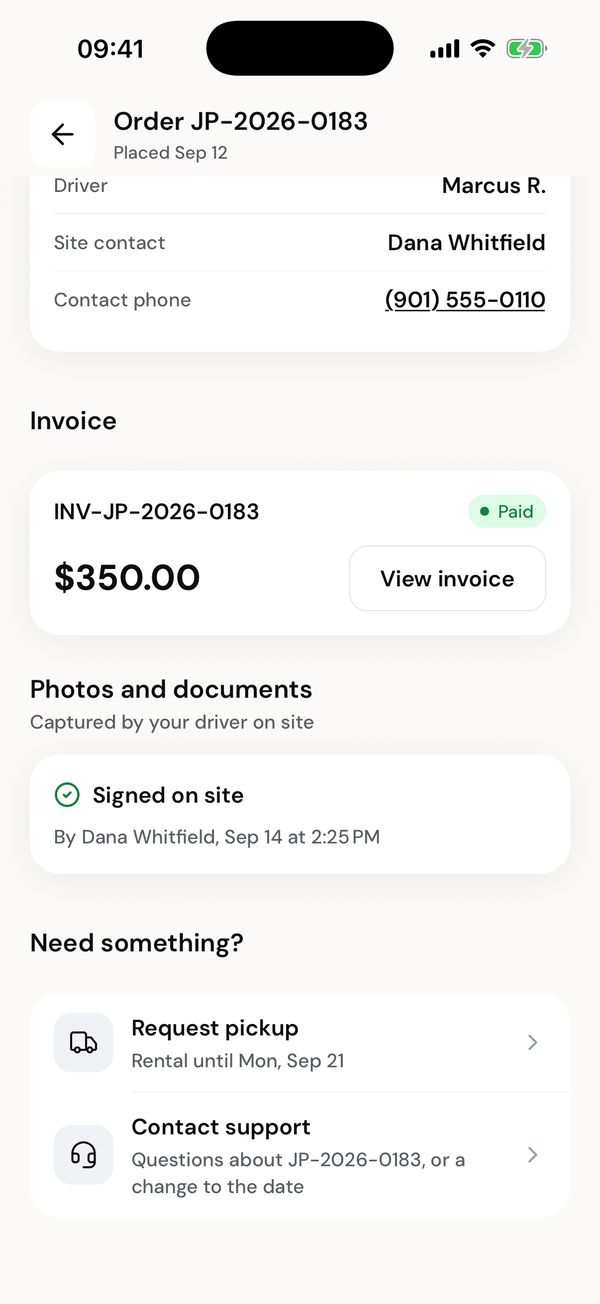
Rental end date, and a pickup in two taps.
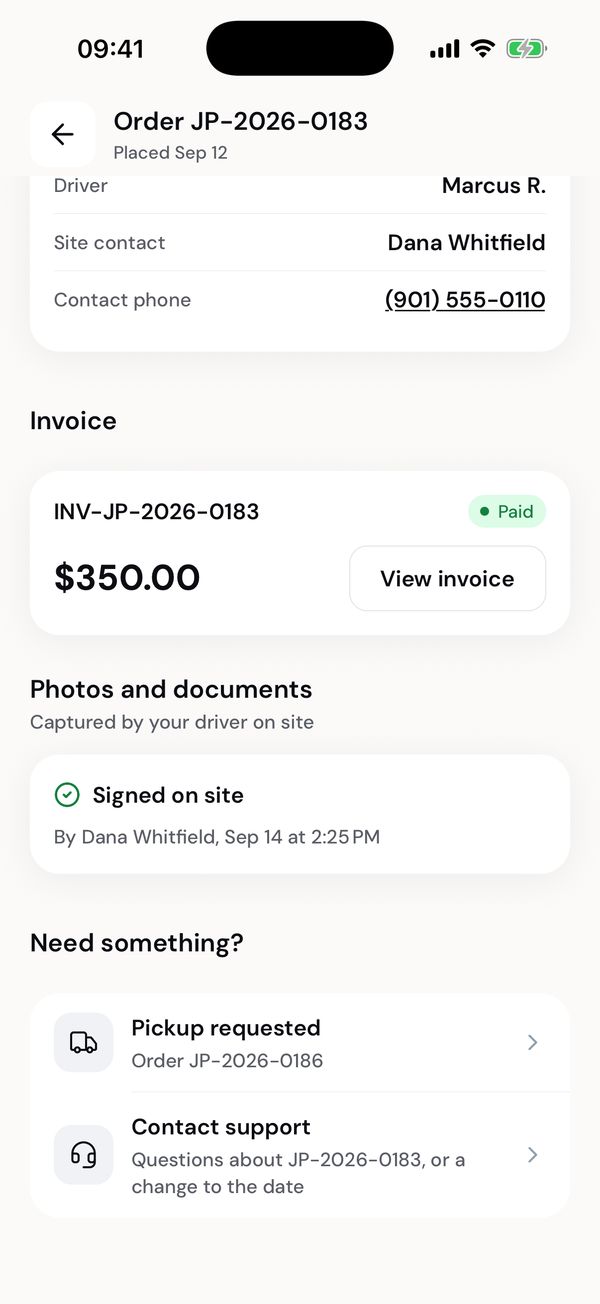
Already asked for: it opens that order.
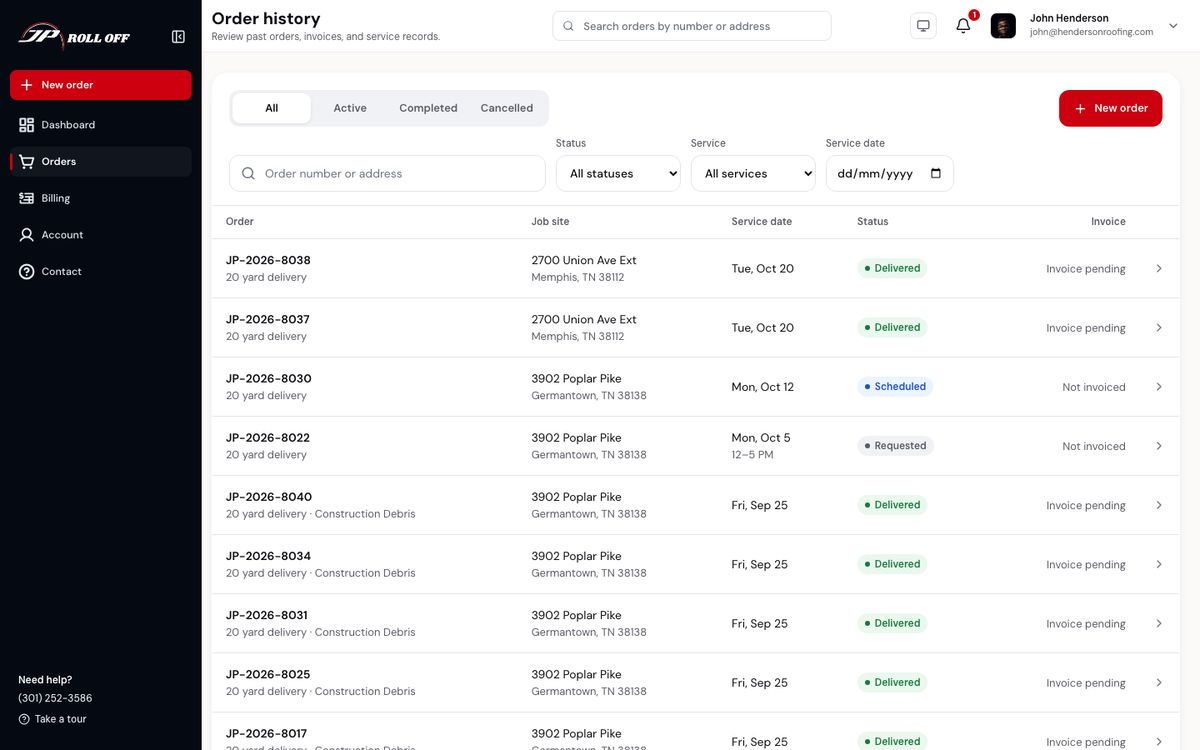
Orders lists everything, newest first. The tabs across the top are All, Active, Completed and Cancelled, and under them you can filter by status, service and service date, or search by order number or address.
Each row carries the order number, the job site, the service date, the status and whether it has been invoiced.
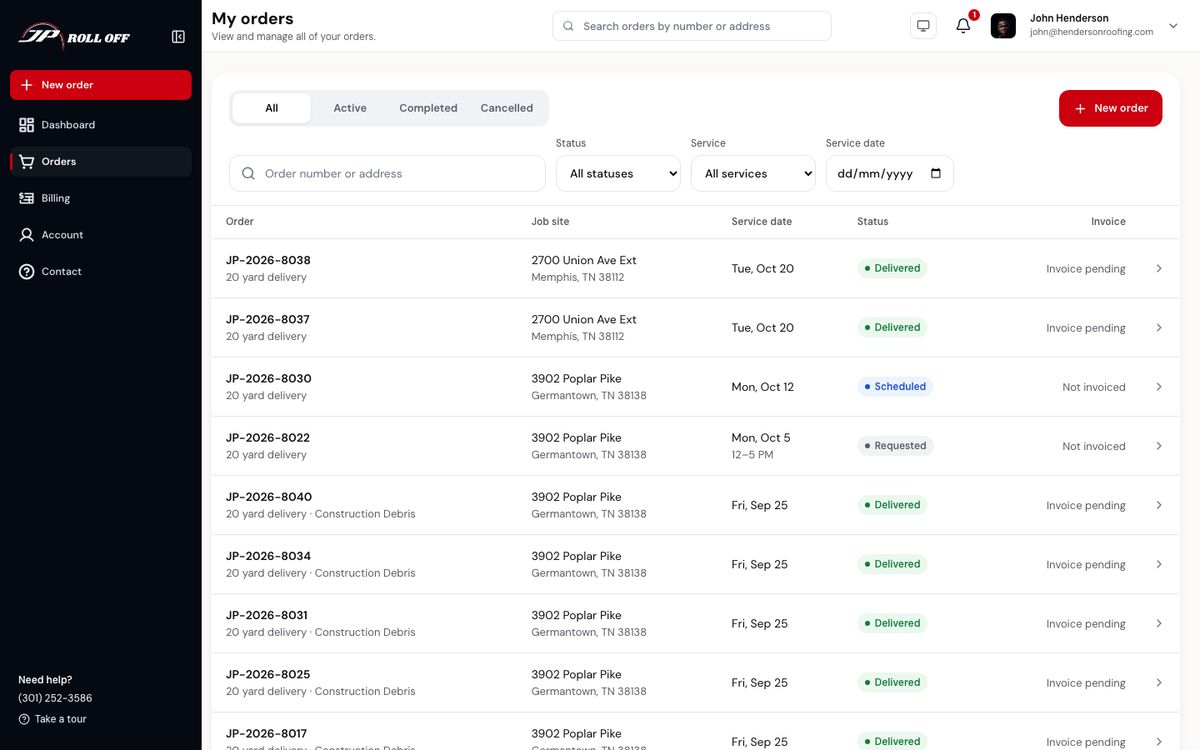
Invoice pending means the work is done and the bill hasn't been raised yet.
Click a row to open the order. It shows the same progress trail as the app — each step with the date and the time it happened — plus the service information, the job site, the invoice, and quick actions for requesting a pickup or a swap.
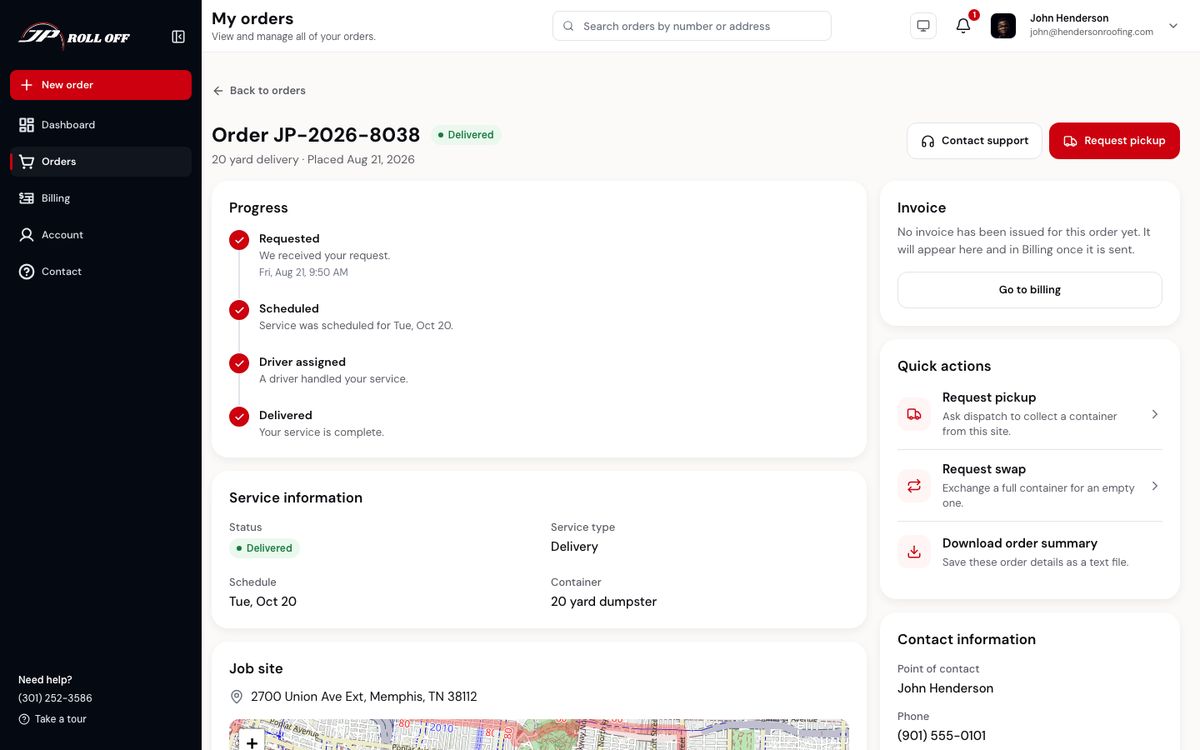
Download order summary saves the details as a text file.
Order history in the sidebar is the same list filtered to finished work.
Changing or cancelling
There's no way to change a date or cancel in the app. Contact support on the order reaches the office, who can move or cancel it. You get a notification and an email either way.
Next: Containers on your sites