Sign in and find your way around
Sign in
Drivers sign in with a phone number, not a password. Use the number the office has on file for you.
- Open the app and tap Driver Portal.
- Enter your phone number and tap Send Verification Code.
- Type the 6-digit code from the text message and tap Verify.
If the text doesn't arrive, wait for the countdown and tap Resend. Tap Wrong number? to go back and fix the number.
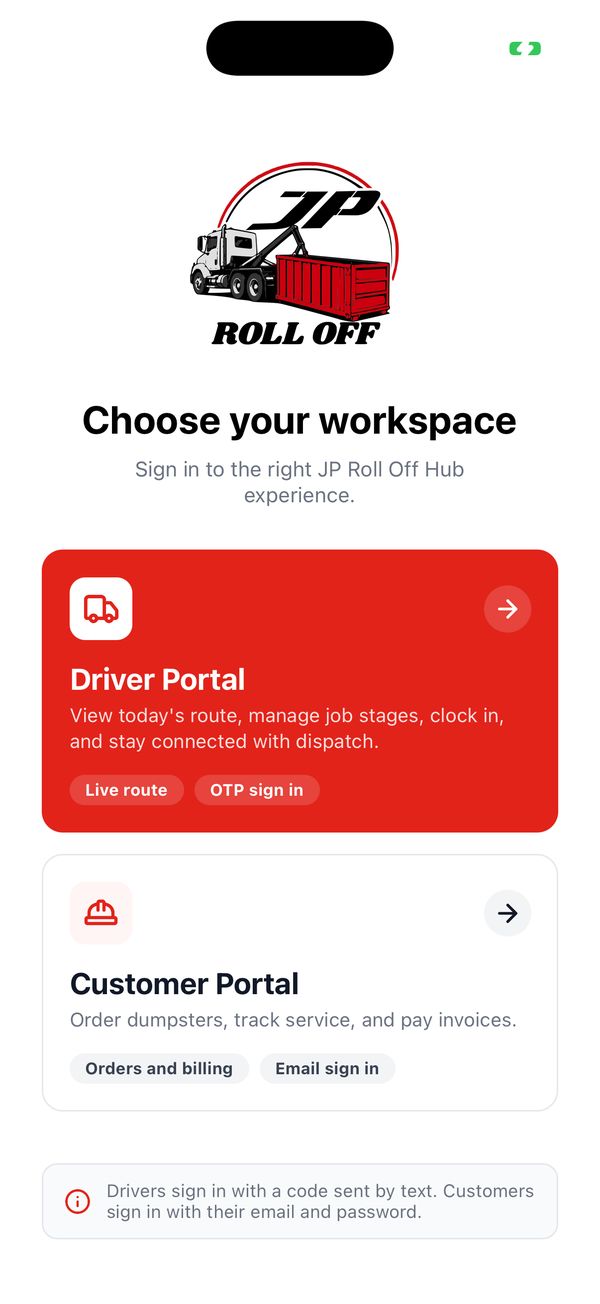
Tap Driver Portal. Customers use the other door.
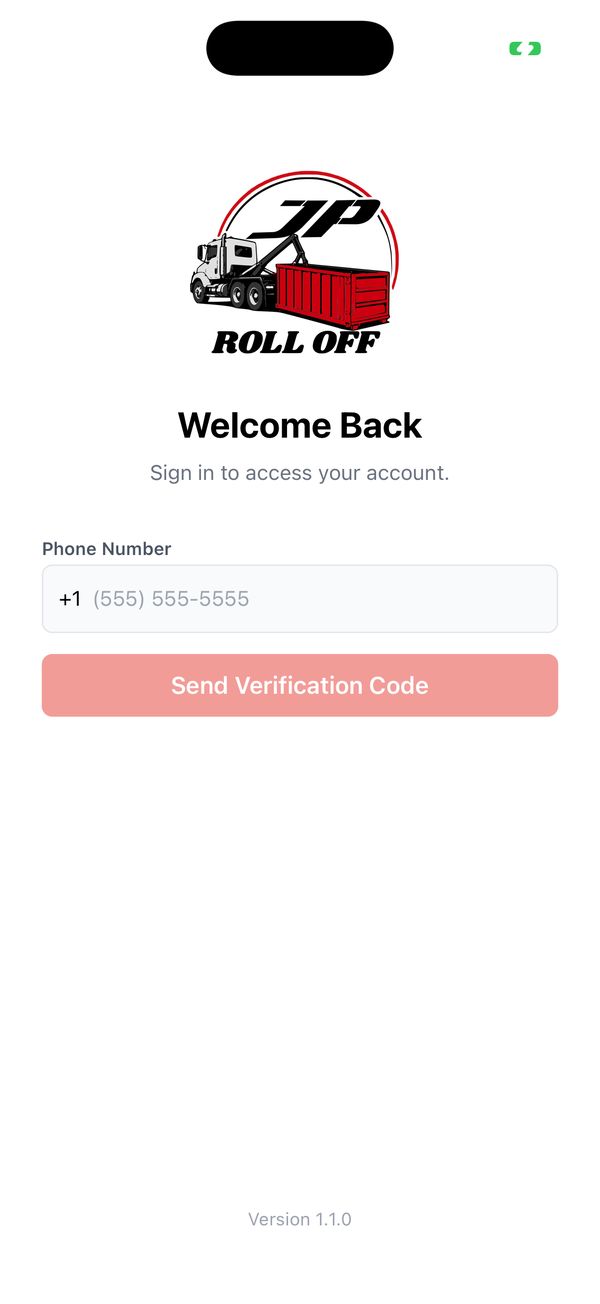
Enter the number the office has for you.
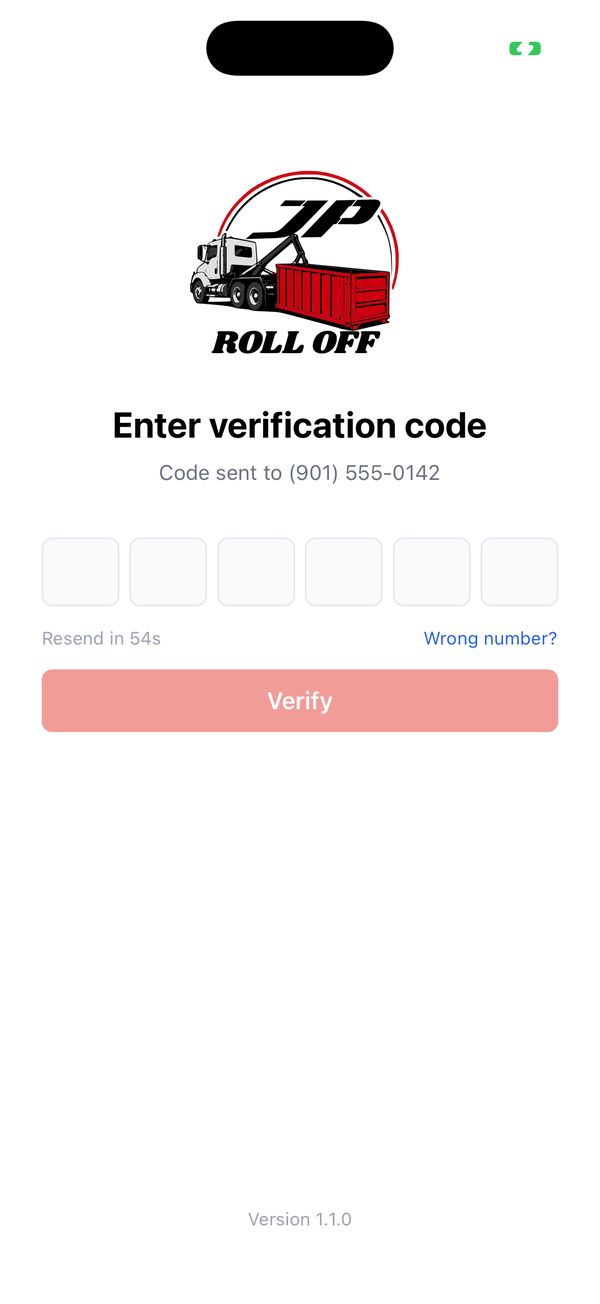
Enter the 6-digit code from the text.
You stay signed in while you use the app. If you haven't opened it for a while, it asks you to sign in again. If a code is refused, or you don't get a text after a couple of tries, call the office: they may have a different number for you.
Allow what the app asks for
The first time you use each feature, your phone asks for permission. Say yes to these:
| Permission | What it's for |
|---|---|
| Notifications | New, changed and cancelled jobs, and answers from the office. |
| Camera | Site photos and weight tickets. The app can't finish a job without them. |
| Photos | Only if you want to change your profile picture. |
| Location | Showing where you are on the Map tab. |
The office can see that you have the app open. It doesn't send them your location.
If you tapped Don't Allow by mistake, open your phone's Settings, find the app, and turn the permission on.
The tab bar
Five buttons along the bottom take you everywhere:
| Tab | What's there |
|---|---|
| Jobs | Today's route and the job you're working on. |
| Map | Today's stops on a map. |
| Clock (round button) | Clock in and out. While you're on the clock it shows how long you've been working. |
| Alerts | Messages from the office, and a button to call dispatch. A red number means unread alerts. |
| Profile | Your hours, job history, time off, company documents, notification settings and help. |