Hours, time off and your profile
Profile is where everything that isn't today's route lives.
At the top: your name, phone number, and whether you're on the clock (with the time you clocked in). Tap your picture to change it. Under that are three numbers: jobs done today, hours this week, and jobs done this month.
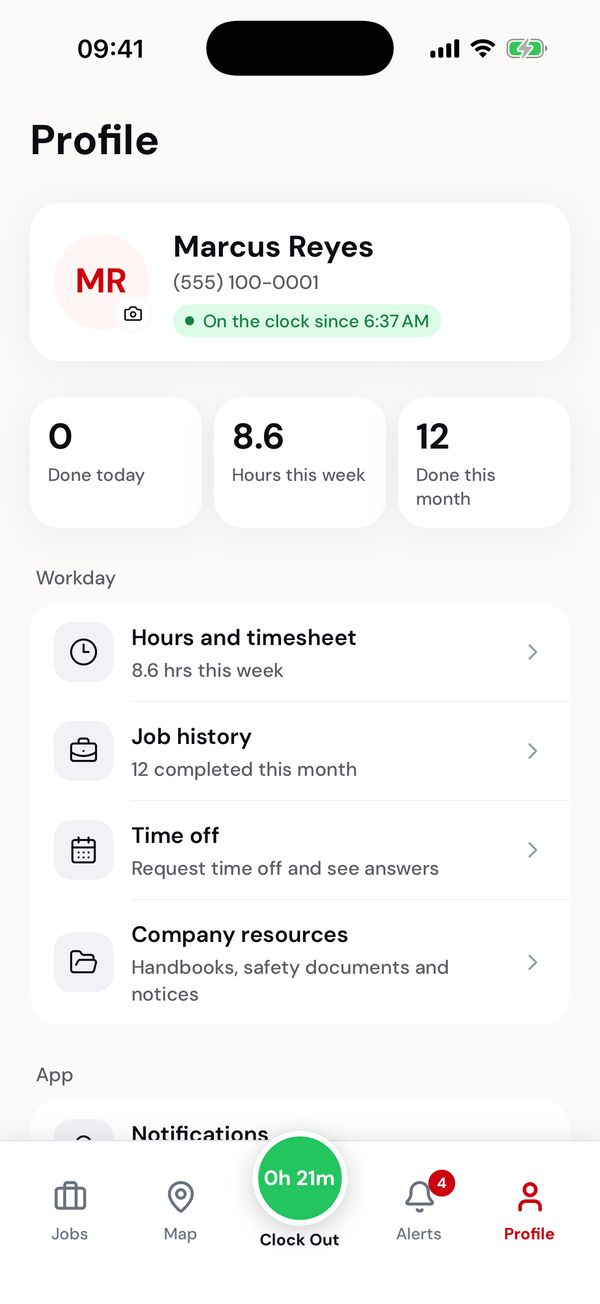
Everything off the route, in one place.
Language: English or Español
Under Language on your profile, tap Español to use the app in Spanish, or English to switch back. It changes straight away and stays on your phone, even after you sign out.
Buttons, job steps, alerts and dates switch. What the office typed (customer names, addresses, notes for the driver) stays as it was written. Texts from dispatch still come in English.
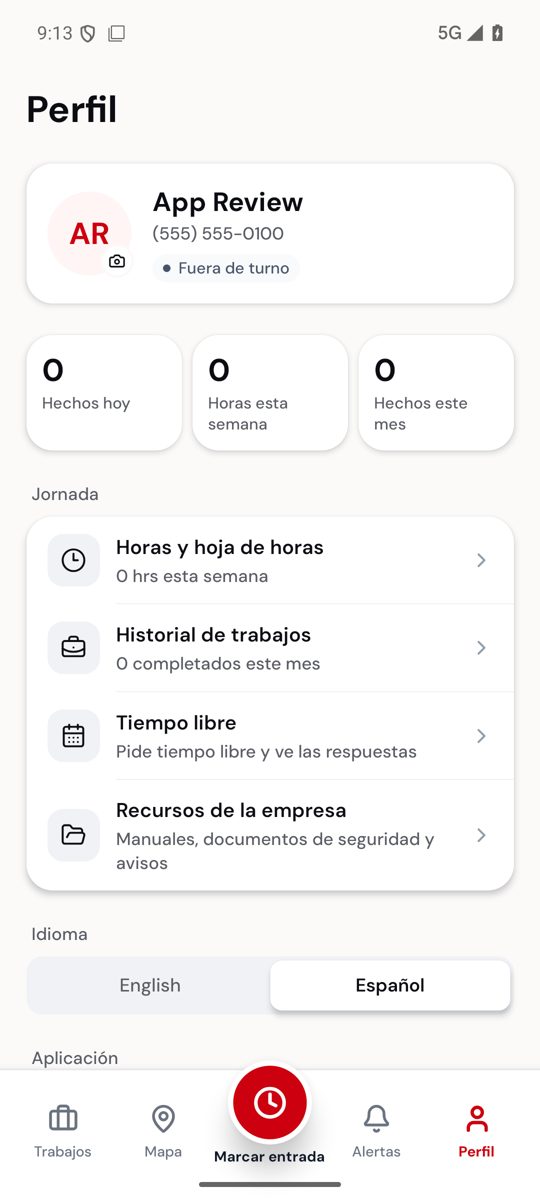
The same profile, in Spanish.
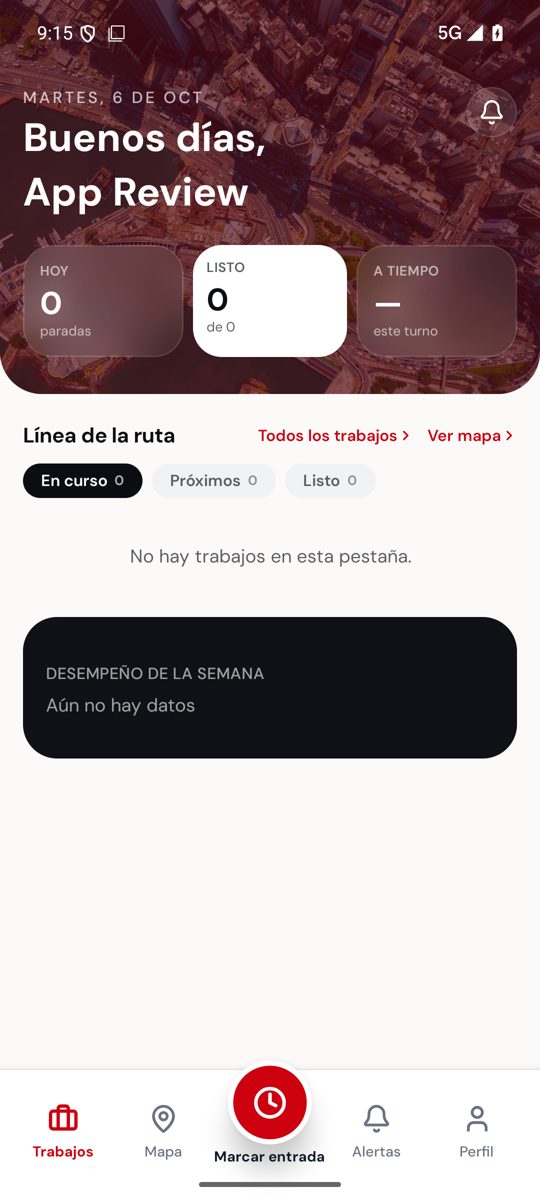
Today's route in Spanish.
Hours and timesheet
Hours and timesheet shows This week or Last week:
- the total hours, including a shift you're still on,
- a bar for each day,
- every shift, with the times you clocked in and out and your unpaid break.
Each shift also shows where it is with the office:
| Label | Meaning |
|---|---|
| On the clock | The shift you're working now. |
| Submitted | Clocked out and recorded. |
| Pending approval | Waiting for the office to check it. |
| Approved | The office has approved it. |
| Needs review | The office has a question. Talk to them. |
If a shift is wrong (you forgot to clock out, or clocked in late), tell the office. They correct timesheets, not the app.
Time off
- Open Time off and tap Request time off.
- Choose Vacation or Sick day.
- Pick the Start date and End date, and add a note for the office if you want to.
- Tap Send request.
Your requests are listed with their dates, number of days and status: Pending, Approved or Denied. When the office answers, you get an alert.
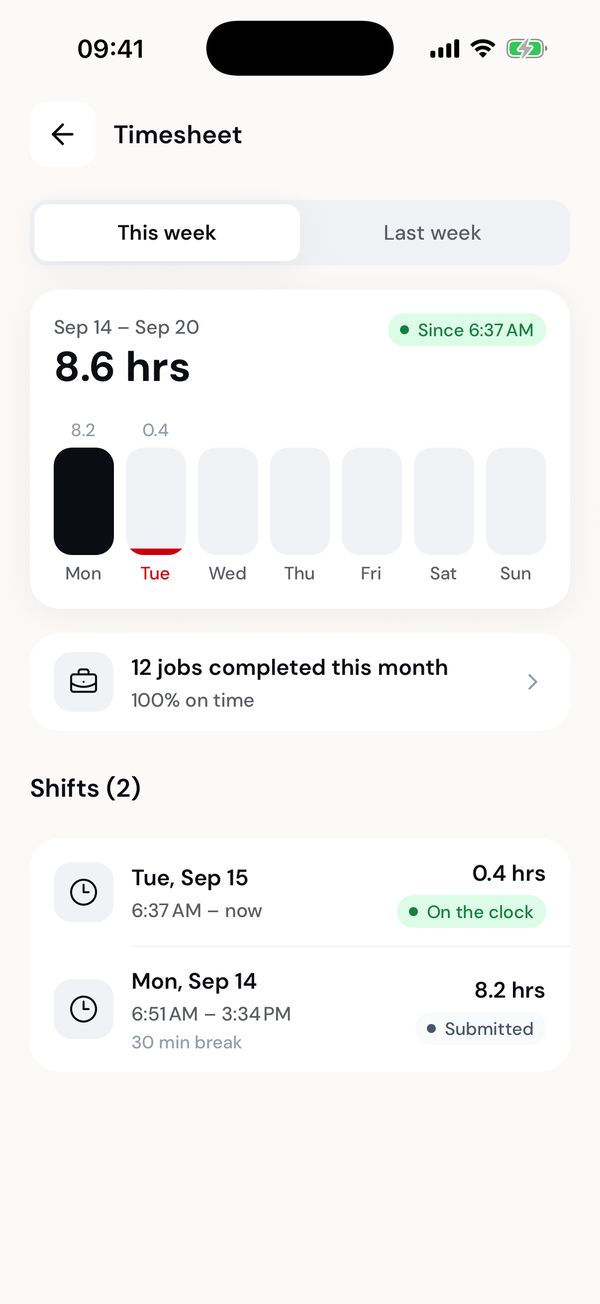
This week so far, including today's open shift.
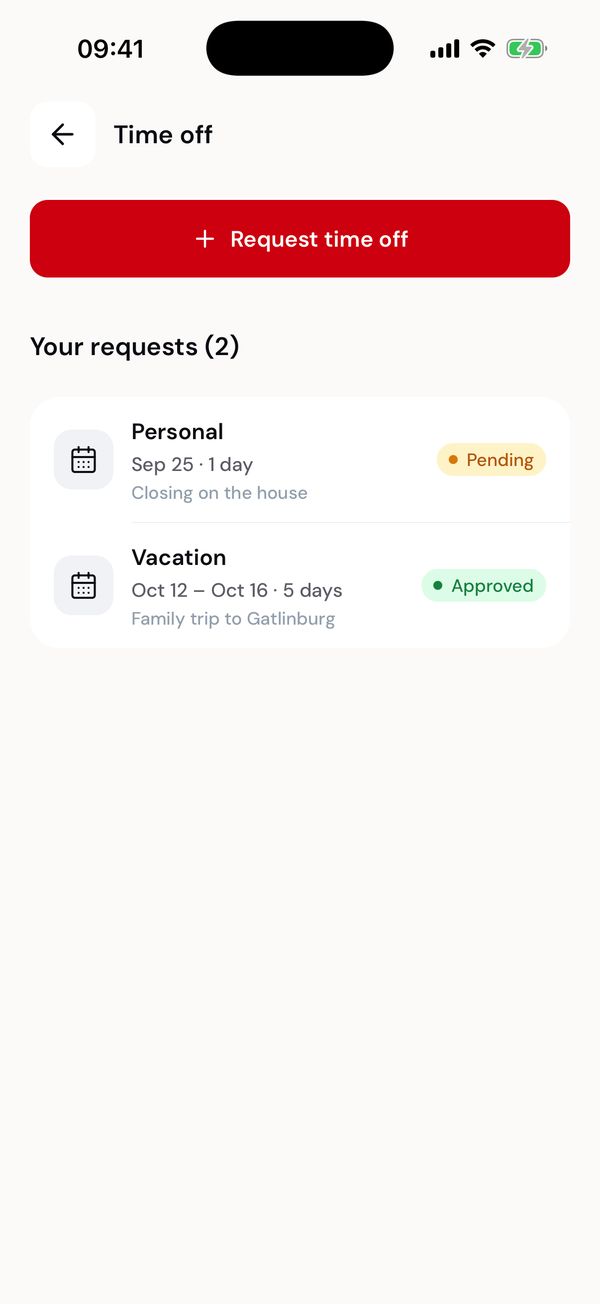
One request waiting, one approved.
Company resources
Company resources holds what the office has published for drivers: handbooks, safety documents, the holiday schedule and announcements. Tap one to open it.
Help and support
Help and support has two ways to reach the office:
- Call dispatch for anything about a job on the road.
- Email the office for pay, time off or anything else.
Call dispatch is also at the top of Alerts, so it's always a tap away.
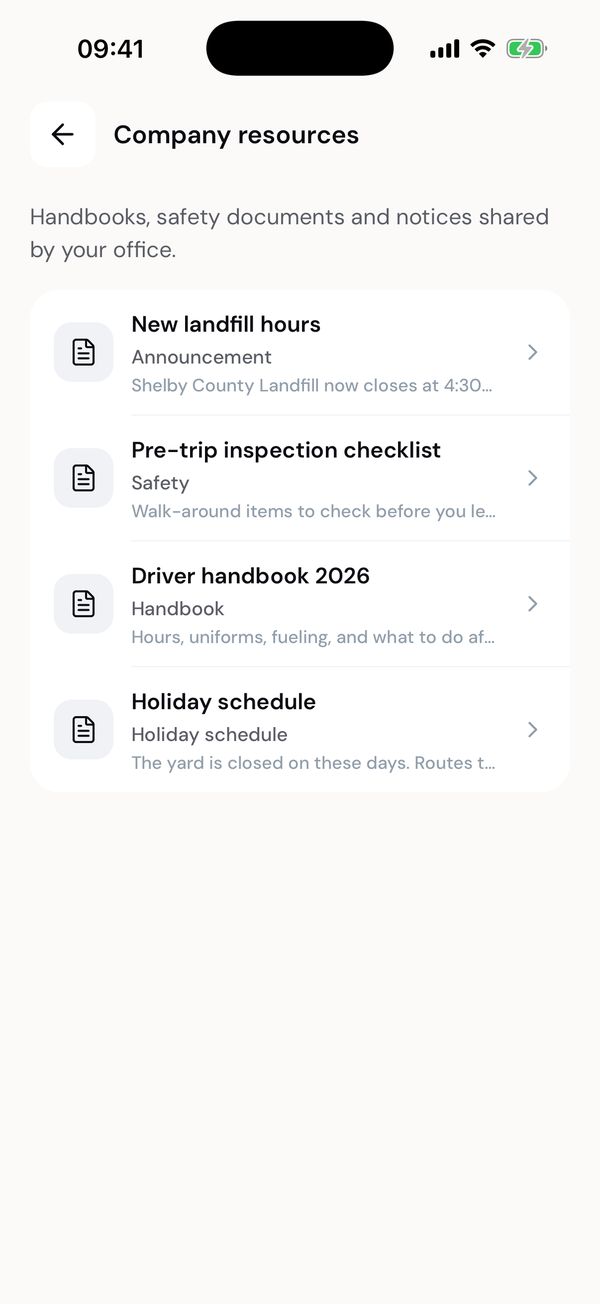
Documents and notices from the office.
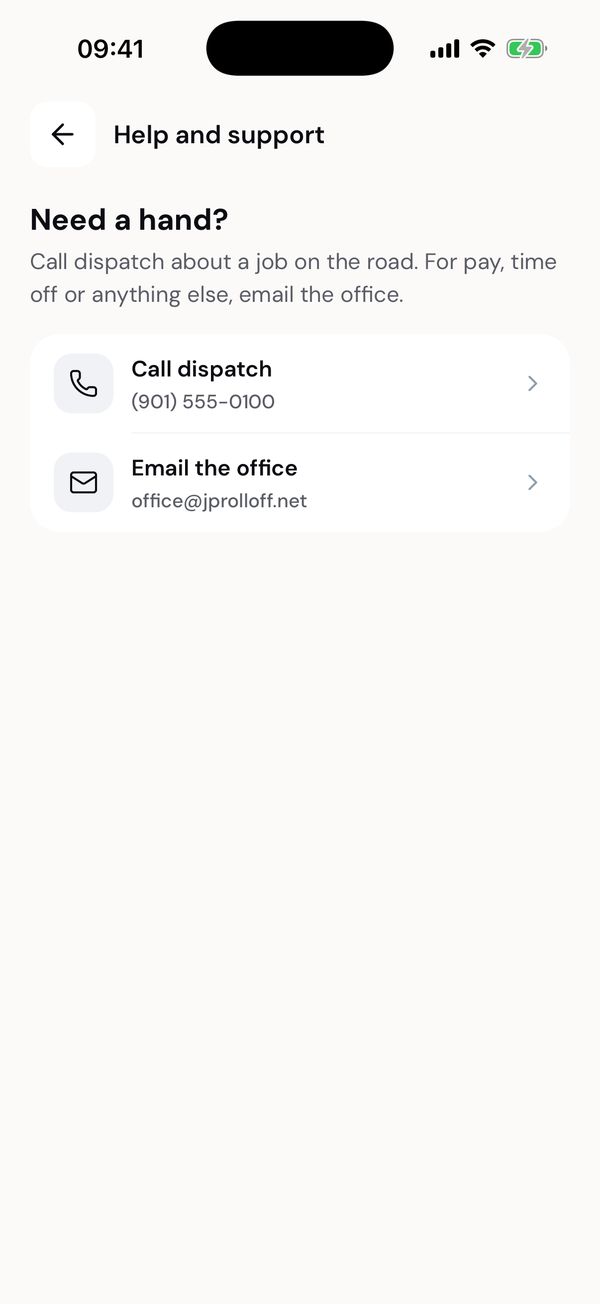
Call dispatch, or email the office.
Signing out
Tap Sign out at the bottom of Profile. If you're still on the clock, the app asks End your shift? first, because signing out clocks you out. Tap Clock out and sign out to do both.
If you just want to end your shift, use the clock button instead. You don't need to sign out at the end of each day.
Deleting your account
JP Roll Off creates driver accounts, and your hours and time off have to be kept for payroll, so you can't delete your account yourself. Tap Delete account on Profile, then Send request. The office gets your request and will be in touch once your timesheets are settled.
Next: Problems and questions