Who hears what, and when
The app keeps the customer and the office up to date as you work, so you can keep your hands on the job and off the phone.
What your actions tell other people
| When you… | The job becomes | The customer gets | The office gets |
|---|---|---|---|
| Tap Navigate on a job you haven't started | On the way | A notification: "Your driver is on the way" | The job shows as on the way |
| Tap I've arrived on site | On site | – | The job shows as on site |
| Finish at the customer's site (submit the signature) | – | A notification: "Dumpster delivered", "picked up", "swapped" or "moved". A delivery includes the date the rental runs until | "Driver heading to dump", when the next stop is a dump |
| Tap Request override at the dump | – | – | A notification and an email: a driver is waiting on an answer |
| Report a problem at a stop | – | – | "Problem at…", or "Dump site change requested" if you picked a new one |
| Can't complete the job, with photos | – | – | "Problem at the customer's site", with your photos. The office decides any trip charge, and that's when the customer hears |
| Tap Submit & complete job | Completed | An "Order complete" email | "Job completed" in their inbox |
Customers see these in the JP Roll Off Hub customer app and by email, depending on their own settings. On a trip charge the customer isn't sent a "delivered" style message: the office explains the visit to them.
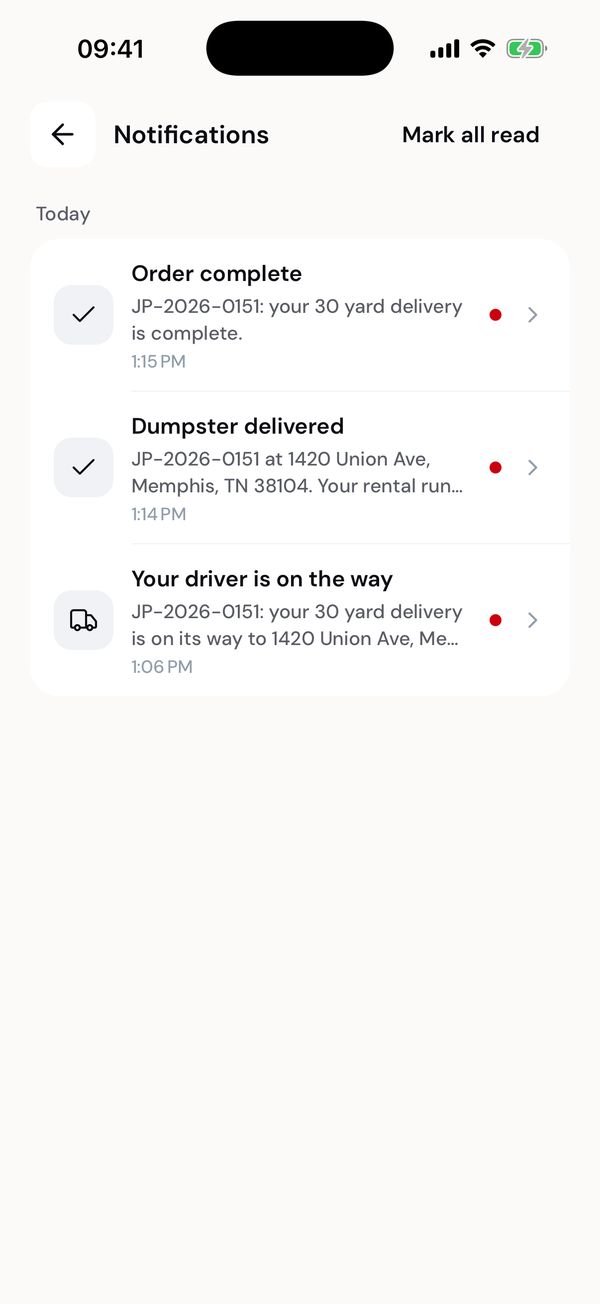
What the customer saw while Marcus did the delivery on this page's example job.
:::tip Tap Navigate even when you know the way It's what sends "Your driver is on the way". If you go straight to I've arrived on site, the job still moves on, but the customer isn't told you're coming. :::
What the office sends you
Everything the office sends you lands in Alerts. Tap an alert to open the job it's about. The most important ones also come as a text message, so you see them even when the app is closed.
When you have unread alerts, Mark all read sits beside the Alerts title. One tap clears them all.
| Alert | When | Notification | Text message |
|---|---|---|---|
| New job assigned | The office gives you a job | Yes | Yes |
| Job taken off your route | The job moves to another driver. You don't need to do it | Yes | Yes |
| Job cancelled | The job is cancelled. Don't travel to it | Yes | Yes |
| Job updated | The date, time window, address or notes for you changed | Yes | Only when the job is today or tomorrow |
| Override approved or denied | The office answers your weight ticket request | Yes | No |
| Issue resolved | Dispatch has dealt with a problem you reported | Yes | No |
| Time off answer | Your time-off request is approved or denied | Yes | No |
Texts start with the company name, for example:
JP Roll Off Service: New job JP-2026-0152: 20 yard swap, Tue Sep 15, 9:30am–11:30am. Details in the driver app.
JP Roll Off Service: Job JP-2026-0143 (Fri Sep 18, morning) has been cancelled. Do not travel to this stop.
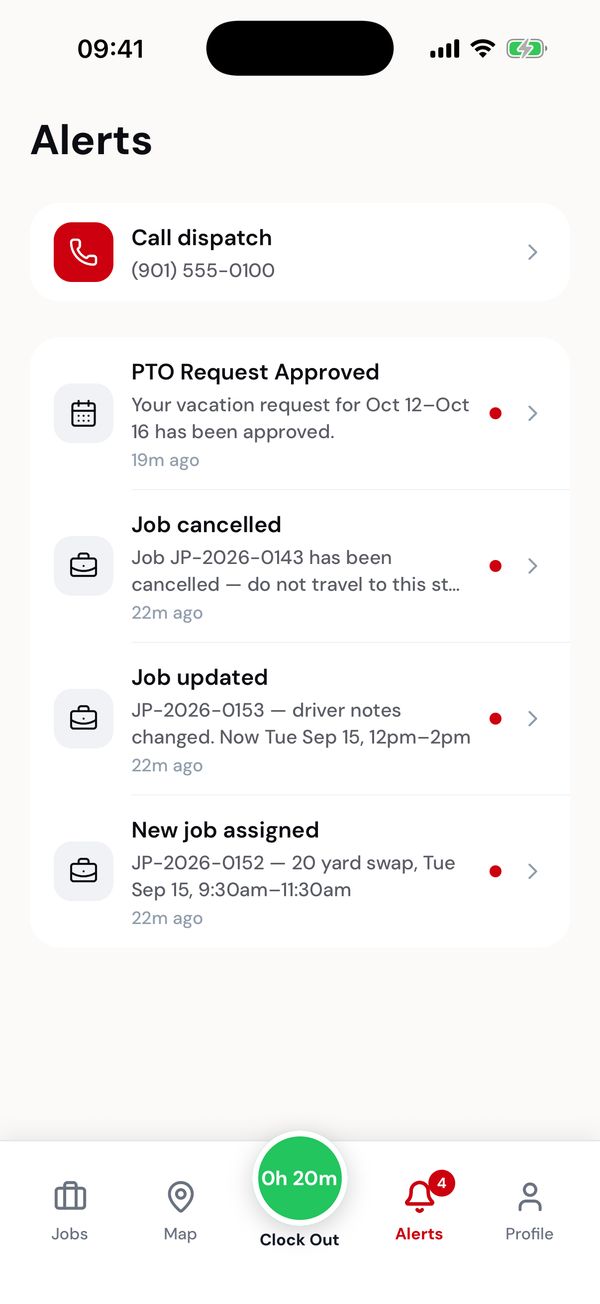
Call dispatch is at the top of Alerts.
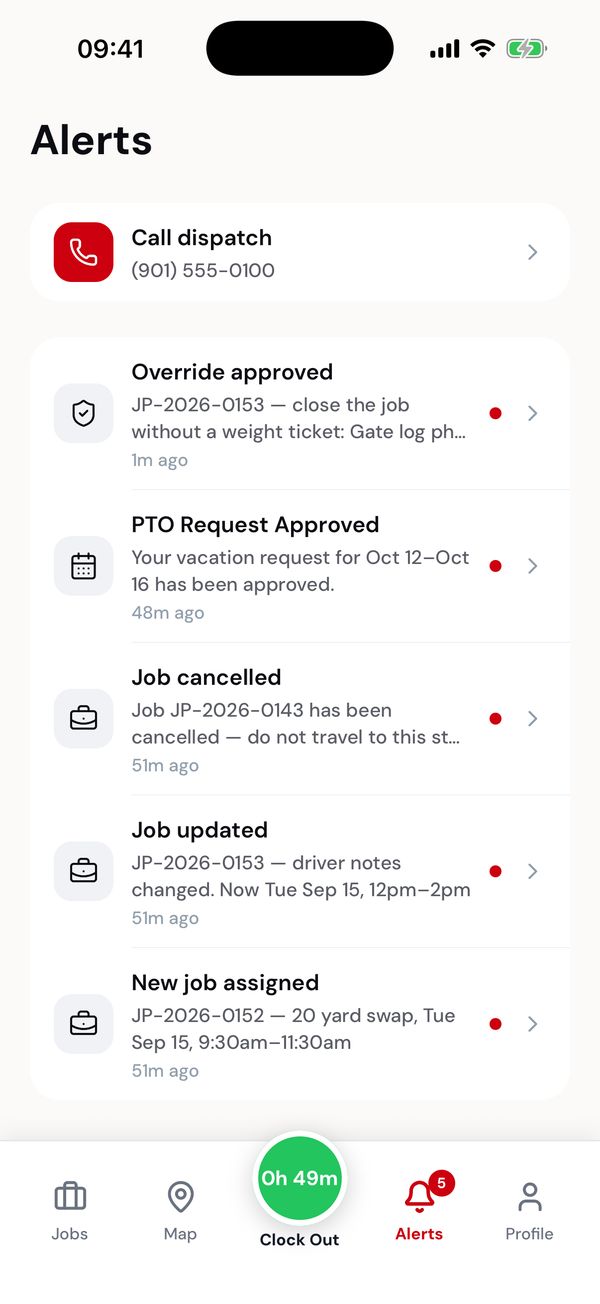
Later that day: the office approved an override.
Choose what you get
Profile → Notifications lets you turn notifications and texts on or off for Job updates, and notifications for Time off. Alerts still collect everything, whatever you turn off.
Keep job texts on unless the office says otherwise. They're how you hear about a cancelled job when you're driving.
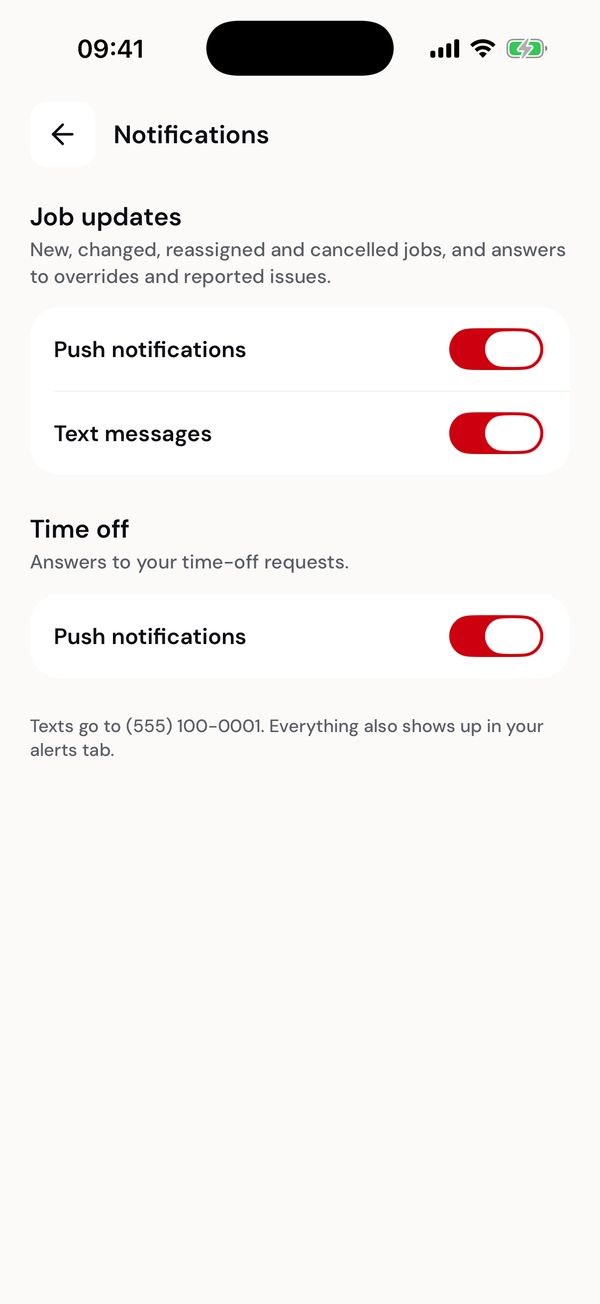
Texts go to the phone number shown at the bottom.