Your day on the Jobs screen
Jobs is the first screen you see. It shows today's route and, once you've started one, the job you're on.
Today's route
At the top, Today is how many stops you have and Done is how many you've finished.
Under Route timeline, every job for today has a number: the order to run them in, by time window. Each card shows the customer, the address, the job type, the container size and the time window. Tap a card to open the job.
The jobs are split into three tabs:
| Tab | Jobs in it |
|---|---|
| Upcoming | Assigned to you for today, not started yet. Every job starts here. |
| In progress | You've tapped Navigate or arrived at the site. |
| Done | Finished. |
A job keeps its number in every tab, so "job 3" means the same job wherever you look.
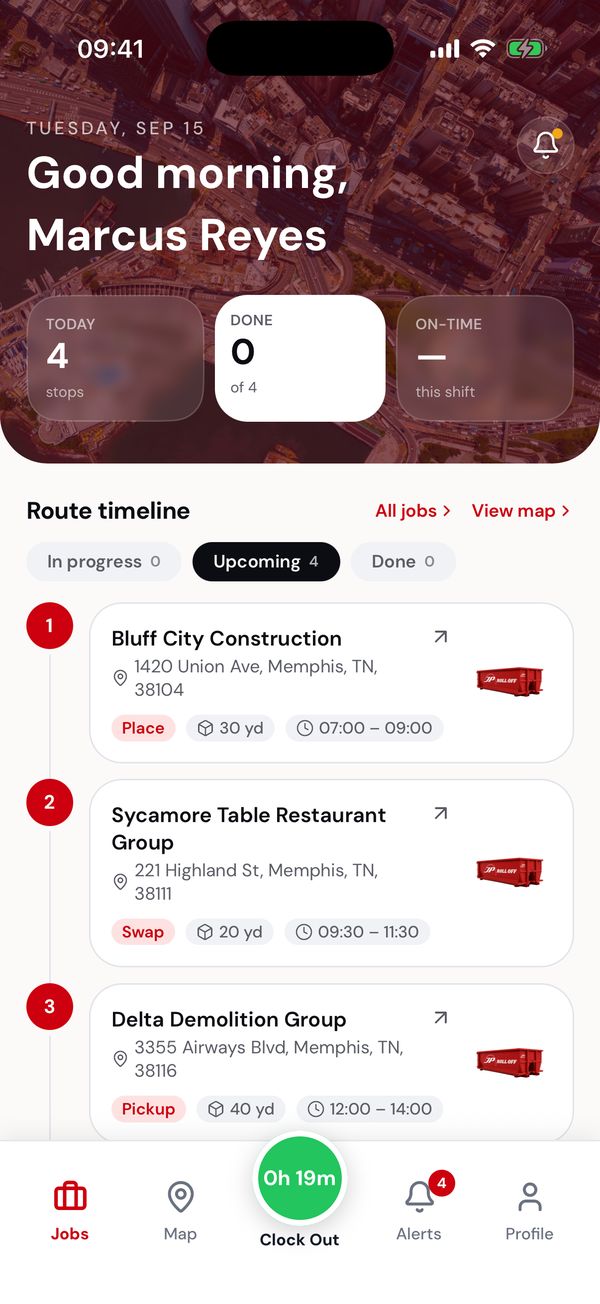
The start of the day: four jobs, numbered in the order to run them.
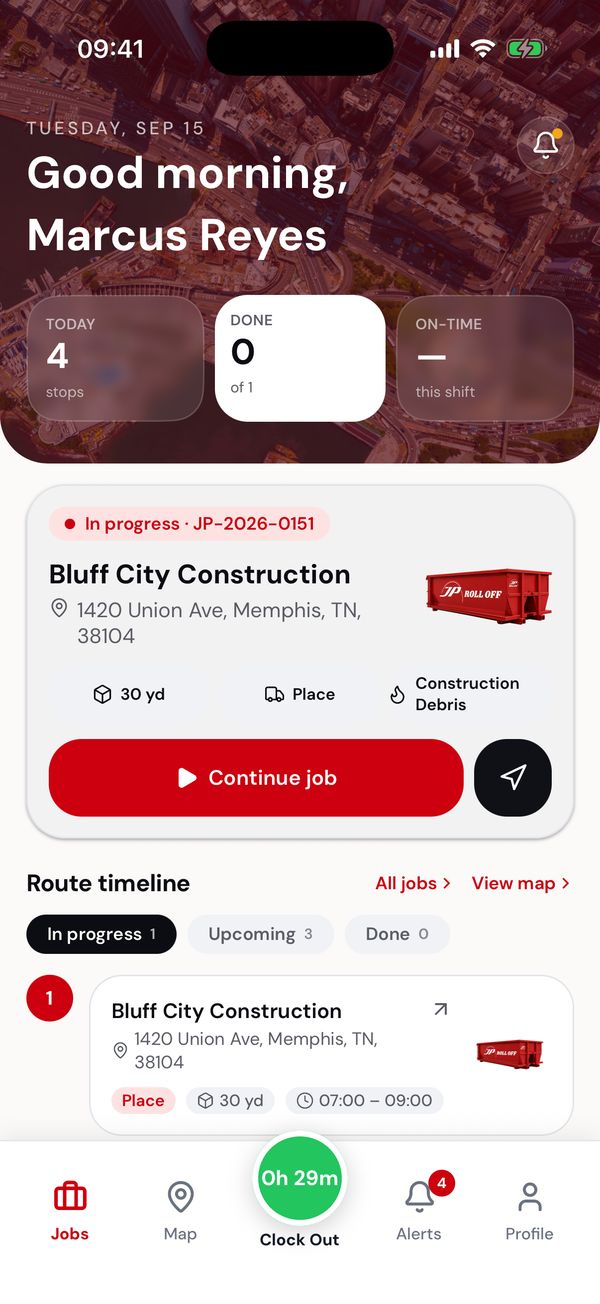
Once you're on a job it sits at the top. Tap Continue job to go back into it.
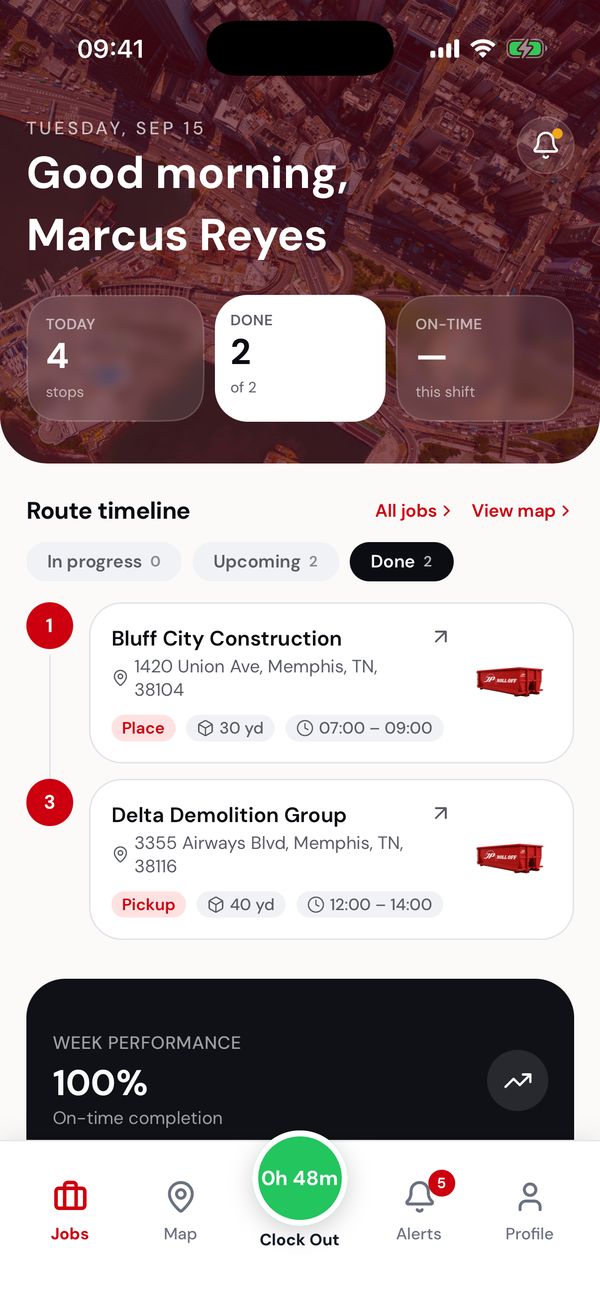
Finished jobs move to Done.
When you're working on a job, a card at the top shows it with Continue job and a navigation button. Use it to get back into the job after taking a call or checking another app.
Week performance shows how many of this week's finished jobs you completed on the day they were scheduled, with a bar for each day.
Which jobs you can work
You can start a job any time on the day it's scheduled. You don't have to wait for the time window to open: the window is when the customer expects you to arrive.
- A job for a later day opens as a read-only summary saying when it's scheduled.
- A job from an earlier day that you never started opens read-only too. Ask dispatch to reschedule it.
- A job you'd already started (on the way or on site) stays open past midnight, so you can finish it.
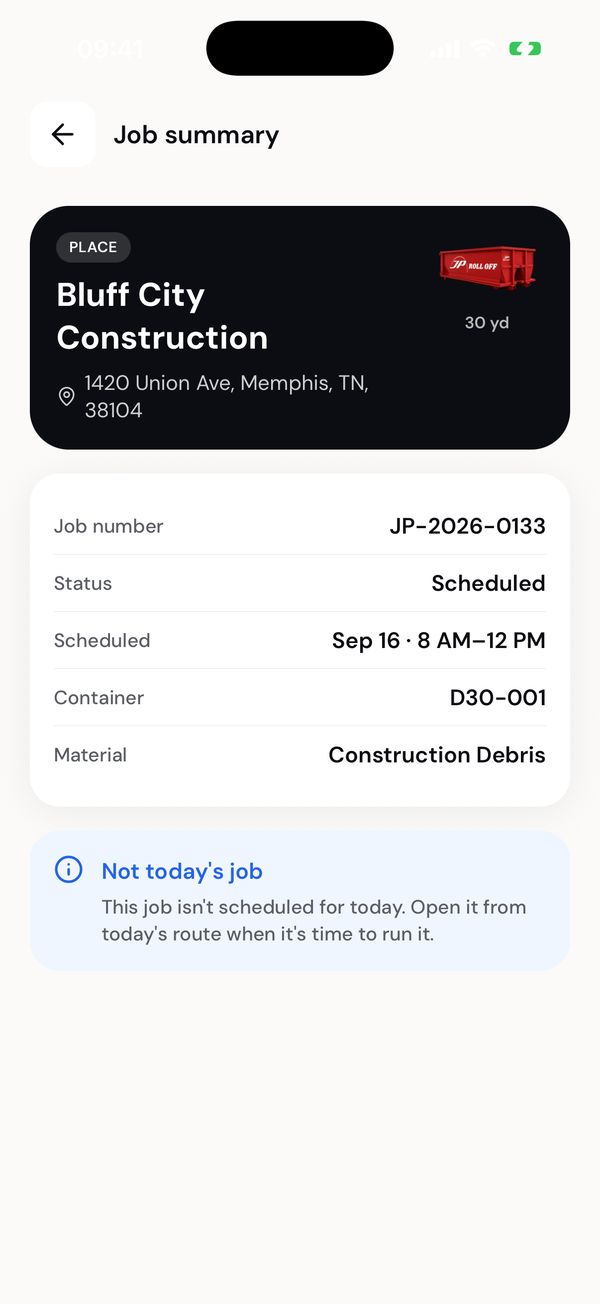
Tomorrow's job: you can read it, not work it.
All jobs
Tap All jobs at the top of the route (or Job history on Profile) to see more than today.
- Upcoming and Past switch between future and finished work.
- Search by job number or customer name.
- Date range changes which days are listed.
- Export shares the list as text, for example to email it to yourself.
Map
The Map tab shows today's stops as numbered pins, with the total route distance and how many stops are left. Tap a stop in the list to open that job. Search finds a stop by customer or address.
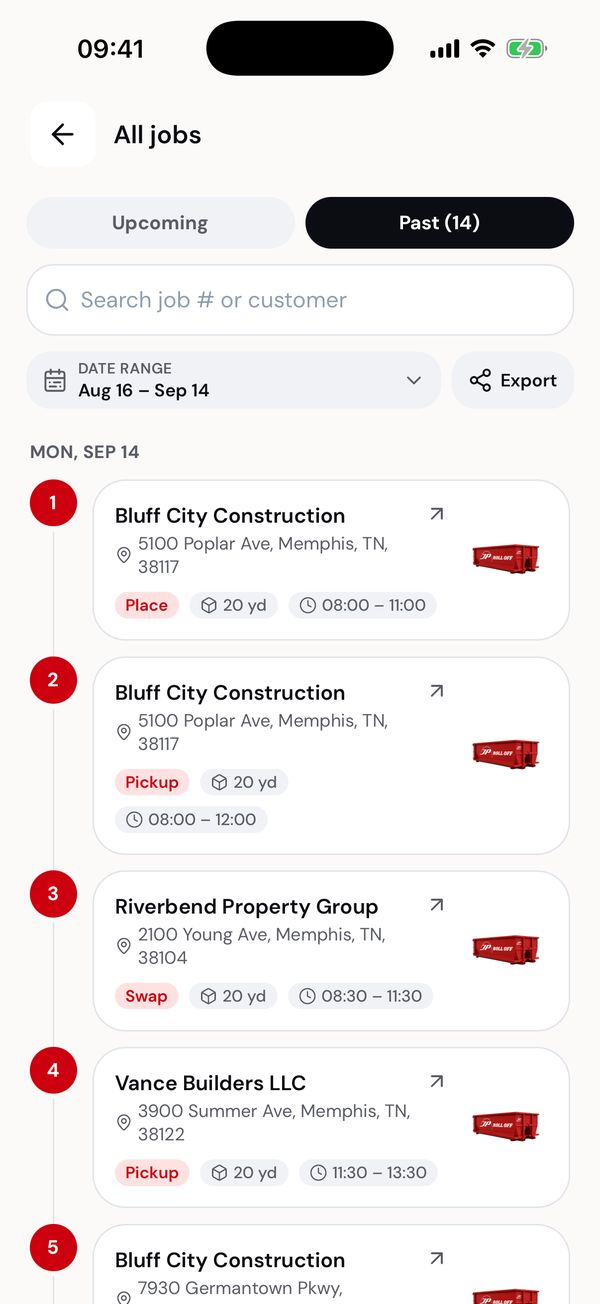
All jobs, grouped by day.
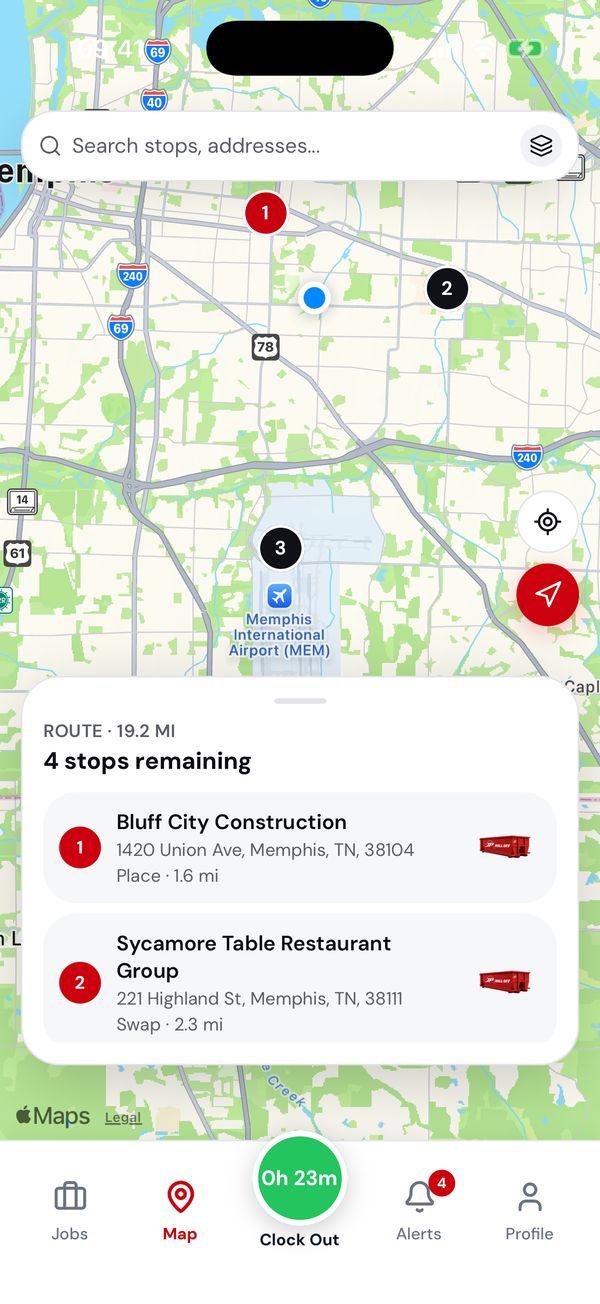
Today's stops on the map.
Clock in and out
Tap the round button in the middle of the tab bar to clock in. While you're on the clock it turns green and counts up your shift time.
To clock out, tap it again. Enter your unpaid break minutes (it starts at 30), then tap Clock Out.
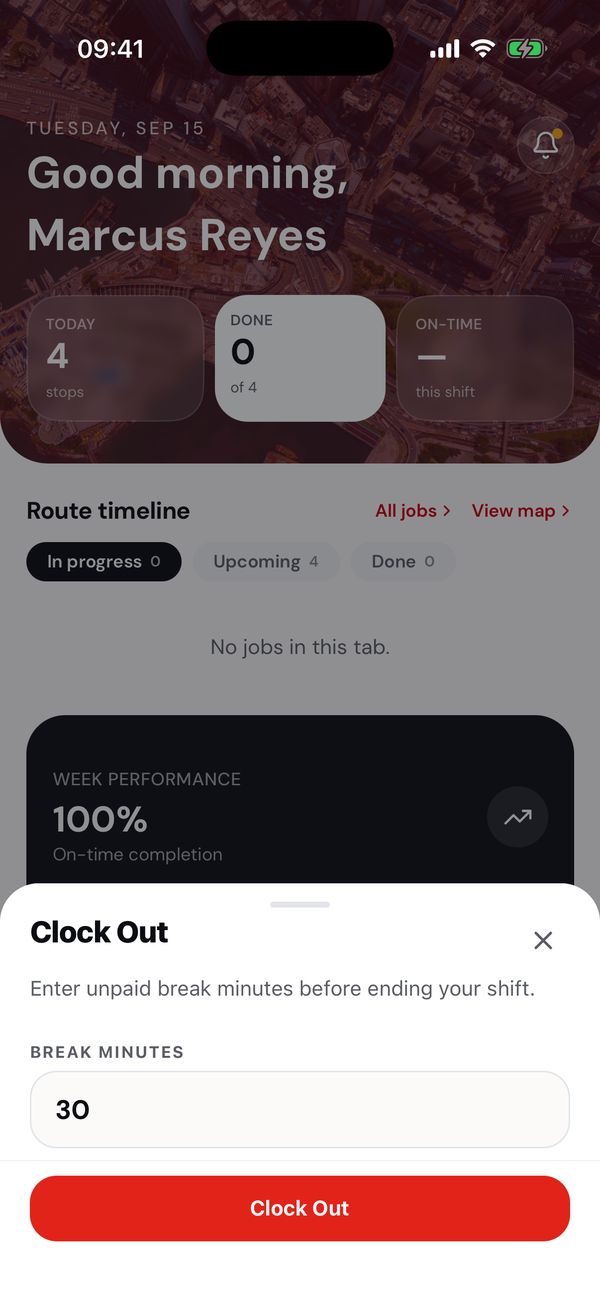
Clocking out asks for your unpaid break.
Clocking in doesn't unlock anything: you can open and work jobs either way. It's what goes on your timesheet, so do it at the start and end of every shift.
If the timer shows days (for example 5d 10h), you forgot to clock out. Clock out now and tell the office which day it should have ended.
Signing out while you're on the clock clocks you out too. The app asks you to confirm first.
Next: Work a job, step by step