Customers and accounts
Customers
Customers is everyone you serve, commercial and residential. The figures across the top count them: total, active, commercial, residential.
Each row shows the contact, the type, how many orders they've placed, what they've spent, what they still owe, and their status. Search by name, company, phone, email or address; filter by type, status or terms.
Terms → On account lists the customers you bill after the job (Net 15 or Net 30). This is the list of your account customers. It isn't Receivables, which is everyone who owes money, whatever their terms.
A customer is Commercial or Residential. Balance owed is what's left unpaid on their sent and past-due invoices, after any payments and refunds. Set Sort to Balance owed, highest first to work collections from the top. The list remembers that order if you refresh or bookmark the page.
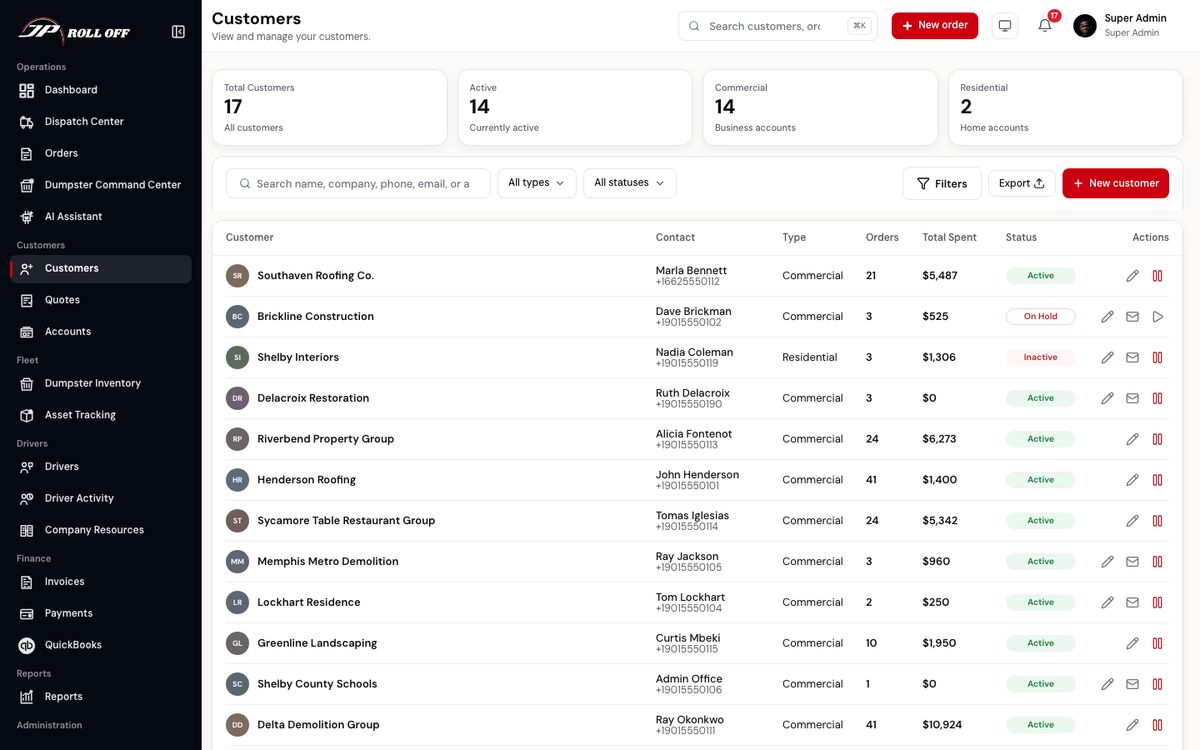
New customer adds one here. The new-order form and New quote can also add a customer without leaving the work in progress.
A customer's status is worth knowing before you promise anything:
| Status | What it means |
|---|---|
| Active | Normal. They can order |
| On hold | Nothing can be ordered until the balance is settled. They see this in their app too |
| Inactive | Not currently trading with you |
Payment terms
Under Billing on the customer form, Payment terms is Prepaid, Net 15 or Net 30.
- Prepaid customers need a card saved before they can order in the portal. When you take an order for one, you choose how they're paying.
- Account customers (Net 15 or Net 30) can order without paying first. When you take an order for one, On account is the only payment method offered, and it's already selected.
Extra rental days
A dumpster kept longer than the rental period is normally charged by the week, and the customer gets a Rental ending soon email two days before.
No charge for extra rental days, under Billing, turns both off. Account customers have it on, and switching a customer to Net 15 or Net 30 ticks it for you. You can tick it for a longtime prepaid customer too, or untick it for an account customer.
A dumpster that's been out a long time still shows as overdue on the dashboard either way. That's your reminder to check on it, not a charge.
A special price for one project
Some projects get a price that isn't the rate card. Open the customer, and under Special prices choose Add: pick the job site, the dumpster size and the price. Later orders for that address and size use it. That includes orders the customer places in the portal, which show Dumpster rental (job site price) on the review step, and orders you create, which show Special price for this job site next to the estimate. Every other address keeps the rate card.
The special price replaces the dumpster price only. The weight allowance and extra days still come from the rate card, and emergency and night are still added on top. Saving a size that already has a price replaces it. Clear puts that size back on the rate card. Orders already placed keep the price they were placed at.
When a customer deletes their portal account
Customers can delete their login from the app or the customer portal. You get a notification and an email straight away. Their customer record, orders, invoices and payments stay here, because you need them for your books. Their saved cards and saved job sites are removed, so a phone order after that needs the card and address again.
If they still had a dumpster on site or an unpaid invoice, the notification says so. Deleting an account doesn't end a rental or clear a balance, so call them to arrange pickup or payment.
A driver can't delete their own account. Delete account in the driver app sends you a request instead. Settle their timesheets, then make them inactive in Drivers.
Receivables
Receivables is the same people seen through what they owe. It used to be called Accounts in the sidebar, which made it easy to take for a list of account customers. It isn't one: a prepaid customer with an unpaid invoice is here too. For your account customers, use Terms → On account on Customers.
The top of the screen is your receivables in one line — the total, then how it splits into past due, open and paid this month — with shortcuts to every open invoice and to the aging report.
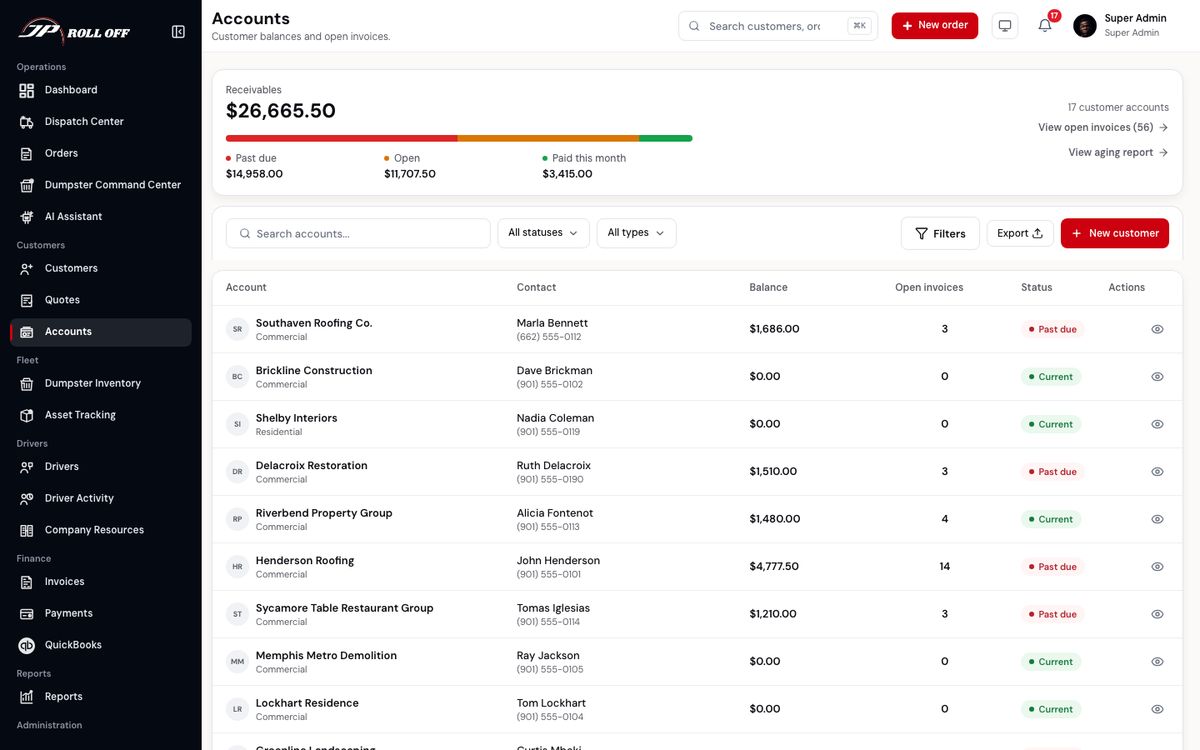
Each account shows its balance, how many invoices are open, and whether it's current or past due.
This is the screen to open when someone asks "can we take another order from them?" — a past-due balance here is the reason a customer's app tells them their account is on hold.
Ratings
Ratings shows how customers rated their finished orders. A customer rates a completed order from its page in the portal, with one to five stars and an optional comment, and can change it later.
The top of the screen is the average, how many ratings there are, and a bar for each star. Click a bar, or the Low (1–2) tab, to see only those. Each row links to its order, with the customer, the driver and the comment. Every new rating, and every changed one, also reaches the office as a notification and in the morning summary. The Customer ratings notification setting turns that off.
Ratings in the portal are separate from Google reviews. The portal rating is for you. The Google review is public.
Quotes
Quotes is for work that hasn't been agreed yet: a price given, waiting on a yes.
When starting a quote, search customers by name, company, phone, or email and choose the matching result. If the customer is new, add them from the quote form; the quote stays open and selects the new customer. Enter the job site ZIP and the dumpster size, and the price fills in from the rate card. Choose a material when that size has its own price for it. You can still change that price before you save the quote.
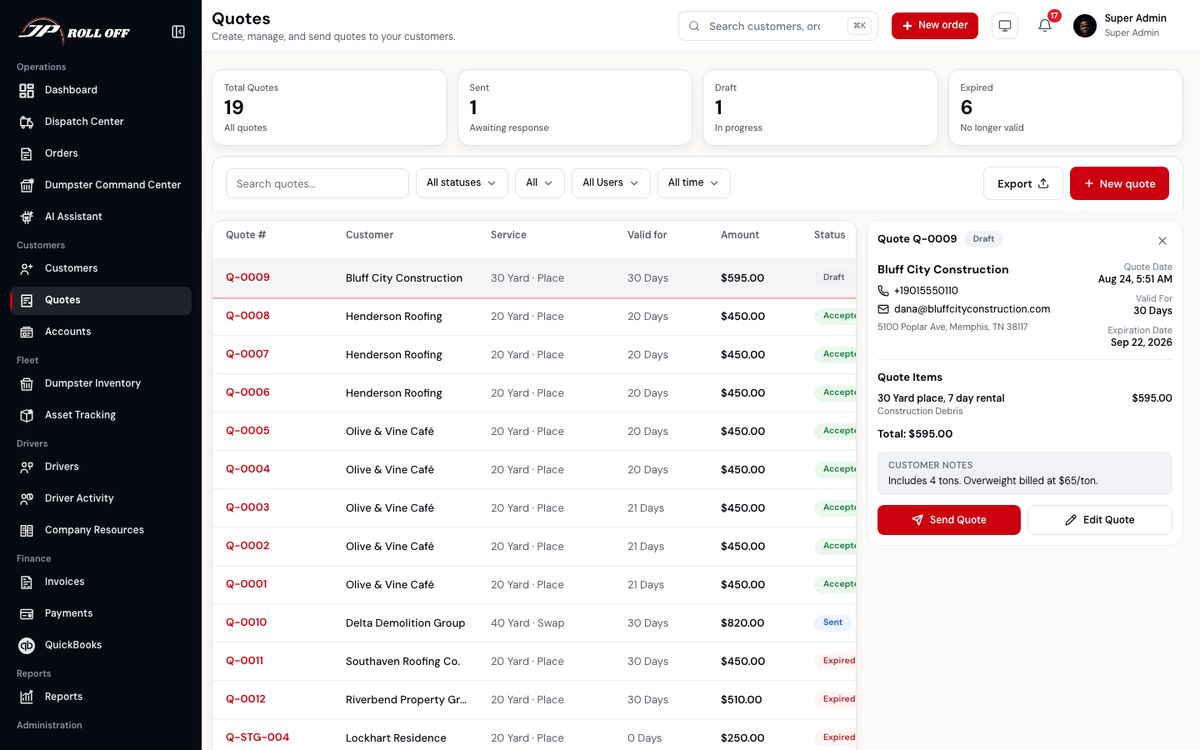
A quote becomes an order once it's accepted.
Some materials, such as dirt, come with terms the customer has to agree to. When you accept a quote for one of those, the terms open first. Tick The customer has agreed to these terms once they have, then Accept quote.
Next: Containers and the fleet