When something needs a decision
Most of the day runs without you. These are the parts that don't: somebody is waiting, and the work stops until the office answers.
A driver is waiting on a weight ticket
A driver at the dump has to record a weight ticket before the job can close. When they can't — the scale is down, the ticket is unreadable, the site won't print one — they tap Request override and give a reason.
That reaches you two ways: a notification, and an email. It also sits on the order, in the panel, with the reason and when it was asked.
The job cannot be completed until you answer. The order says so in as many words. A driver with an unanswered override is parked.
Open the order and you get two buttons:
- Approve without ticket — the job closes without one. Use it when the weight is known another way, or the load is going to be billed at a flat rate.
- Deny — the driver has to produce a ticket.
Either way they get a notification with the answer.
If a driver rings to say they're stuck at a dump, this is the first thing to check.
A problem reported at a stop
Drivers report two kinds of problem from the flag at the top of a stop.
At the dump: wrong material, load rejected, site closed, or something they type. They can pick another dump site to go to instead.
At the customer's site, when the job can't be done: access blocked, the spot for the dumpster blocked, the customer not ready, unsafe to place, or something they type. They must add at least one photo. The driver doesn't set a price and the customer isn't told anything yet. That's your decision.
On the order, the report shows Couldn't complete the job with the driver's note and photos (click one to see it full size). Add trip charge opens Billing with the charge filled in: Trip charge — access blocked, at the standard trip charge amount from Settings → Catalogs. Check the reason and the amount, change either if you need to, and press Add. That's when the customer is told, by notification and email, with the amount and your reason. Then rebook the job or cancel it, and mark the report resolved.
The report lands in your inbox as "Problem at…", or "Dump site change requested" when the driver asks for a different dump site. The route stays on the assigned site until you press Approve site on the order. It stays on the order under History, with the note and the time. A note the driver saves for the address shows on the order as Site notes, and on the next job at that same address.
Reported problems don't block the job the way an override does — the driver has usually moved on. What they need from you is the follow-up: rebooking the stop, ringing the customer, or telling the driver it's sorted. Marking it resolved sends them a notification.
Charges the driver's work added
A job can cost more than it was quoted, and the charges come from what actually happened rather than from anyone retyping a price.
Open the order's Billing tab:
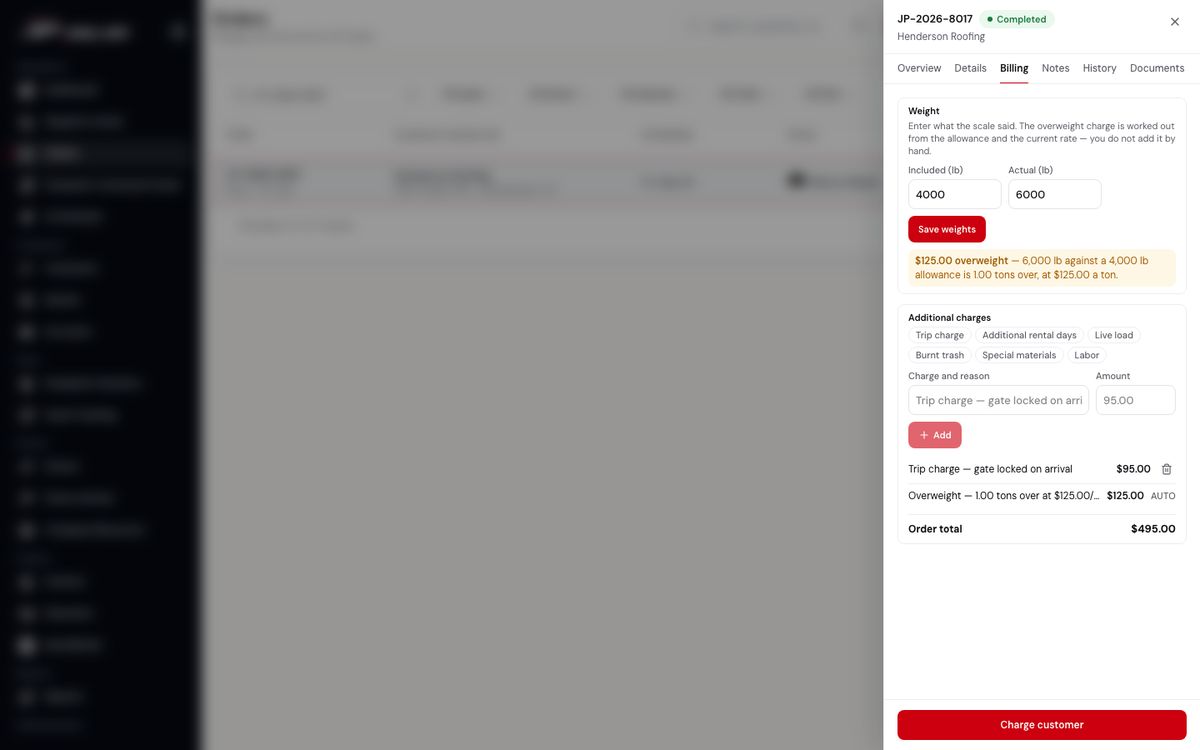
The weight the load was allowed, the weight it actually was, and the arithmetic between them.
Weight is the scale ticket. Enter the actual tons against the included allowance and the overweight charge works itself out at the current rate per ton — the line is marked AUTO because nobody typed it. The note under it shows the sum, so you can check it against the ticket in front of you.
Additional charges is everything else, as buttons for the ones that recur — trip charge, additional rental days, live load, burnt trash, special materials, labour — each taking a reason and an amount. The reason is worth writing properly: it goes on the invoice the customer reads.
The order total at the bottom is what the invoice will say. This is the screen to settle before the invoice is sent, because after that you're issuing a correction rather than getting it right.
An overweight charge also tells the customer: they get a notification and an email saying one was added, so it isn't a surprise on the bill.
Changing an order
A customer ringing to move a date is the most common call the office takes.
Open the order and edit it. Changing the date, the time window, the address or the notes for the driver all reach the driver on their own — a notification, and a text when the job is today or tomorrow. The customer is told too: "New date for your order", by notification and email.
You don't need to ring either of them to say it changed.
Cancelling an order
Cancel order is at the bottom of the order panel. It asks first:
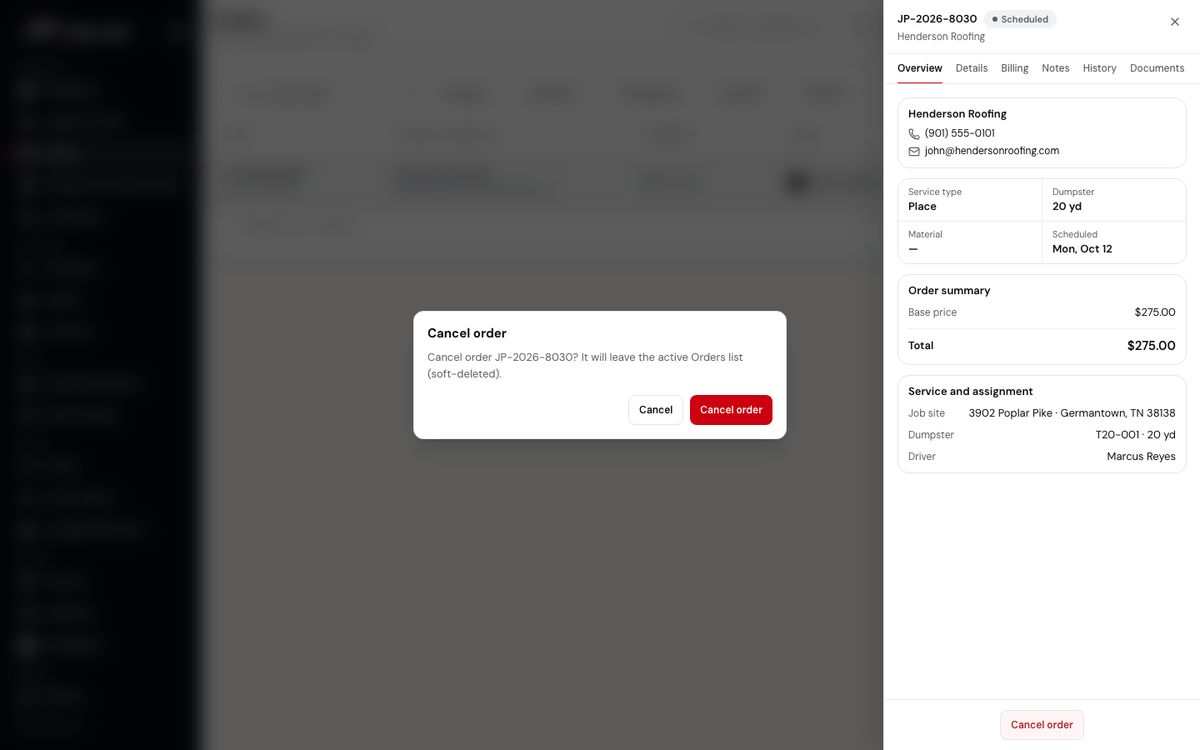
It names the order, and says where it goes.
A cancelled order leaves the active Orders list. It's soft-deleted rather than destroyed, so it can be found again, but it is not a button to press while you're still deciding.
The driver is told, by notification and text, so they don't travel to it. The customer gets a notification and an email.
What happens to the money:
- Paid by card: it goes back to the card on its own. Paid today, the payment is voided and never reaches their statement. Paid earlier, it's refunded, which usually shows in 5 to 10 business days. The customer gets the receipt.
- Not paid yet: the bill is cancelled, so they aren't sent reminders for an order that isn't happening.
- Paid by check or cash: the order won't cancel yet, and the message says how much. Hand the money back, record the refund on the invoice (see void or refund), then cancel. The system can't hand back cash, so it doesn't pretend to.
The button is deliberately quiet — outlined rather than filled, in red text rather than on a red background. Cancelling an order is rare and destructive, and it doesn't get the shape the eye reads as the thing to do here.
Next: Customers and accounts