Dispatch
The day on the board starts at 6 AM and runs through 6 PM. A run earlier or later than that stretches the ruler so it still has a place. The first and last hour say AM or PM.
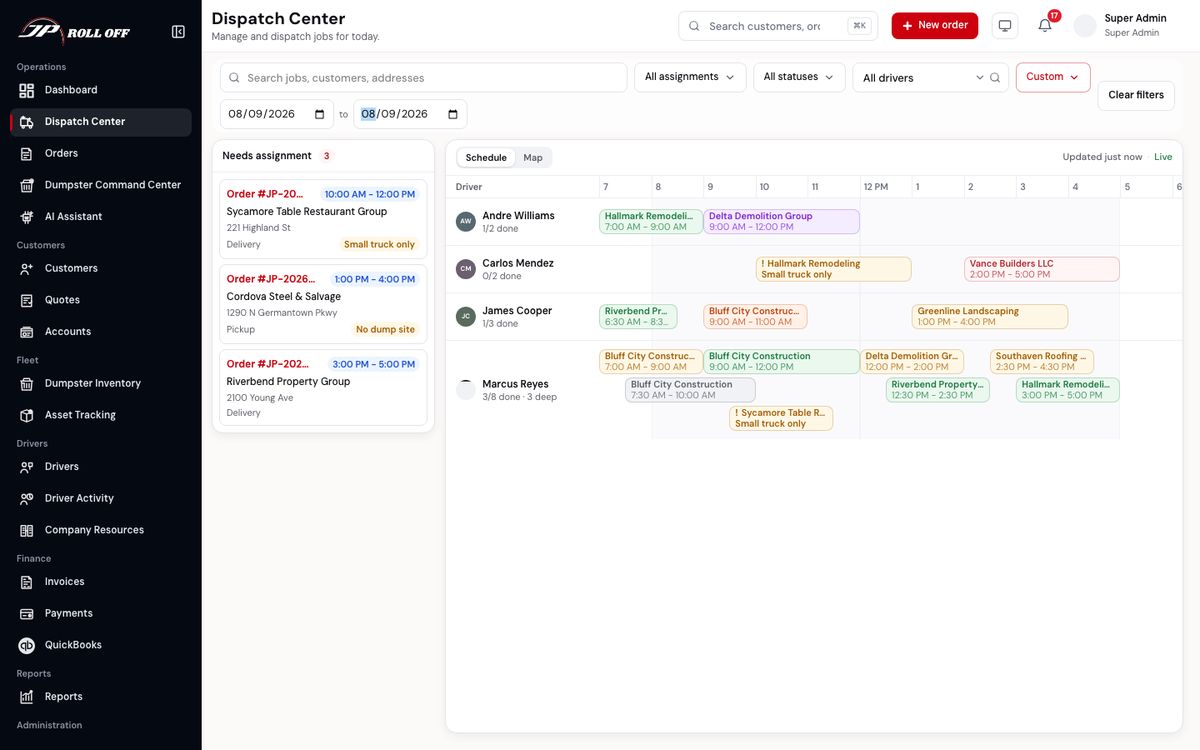
A day's board. Needs assignment counts what's still waiting.
Reading the board
Needs assignment on the left is every job with no driver. That's the definition — a job leaves the rail the moment someone owns it.
Each driver has a lane. Under their name is how much of their day is done (1/2 done), and if their jobs overlap, how many deep the lane is stacked. Lanes grow extra rows when windows overlap, which is most days: a three-hour window is a promise to the customer, not three hours of work.
A block's colour is the job's status. Its border tells you how much to trust where it sits. The words on it are the company, the dumpster size, the service, and the city.
| Border | What it means |
|---|---|
| Solid | A real booked window, like 07:00–09:00. The block sits at its true place on the clock and prints the time |
| Dashed | One of the named buckets — morning or afternoon. The block is packed in running order inside that window, not drawn to length |
That distinction matters. Roughly half of all jobs carry a bucket rather than an exact window, and drawing those literally would fill the board with identical four-hour slabs. A dashed block means "somewhere in this window", not "this long".
A job with no start time at all has nowhere to sit, so it drops into the tray under the board.
Warnings sit on the block and outrank the time: Small truck only and No dump site are the two you'll see most.
Choosing the day
The date control on the filter row is set to Today. Yesterday, Tomorrow and Week are next to it, and Custom takes a from and a to date.
Asking for more than one day swaps the hour ruler for a week grid — a schedule needs a first and a last day to draw, so a custom range needs both ends.
The Schedule / Map toggle puts the live map where the board is. On a phone those become Queue, Board and Map tabs.
Putting a job on a driver
Click a job in the rail — or start dragging it — to arm it. Every lane then shows its free slots as dashed buttons. Click or drop on one.
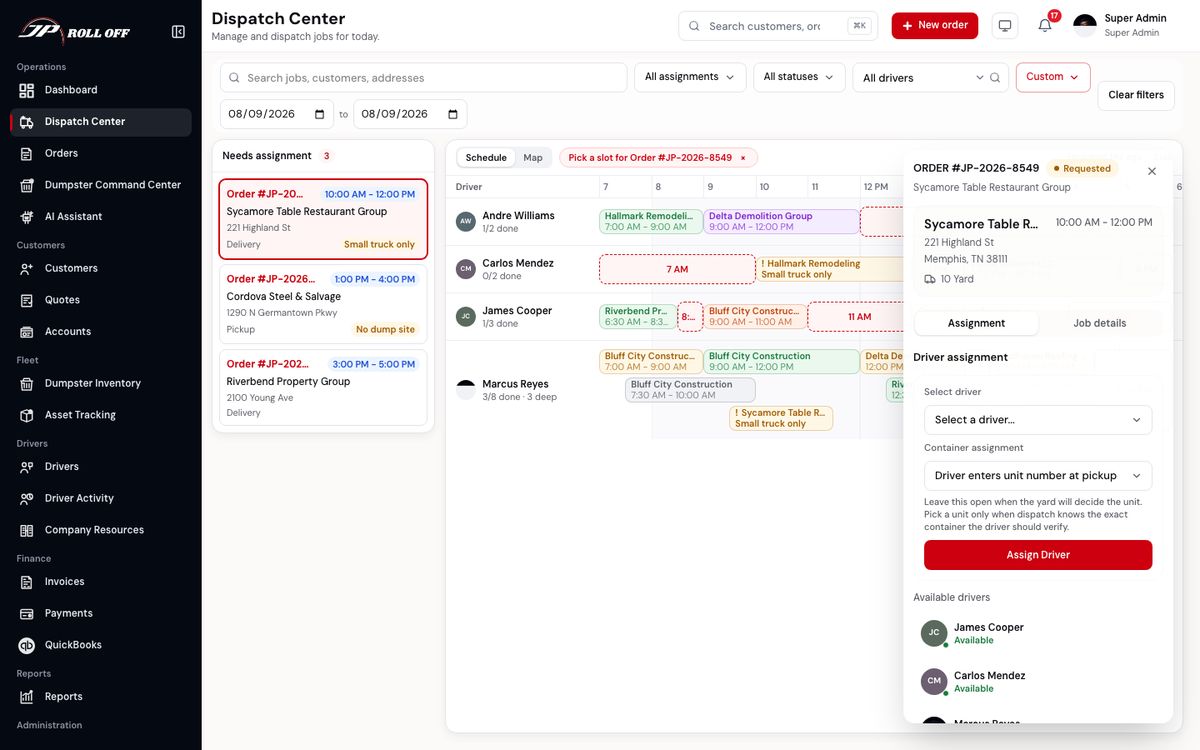
Armed: the banner names the order, the lanes offer their free slots, and the panel opens beside the board.
The slot books two hours from where you dropped it, shortened if the gap is shorter. You can drag a job onto a driver or a time without first choosing Needs assignment. The open times show up while the card is in your hand.
The panel on the right is where you confirm:
- Driver assignment — who's taking it. Available drivers below lists who's free, with their status.
- Dump site — where this run tips. Each site shows its open and close hours in the list. The driver still enters the container number from the yard.
- Time window — the start and end of this run. Save window moves the block on the board. It does not change the driver. On a run with an exact start and end, drag either end of the block. The block grows or shrinks as you drag, the old size stays as a faint outline, and the new times follow the pointer. It snaps to 15 minutes and saves when you let go. A Morning or Afternoon run is not resized that way.
- Job details — the phone, the dump site, the container, and whether the order is paid, on this screen. You do not have to open the order for those.
Assign Driver commits the driver and the dump site.
:::note Why the job may still show its old time for a moment Assigning writes the driver first and the time window second. If the second write fails, the job is assigned and still wearing its old time — visible on the board and fixable in a click. The other order would strand a rescheduled job under the wrong driver, where nobody would see it. :::
What the driver sees
The moment a job is assigned, it appears on that driver's route for the day and they're sent a notification and a text. If you take it off them again, or cancel it, they're told that too.
From there the job is theirs to move: when they tap Navigate the status becomes on the way, when they arrive it becomes on site, and the customer hears about both without anyone here relaying it. The driver guide's page on who hears what is the full list.