Sign in and find your way around
Signing in
Open the portal in a browser and sign in with the email and password your administrator set up for you.
There's no self-registration: accounts are created for you. If you don't have one, ask whoever manages the system for your company — the login screen says the same thing.
Forgot password? sends a reset link to your email.
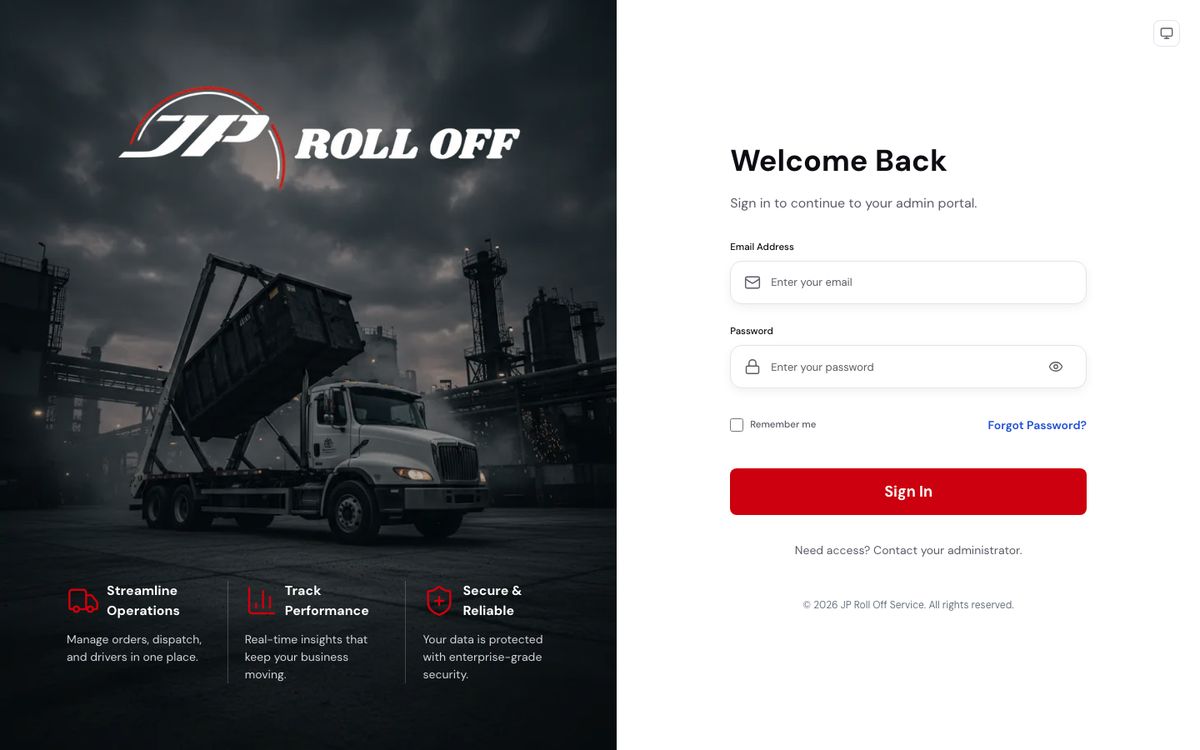
Remember me keeps you signed in on this computer. Leave it off on a shared one.
The shell
Every screen has the same three parts.
The sidebar on the left is how you move around. It's grouped — Operations, Customers, Fleet, Drivers, Finance, Reports, Administration — so you can ignore the groups that aren't yours. The button at the top collapses it to icons when you want the room for a wide table or the map.
The search box at the top finds customers and orders from anywhere. You don't have to be on the right screen first.
New order is always in the top right. It's the same form wherever you start it.
Beside it are the notifications bell and your account menu.
A new notification plays a short chime. To turn it off, untick Chime for new notifications under the bell, or use Settings → Notifications → Sound on this computer. The choice is saved on that computer only, so a desk computer can chime while a laptop stays quiet. A browser plays sound only after you've clicked somewhere on the page.
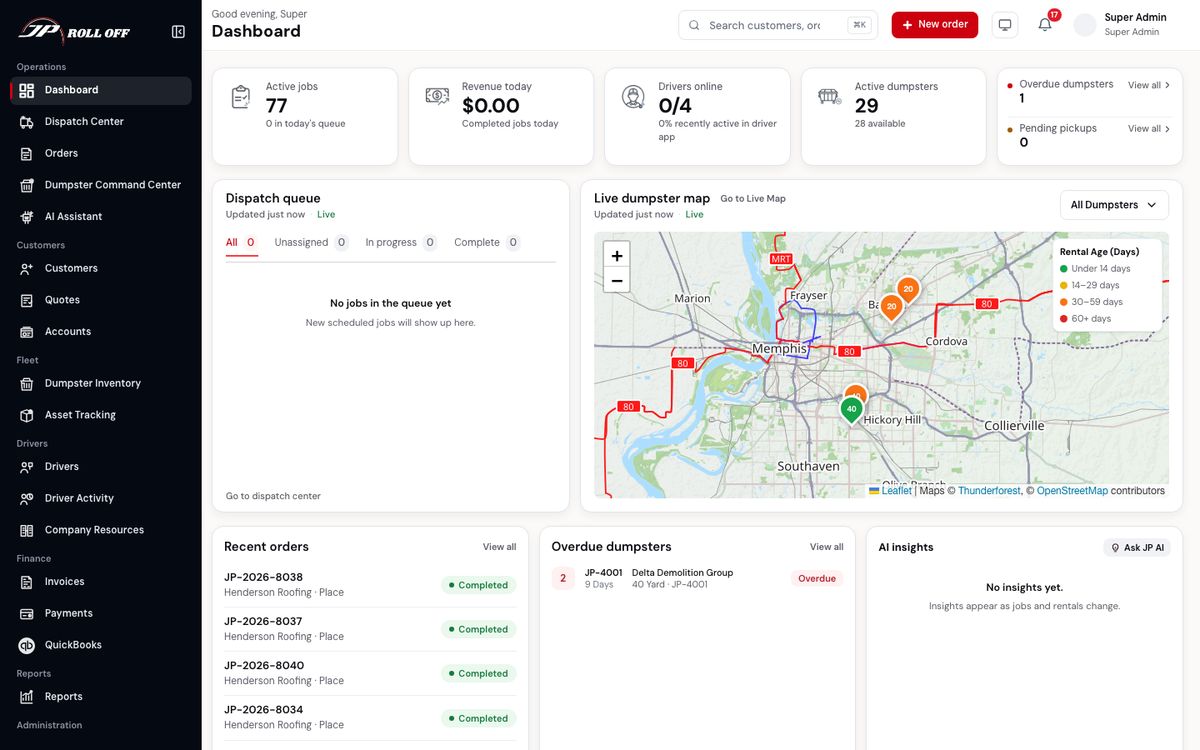
The dashboard is what opens when you sign in.
The dashboard
The dashboard is a read of the day, not a place you do work.
- Active jobs and how many are in today's queue.
- Revenue today and completed jobs.
- Drivers online — how many of your drivers have the app open.
- Active dumpsters — how many containers are out, and how many are free.
- Overdue dumpsters and pending pickups, each with View all.
Under those, Dispatch queue shows what's waiting to be assigned and Live dumpster map plots your containers, shaded by how long they've been on site. Recent orders and Overdue dumpsters list the records behind the numbers — click any of them to open it.
Most people glance at this and then go to the one screen they live in: dispatch, orders, or invoices.
Next: Orders