Orders
Orders is every job, however it arrived. An order a customer placed in their app and one you keyed in over the phone are the same kind of record from here on.
The list
Each row is one order: its number, the customer and job site, the scheduled day, the driver, whether it's been paid, and the job status.
Narrow it with the filters along the top — types, drivers, statuses, cities and date range — or search by job number, customer or street. Export downloads what you're looking at.
Date range is the order's scheduled day: Yesterday, Today, Tomorrow, This week, This month, or Custom for your own from and to dates. Days follow the company's timezone, so at 11pm "today" is still today. The list starts on All time, so a job booked weeks out isn't hidden.
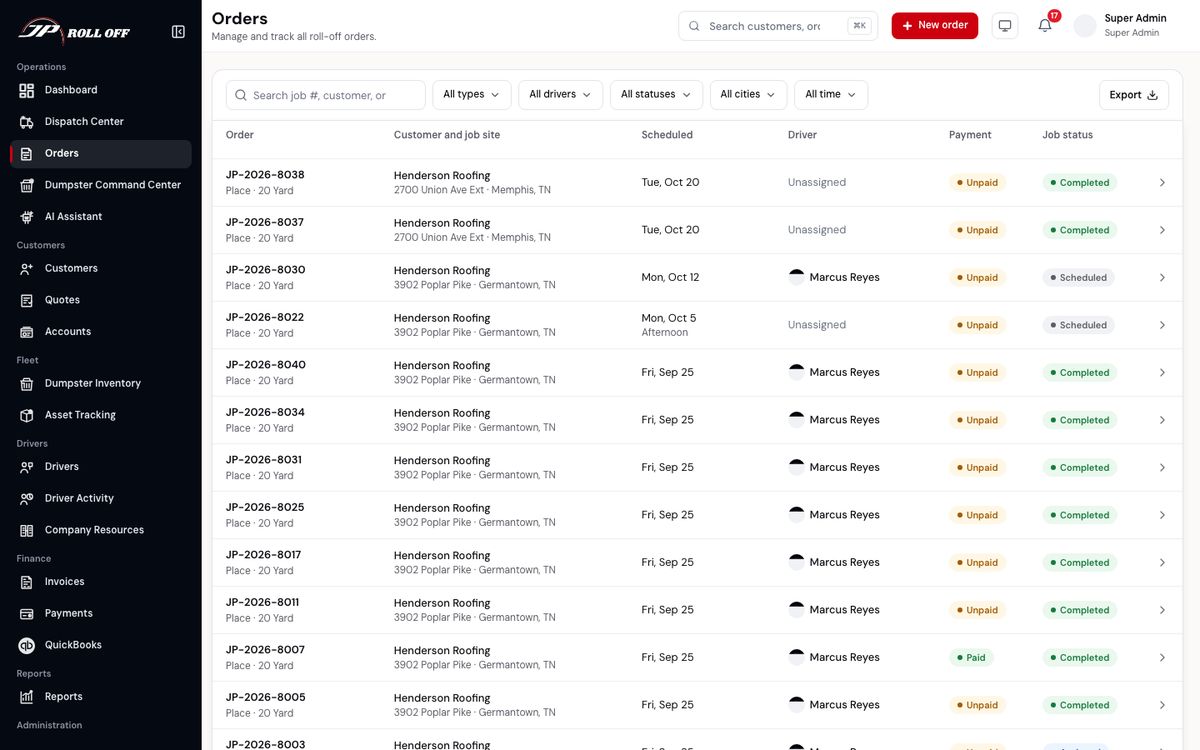
A row with no driver reads Unassigned. Those are the ones dispatch still has to place.
Opening an order
Click a row and the order opens in a panel beside the list, so you don't lose your place.
The panel has tabs:
| Tab | What's in it |
|---|---|
| Overview | The customer, service type, container size, material, scheduled day, and the job site, driver and container assigned to it |
| Details | The rest of the order's fields |
| Billing | The invoice, and what's been charged |
| Notes | Anything the office has written on this job |
| History | Every status change, with when it happened |
| Documents | Photos and the signature the driver captured |
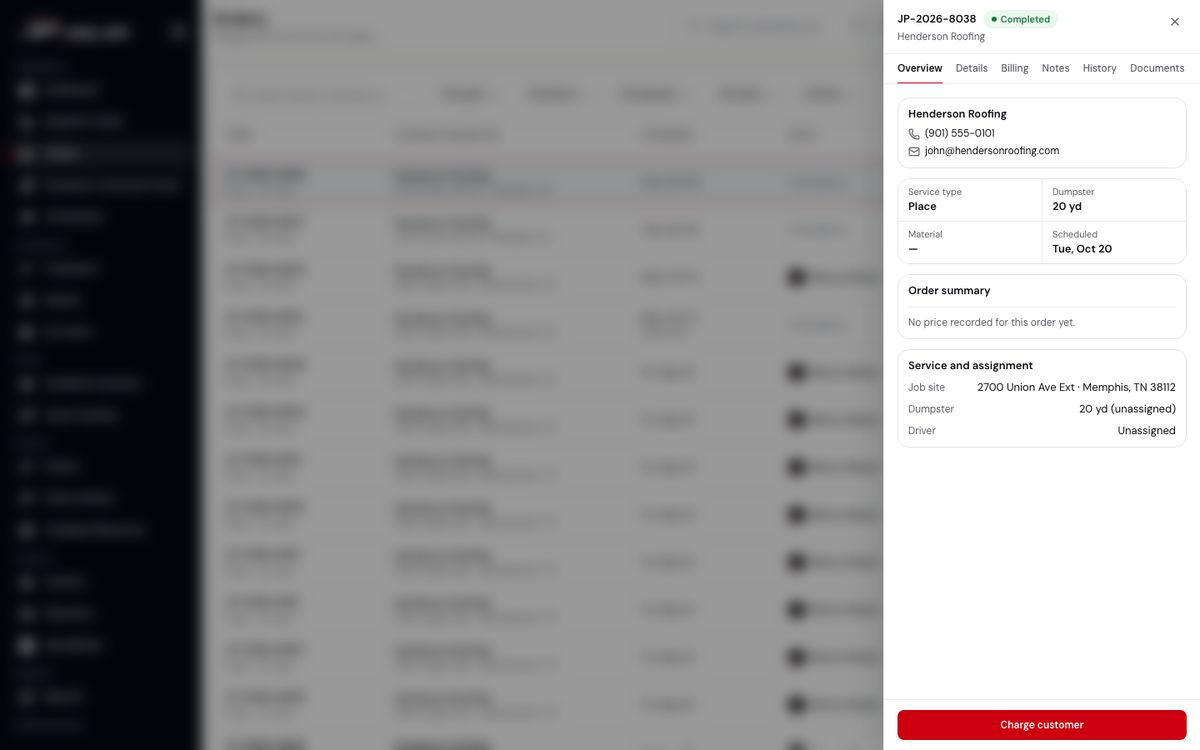
Charge customer at the bottom takes payment against this order.
The status on an order is the driver's own reported progress — it moves when they tap through the job on their phone, not when someone here types it. That's what makes History worth reading when a customer asks what happened.
Taking an order over the phone
New order, top right of any screen.
The form is one page in sections, with a live summary down the right:
- Basic information — the job site address and the customer. If they're new, New customer creates them without leaving the form. A PO number is optional. Choosing one of the customer's saved job sites fills in what that site remembers: its PO number and whether it's Small truck only.
- Service type — Place, Swap, Removal, Relocation, or Live load. A trip charge is not chosen on this form.
- Container size — 10, 15, 20, Tall 20, 25, 30 or 40 yard.
- Waste type — what's going in it.
- Payment method — cash, credit card or check for a prepaid customer. For an account customer, On account is the only choice and it's already selected.
- Schedule and contacts — the preferred date, a delivery window, and who the driver should look for on site.
Small truck only is remembered on the job site. Tick it once and every later order to that address starts ticked, so you don't enter it again. You can still untick it on a single order if the access has changed. Unticking it there doesn't change what the site remembers.
On a Place order, the same section has Emergency and Night. Each adds $250 to the dumpster price, and the summary shows both lines. They are not their own order type. Only the office books them. Customers do not see them in the portal or the app.
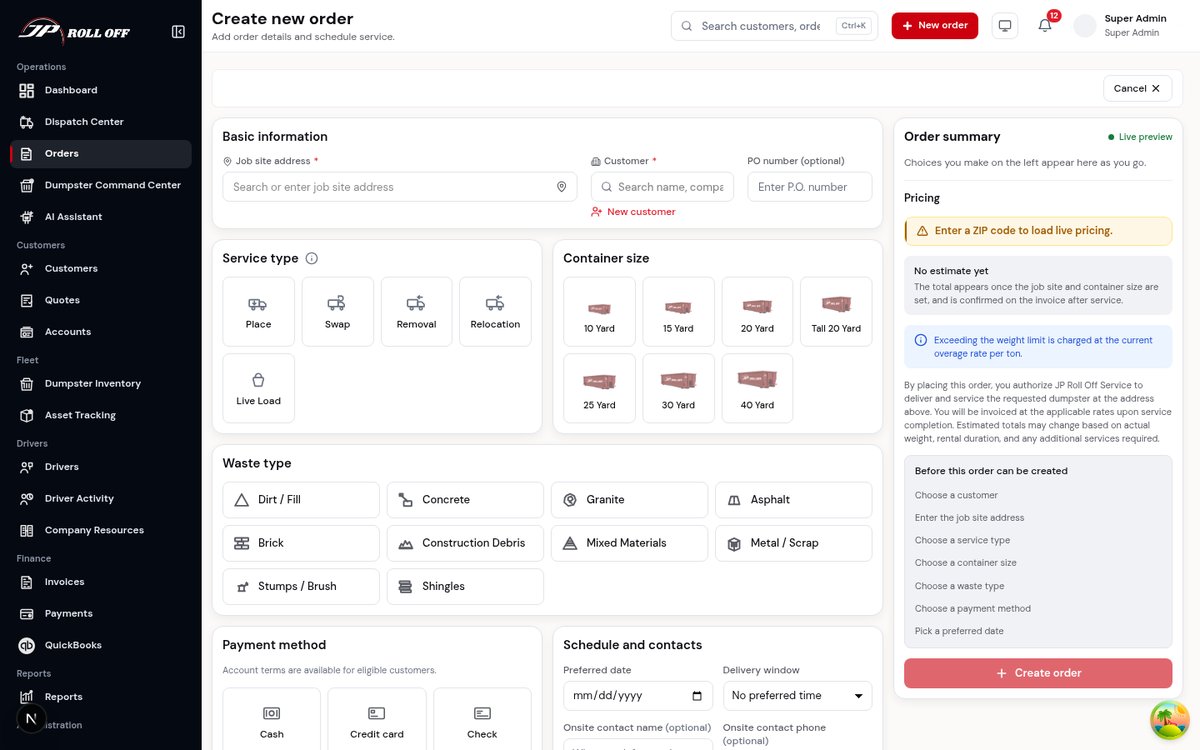
Before this order can be created lists exactly what's still missing.
The summary on the right prices the order as you fill it in. It needs a ZIP code before it can quote, so the estimate appears once the job site address is in. Exceeding the weight limit is charged at the current overage rate per ton, and the total is confirmed on the invoice after service — the estimate is an estimate.
Create order stays disabled until the checklist under the summary is empty. The checklist is the fastest way to find what you've missed: choose a customer, enter the job site address, choose a service type, a container size, a waste type, a payment method, and pick a preferred date.
A new order arrives as pending. It isn't on anyone's route until dispatch schedules it.
When the customer pays by card
Choose Credit card on a delivery for a customer who pays up front (not one on account terms). The customer is then sent a link to pay right away, by email and by text. They don't need a portal login, which suits one-time customers. The message after Create order says how the link went out, or why it couldn't.
Until they pay, the order shows Awaiting payment on the Orders list and on the dispatch board. It's a reminder, not a block: you decide whether the truck goes before the money arrives.
To send the link again, open the order's invoice under Invoices and press Send reminder, or Copy pay link to paste it into a text of your own.
Cash, check and account orders work as before. Swaps and removals are billed after the service.
Quick swap
When a delivered dumpster is still on site, its order panel has Quick swap. It opens this form as a Swap, already filled in with the customer, that job site, the size on site and the material. Change any of them if the replacement is different, choose the date, and create it as usual.
The same shortcut is on the map in Dumpster Command Center (see Containers and the fleet). That one is quicker but only carries the size, so use Quick swap when the material or size matters.
Closed days
Settings → Company profile has Closed days. A day on that list cannot be chosen for an online order. The office can still book it. The 2026 days marked Closed on the holiday sheet start on that list. New Year's Eve is on it too, because a half day blocks online orders. A DC non-workday does not. After noon, customers also cannot place a next-day online order. That cutoff is company time.
Next: Dispatch