Reports and settings
Reports
Reports is the business over a period rather than a day. The row across the top is the headline: revenue and the jobs behind it, orders completed, the average ticket, invoices on the whole ledger, and how many drivers were active.
Choose a report type, a customer, a date range, and whether to look at all jobs. Export takes what you're looking at out as a file.
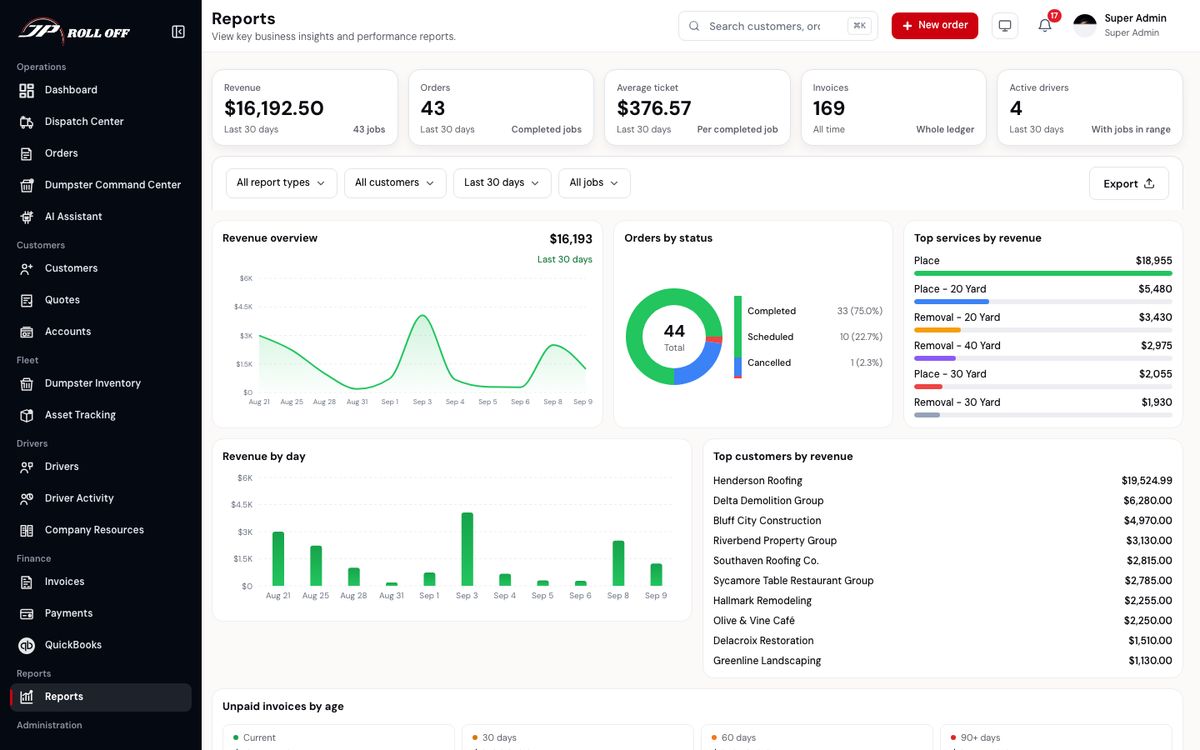
Everything here follows the filters above it.
Underneath:
- Revenue overview and revenue by day — the trend, and the shape of the week.
- Orders by status — completed, scheduled and cancelled as a share of the period.
- Top services by revenue — which sizes and service types actually earn.
- Top customers by revenue.
- Unpaid invoices by age — current, 30, 60, 90+ days. This is the one to read before a chase.
Team management
Team management is the people who use the portal: who has an account, and what they're allowed to do.
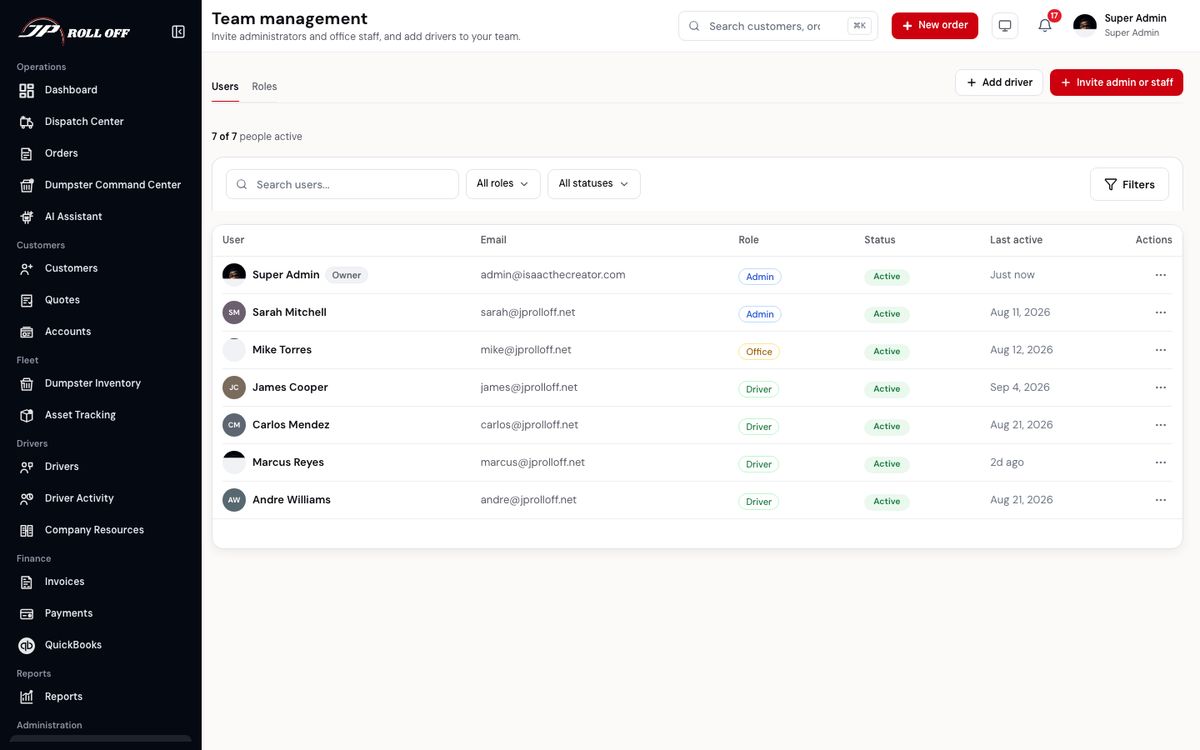
Accounts are created here — nobody registers themselves.
Settings
Settings holds the company-level configuration: the details that appear on documents, rates, and the defaults the rest of the portal uses.
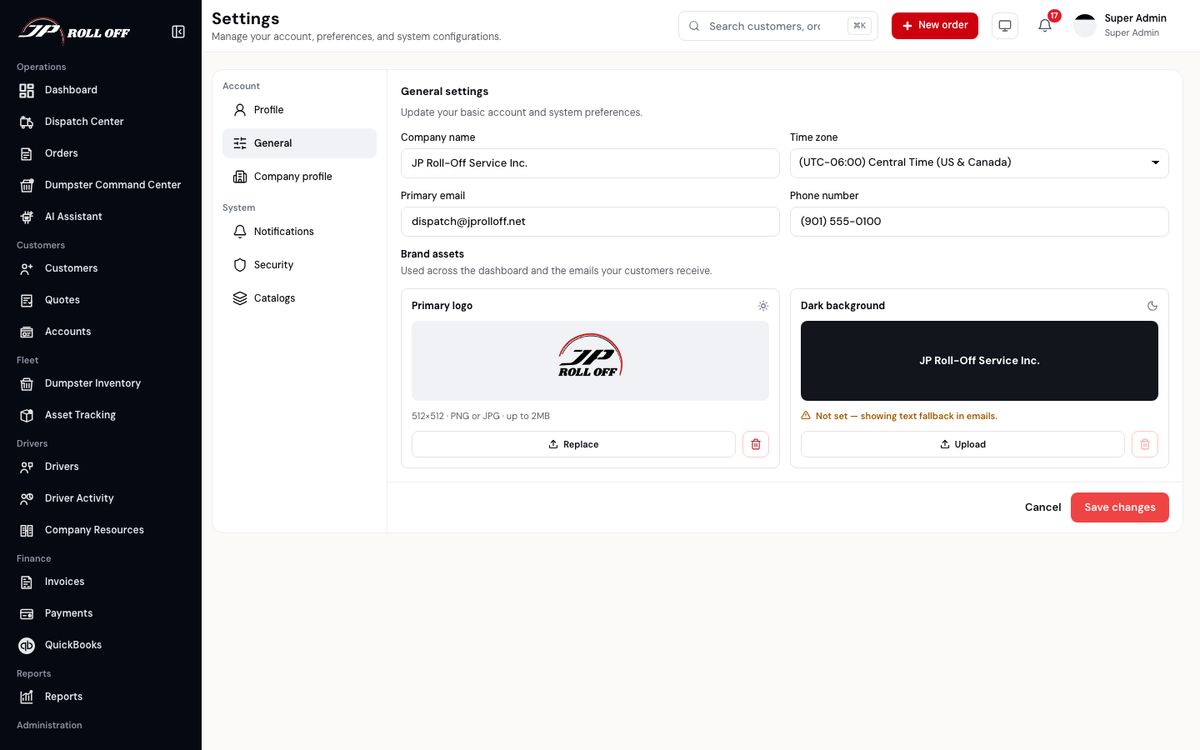
Changes here affect everyone, and some of them affect what customers are charged. If you're not sure, ask before you save.
Google review link
Company Profile → Contact & Location → Google review link is the link customers are sent an hour after a job is completed. In Google Business Profile, choose Ask for reviews and copy the link it gives you. Leave it blank and no review request goes out. What customers hear has the rules for who is asked and when.
Next: Problems and questions